
Apply tax at contract and line-item levels, set up payment retainage, understand how they work together, and track retained amounts across your project. This keeps payment processing accurate for construction projects.
Before you start
- The contract must have a Contract Standard set (the Terms tab appears only after you select one). You can select the standard after the contract is created.
- All figures entered in Mastt should be before tax.
- Tax is only applied on exports (payment certificates, schedules, change order letters).
Choose how to apply tax
| Method | When to use it |
|---|---|
| Contract-level tax | Applies a single tax rate to all line items within a contract. The quickest method when all items have the same tax treatment. |
| Line item-level tax | Applies different tax rates to individual line items within the same contract. Useful when some items are taxable while others are tax-exempt. |
Set contract-level tax
Open your contract
- Click Cost in the left navigation bar.
- Click Contracts in the top navigation bar.
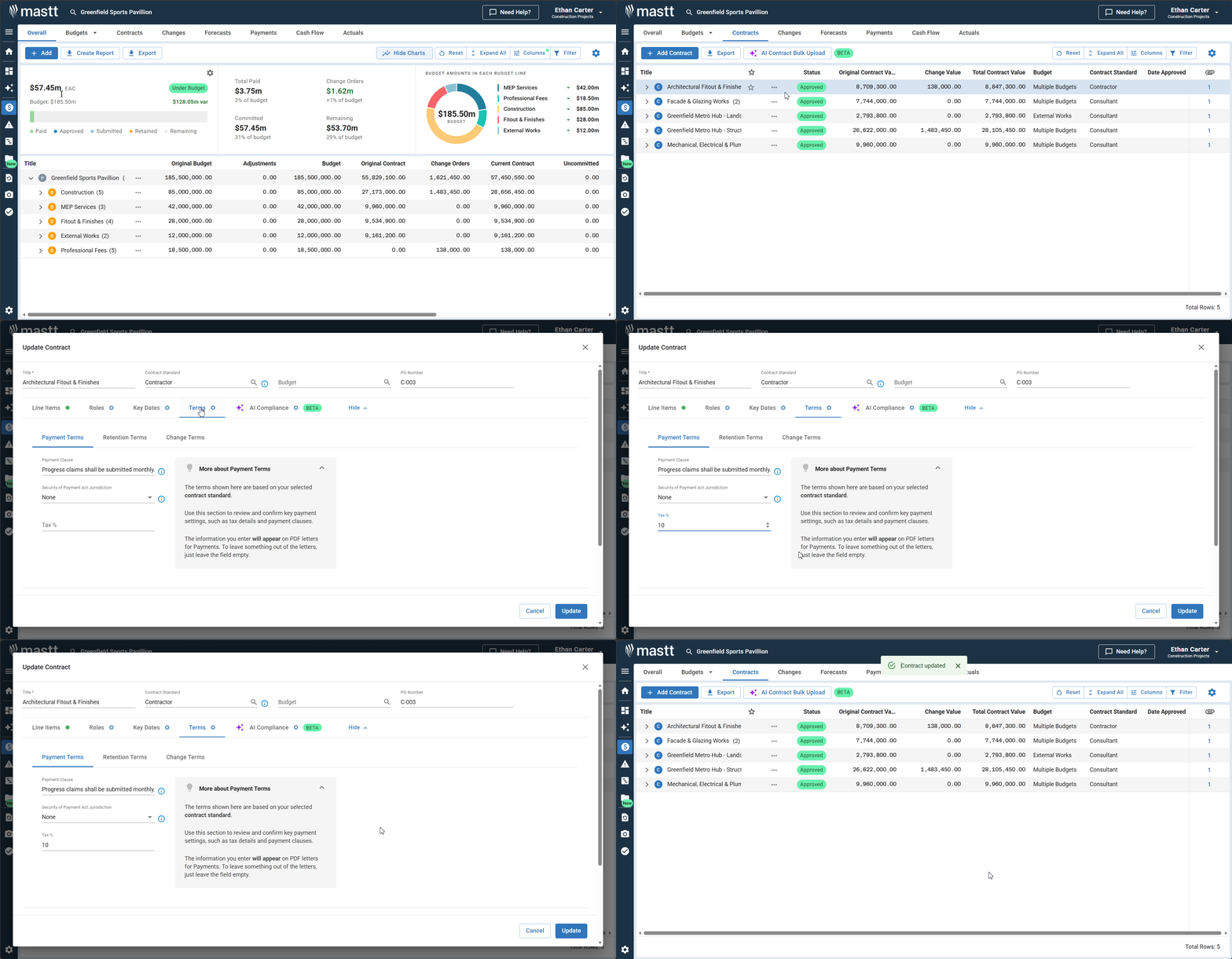
- Click the Action button (three dots) beside the contract you want to configure, then click Edit Contract.
Enter the tax rate on the Terms tab
- Click the Terms tab in the middle of the contract form.
- Scroll down to find the Tax % field.
- Enter your tax percentage (e.g., 0% for tax-free contracts, or your applicable rate).
- Click Update to save. A line item with no Tax % of its own counts as 0%, so check the Tax % column on the Line Items tab (see below).
Note: The Terms tab only appears after you've selected a Contract Standard.
Set line item-level tax (contracts and change orders)
Line-item tax works identically for both contracts and change orders.
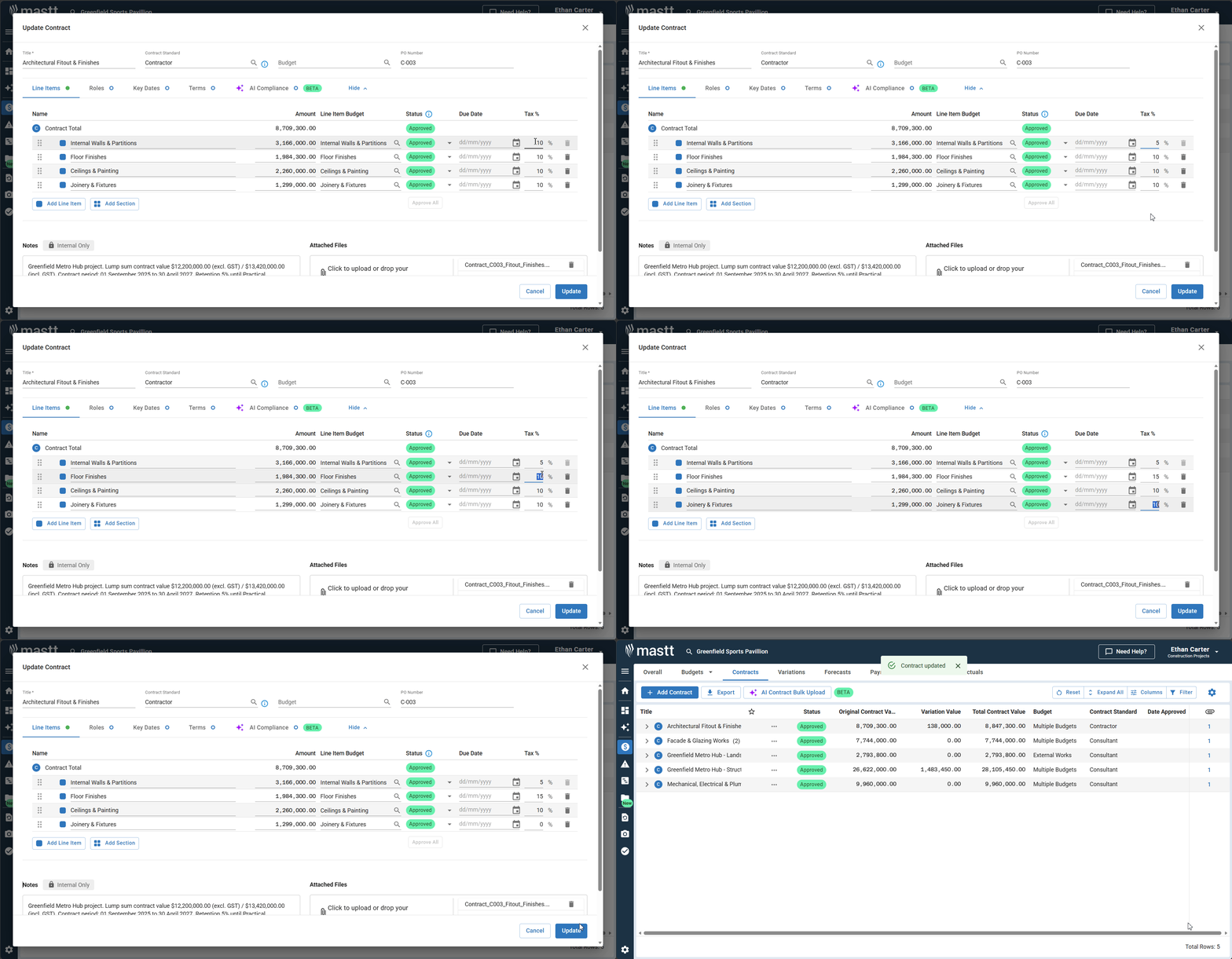
- Open the contract (Action > Edit Contract) or the change order (Action > Edit Change), then click the Line Items tab.
- Scroll horizontally to locate the Tax % column (at the right end of the table).
- Click into the Tax % field for the line item you want to configure.
- Enter the tax percentage (e.g., 0% for tax-exempt, or your applicable rate).
- Repeat for each line item requiring a specific tax rate.
- Click Update (or Add if creating a new contract).
Warning: Line item-level tax overrides contract-level tax for that specific item. For example, if contract-level tax is set to 10% but a line item has 0% entered, that line item will be tax-exempt.
Set up payment retainage
Retainage is the amount held back from payment until certain conditions are met, such as project completion or the end of the defects liability period.
Turn on retainage
- Open your payment form.
- Above the line items table, switch on the Retention toggle.
The Retainage %, Retainage this Period and Total Retainage columns appear on each line item, and a Retention section appears below the table.
Apply retainage in bulk
- Find Bulk retention in the Retention section.
- Choose Percentage or Amount and enter the value (see the options below).
- Under Apply to, choose Contract only or Contract + Change Orders.
- Click Apply. The retainage is added across all the lines.
| Option | What it does |
|---|---|
| Percentage | Enter a percentage. It's applied as the retainage percentage on all line items. |
| Amount | Enter how much you're retaining in this payment. Mastt breaks it down across the line items so the retainage percentage is the same on every line. |
Adjust retainage on individual lines
To set retainage for a single line item, enter a Retainage % on that line.
The Summary below the table shows Total Retained, Previous Retention, Retained This Payment and Net to Pay This Period. Click Update (or Add for a new payment) to save the payment with retainage applied.
Where retainage appears in Mastt
Once you apply retainage to payments, the retained amounts flow through to several areas of the platform for full visibility.
| Area | What you see |
|---|---|
| Payment Register | Shows retainage per payment and total held per contract (see steps below). |
| Overall page | The Total Paid column excludes retained amounts and reflects only the cash actually released. |
| Cash Flow | Retained amounts appear in the Cash Flow view and sit in the unassigned column, representing funds you can release in the future. |
| Dashboard Module | A Total Retained KPI tile shows the total amount retained against the project. Payment Breakdowns and Cost Overviews also display retainage amounts broken down by category. |
To show retainage in the Payment Register:
- Go to the Payments page and use the Group By dropdown to group by Contract.
- Click Columns in the top-right toolbar and enable the Retention Amount column.
Amount Remaining on the Overall page is calculated as Estimate at Completion (EAC) minus Paid, Approved and Submitted payments and Total Retained.
Understand retainage rules
- Choose what retainage applies to — when you apply retainage in bulk, choose Contract only or Contract + Change Orders under Apply to.
- Per-payment calculations — each payment can have its own retainage, giving you flexibility as the project progresses.
- Per-line retainage — you can set a different retainage percentage on individual line items.
Example: To retain 10% on both a $100,000 contract and a $20,000 change order, enter 10 in Bulk retention with Percentage selected, choose Contract + Change Orders, and click Apply. That retains $12,000 ($10,000 + $2,000).
How tax and retainage work together
When you export payment certificates or schedules, Mastt calculates amounts in this order:
- Remove retainage amounts from the gross payment total.
- Calculate tax on the amount remaining after retainage is deducted.
- Apply tax to get the final payment amount.
| Calculation example | Amount |
|---|---|
| Starting amount | $100,000 |
| Retainage (10%) | -$10,000 |
| Subtotal after retainage | $90,000 |
| Tax (sales tax 10%) calculated on $90,000 | +$9,000 |
| Final payment | $99,000 |
Tax is calculated on $90,000 (after retainage), not on the original $100,000.
Tip: Always review exported payment certificates to ensure tax and retainage calculations are correct before sending to clients.
Troubleshooting and FAQs
What if the Terms tab doesn't appear in my contract?
Open your contract and complete the Contract Standard field at the top of the contract form first. Once set, the Terms tab will become available.
Why isn't my percentage retainage including change orders?
Under Apply to, choose Contract + Change Orders, then click Apply again. With Contract only selected, change orders are left out.
What if I need different retainage amounts for different line items?
Enter a Retainage % on each line item that needs its own amount.
How do I verify my tax and retainage calculations are correct?
Export a payment certificate and review the breakdown. It will show gross amount, retainage deducted, subtotal, tax applied, and final payment amount in the correct order.
What if my Payment Certificates aren't calculating tax correctly?
Check that all line items and change orders have a tax rate set. A line item with no entry in its Tax % field counts as 0% (tax-free), even if the contract has a Tax % set.
Why doesn't the Total Paid on the Overall page match my total approved amount?
The Total Paid excludes retained amounts — it reflects only the cash actually released. Check the Total Retained figure to reconcile the difference.
Need help?
Contact Mastt Support for assistance with tax and retainage configuration.