
Mastt AI Pre-fill automatically extracts key information from PDF documents when you add contracts or payments. Use this feature to reduce manual data entry and improve accuracy when you process construction documents.
Before you start
- You must have access to the Cost Module in your project.
- Your documents must be in PDF format.
- Use clear, high-quality scans for best results.
- Remove password protection from PDFs before you upload them.
Add a contract with AI Pre-fill
Upload a contract document
- Go to the Cost Module.
- Click Contracts.
- Click + Add Contract (top left).
- Click Upload File to select your PDF, or drag and drop the file into the upload field.
Check the contract standard and roles
Warning: The Contract Standard field must be populated. Roles do not display correctly if this field is blank.
- Make sure the Contract Standard field at the top of the form is populated and correct.
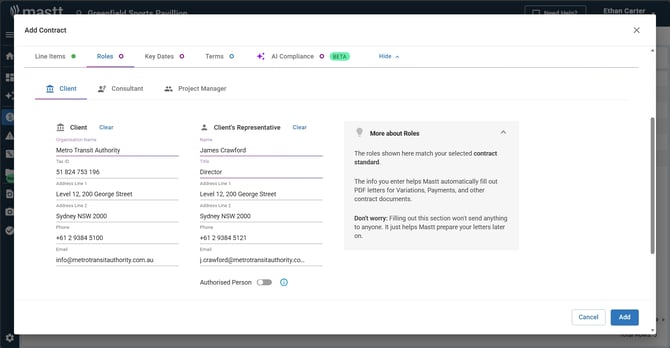
- Click the Roles tab to check the AI-extracted roles from your uploaded document.
- Check the pre-filled roles on each role tab. For A133-2019, these are Owner, Construction Manager, Project Manager and Architect.
- Select the appropriate roles, or change them manually if needed.
Check payment terms
- Click the Terms tab.
- Go to Payment Terms.
- Check if the Payment Clause has been pre-populated from your uploaded document.
- Change the Payment Clause if a correction is needed, or enter it manually if the field is empty.
- Check the Tax % field and change it if needed.
Assign the contract to a budget
- Check if the contract was automatically assigned to a budget based on the uploaded document.
- If the contract was not automatically assigned, select the appropriate budget from the dropdown.
- Make sure each line item is assigned to the correct budget.
- To split the contract across budgets (Multi Budget Contract), select the appropriate budget for each line item on the Line Items tab.
- Click Add (bottom right) to complete the contract.
Add a payment with AI Pre-fill
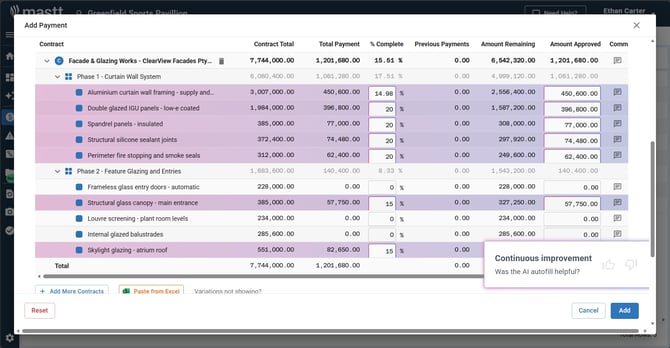
Note: Fields with purple backgrounds contain AI-extracted data. Always check these carefully before you finalize the payment.
Upload and check payment data
- Go to the Cost Module.
- Click Payments.
- Click + Add Payment (top left).
- Click Upload File to select your PDF, or drag and drop the file into the upload field.
- Check all fields with purple backgrounds, as these contain AI-extracted data.
- Make sure the payment amount, date, and contract references are correct.
- Check any other details the AI extracted from your invoice.
- Click any field to change it if a correction is needed.
- Select the payment status from the dropdown. Choosing Approved fills in Date Approved automatically, and choosing Paid fills in Month Paid, which is where the payment appears in the Cash Flow module.
- Click Add (bottom right) to complete the payment.
Troubleshooting and FAQs
What if the AI does not extract information from my document?
Make sure your PDF is not password-protected or encrypted. If the document is a scan, try a higher-quality version with clearer text.
What if the AI extracted incorrect data?
Click the affected fields to correct the data before you click Add. All AI-extracted fields (purple background) are editable.
Can I use AI Pre-fill with non-PDF documents?
No. AI Pre-fill only supports PDF format. Convert your document to PDF before you upload it.
Need help?
Contact Mastt Support for additional assistance with AI Pre-fill for contracts and payments.