
Use this guide to edit forecast details, close outdated forecasts, and delete forecasts that were created in error. Where possible, close a forecast instead of deleting it to maintain your project records.
Before you start
- You need edit permissions for the project.
- Have updated cost information and supporting documentation ready (if applicable).
Choose what to do
| Action | When to use it | Effect on the Forecast Final Cost |
|---|---|---|
| Edit a forecast | You need to change forecast details | The Forecast Final Cost recalculates automatically |
| Close a forecast | The forecast is outdated and you want to keep it in your project records | The closed forecast no longer affects the Forecast Final Cost but remains available for review and audit |
| Delete a forecast | The forecast was created in error | The forecast is permanently deleted and cannot be recovered |
Edit a forecast
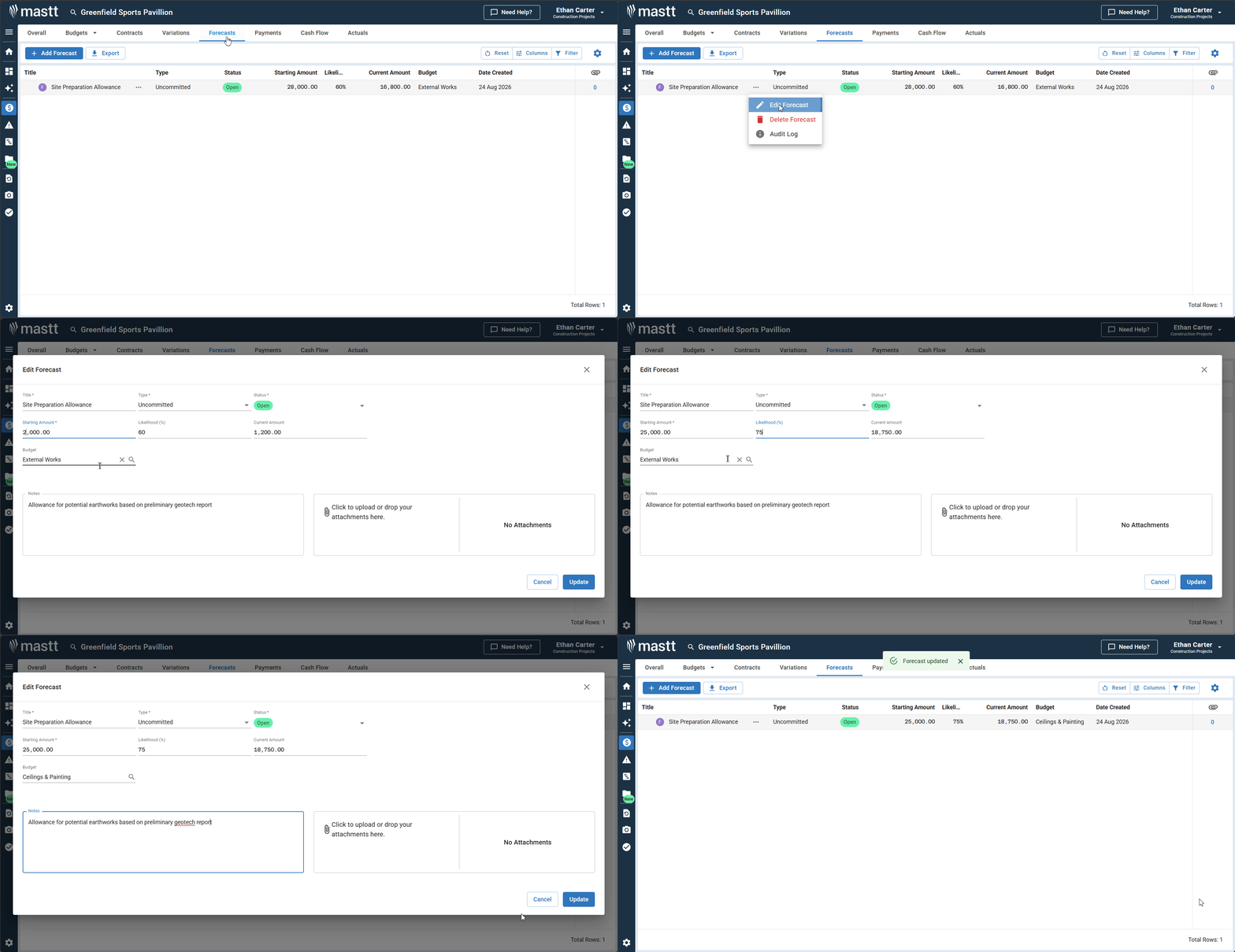
- Go to Cost in the side navigation bar.
- Click the Forecasts tab at the top of the page.
- Click the Action button (...) next to the forecast you want to change.
- Select Edit Forecast from the drop-down menu.
- Change the necessary details in the Edit Forecast window.
- Click Update to save your changes. The Forecast Final Cost recalculates automatically.
Note: You can also edit a forecast from the Overall page.
Close a forecast
Close a forecast to keep it in your project records without it affecting the Forecast Final Cost. Forecasts with Draft status also have no impact on the Forecast Final Cost or financial reports.
- Click the Action button (...) next to the forecast you want to close.
- Select Edit Forecast from the drop-down menu.
- Click the Status drop-down menu.
- Select Closed.
- Click Update. The closed forecast no longer affects the Forecast Final Cost but remains available for review and audit.
Delete a forecast
Only delete forecasts that were created in error. This action cannot be undone.
Warning: All cash flow data associated with the forecast is also permanently deleted.
- Click the Action button (...) next to the forecast you want to delete.
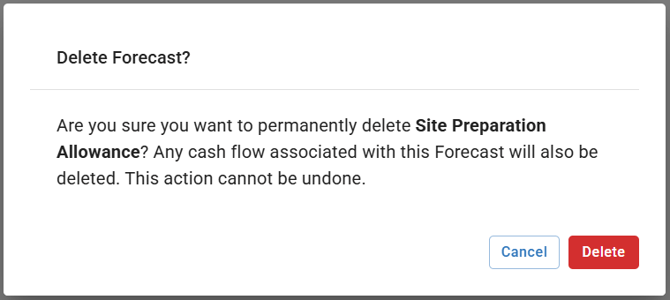
- Select Delete Forecast from the drop-down menu.
- Click Delete to confirm.
Update a risk-based forecast
You can't delete a risk-based forecast from the Forecasts page. To change it, update the linked risk instead.
- Click the Action button (...) next to the risk-based forecast.
- Select Edit Risk from the drop-down menu to edit the risk in place, or Go to Risks to open it in the Risk module.
- Change the risk details.
Troubleshooting and FAQs
How do I know if a forecast is risk-based?
Click the Action button (...) next to the forecast. Risk-based forecasts are linked to items in the Risk module, so their menu includes Edit Risk and Go to Risks.
What if my Forecast Final Cost seems inaccurate after making changes?
Check all active forecasts to make sure the amounts are correct. Check that every forecast you expect to count has the status Open. Draft and Closed forecasts are excluded automatically.
Need help?
Contact Mastt Support for additional assistance with forecast management.