
Mastt AI Pre-fill automatically extracts key information from PDF documents when you add contracts or payments. Use this feature to reduce manual data entry and improve accuracy when processing construction documents.
Before You Start
AI Pre-fill is not available on Gov instance workspaces. Use manual entry for contracts and payments instead.
- You must have access to the Cost Module in your project
- Your documents must be in PDF format
- Use clear, high-quality scans for best results
- Remove password protection from PDFs before you upload them
Add a Contract with AI Pre-fill
Upload a Contract Document
- Go to the Cost Module.
- Click Contracts.
- Click + Add Contract (top left).
- Click Upload File to select your PDF, or drag and drop the file into the upload field.
Check Contract Standard and Roles
- Make sure the Contract Standard field at the top of the form is populated and correct.
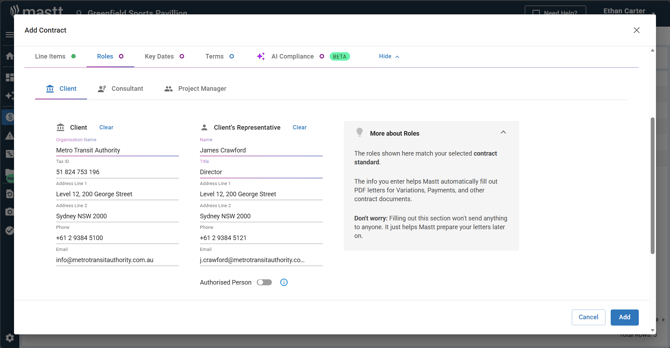
- Click the Roles tab to check the AI-extracted roles from your uploaded document.
- Check the pre-filled roles under Client, Consultant, and Project Manager.
- Select the appropriate roles, or change them manually if needed.
The Contract Standard field must be populated. Roles do not display correctly if this field is blank.
Check Payment Terms
- Click the Terms tab.
- Go to Payment Terms.
- Check if the Payment Clause has been pre-populated from your uploaded document.
- Change the Payment Clause if a correction is needed, or enter it manually if the field is empty.
- Check the Security of Payment Act Jurisdiction and select an option if needed (Australian contracts only).
- Check the Tax % field and change it if needed.
Assign Contract to Budget
- Check if the contract was automatically assigned to a budget based on the uploaded document.
- If the contract was not automatically assigned, select the appropriate budget from the dropdown.
- Make sure each milestone is assigned to the correct budget.
- To reassign milestones to different budgets (Multi Budget Contract), click each milestone and select the appropriate budget.
- Click Add (bottom right) to complete the contract.
Add a Payment with AI Pre-fill
Upload and Check Payment Data
- Go to the Cost Module.
- Click Payments.
- Click + Add Payment (top left).
- Click Upload File to select your PDF, or drag and drop the file into the upload field.
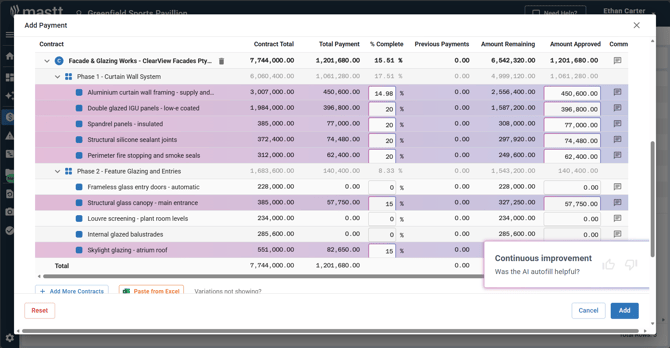
- Check all fields with purple backgrounds — these contain AI-extracted data.
- Make sure the payment amount, date, and contract references are correct.
- Check any other details the AI extracted from your invoice.
- Click any field to change it if a correction is needed.
- Select the payment status from the dropdown.
- Click Add (bottom right) to complete the payment.
Fields with purple backgrounds contain AI-extracted data. Always check these carefully before you finalise the payment.
Troubleshooting & FAQs
Q: What if the AI does not extract information from my document?
Make sure your PDF is not password-protected or encrypted. If the document is a scan, try a higher-quality version with clearer text.
Q: What if the AI extracted incorrect data?
Click the affected fields to correct the data before you click Add. All AI-extracted fields (purple background) are editable.
Q: Can I use AI Pre-fill with non-PDF documents?
No. AI Pre-fill only supports PDF format. Convert your document to PDF before you upload it.
Contact Mastt Support for additional assistance with AI Pre-fill for contracts and payments.