
Use Activity Slip and Gain to monitor how project activities perform against baseline dates and to quickly identify which tasks contribute to program delays. It helps you spot schedule variances early and manage timeline risks proactively.
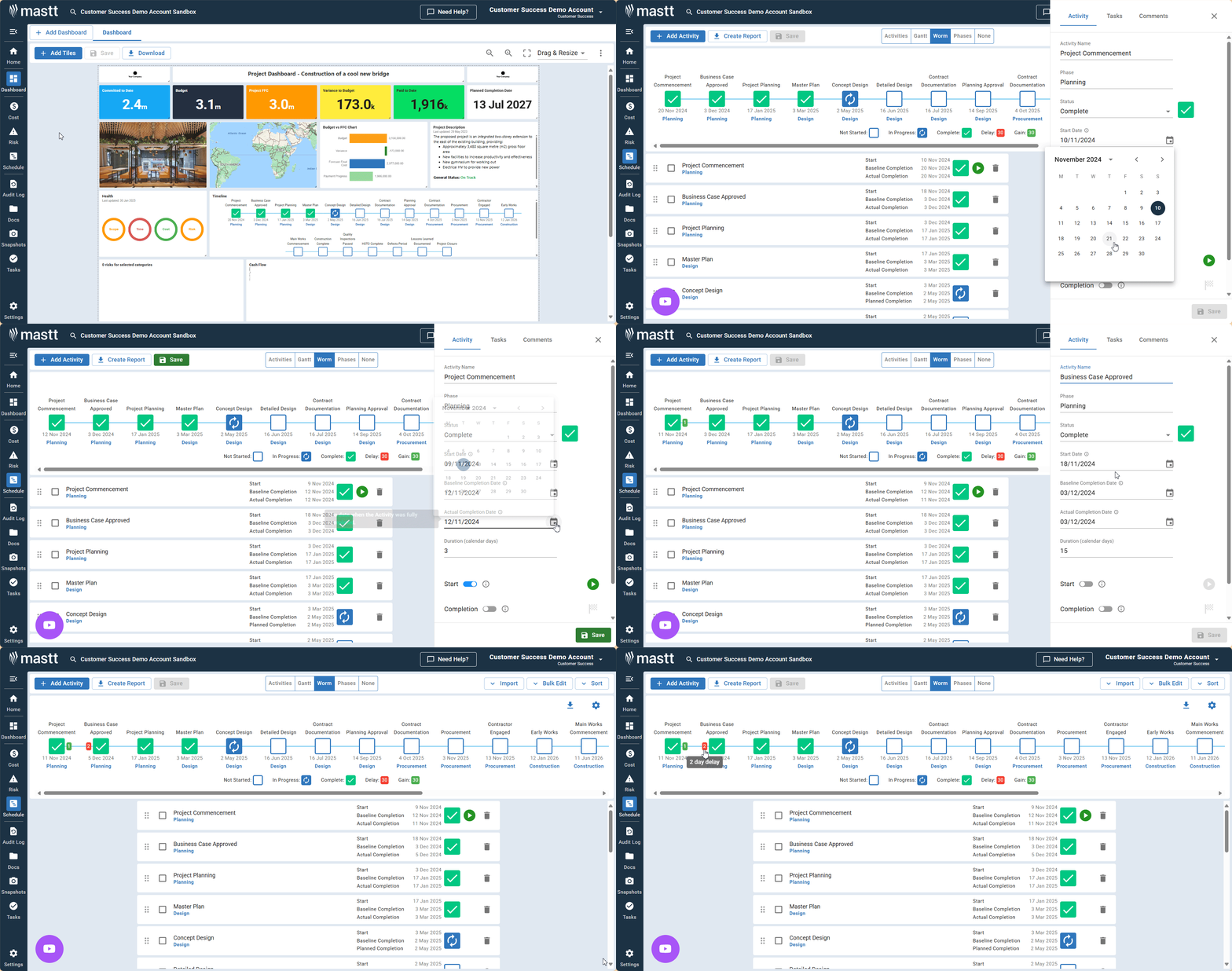
Set up a baseline completion date
Tip: Baseline dates establish the foundation for tracking schedule performance.
- Navigate to the Project Schedule section in your project.
- Select the activities you want to baseline by checking the boxes.
- Click Set Baseline Completion Date and confirm the baseline dates for each selected activity.
- Click Save to establish your baseline.
Update the planned or actual completion date
Tip: As you receive updates from consultants and contractors, regularly update the forecast dates.
- Select an activity that needs a date update by clicking on the activity row.
- Enter the new Planned/Actual Completion Date based on current information from your team.
- Click Save Changes to update.
- Repeat for all activities with updated timelines.
Monitor slip and gain indicators
- Navigate to the Schedule Worm Chart within your project schedule.
- Review the visual indicators for each activity.
- Note the values showing days ahead or behind schedule.
| Indicator | What it means |
|---|---|
| Red indicators | The activity is slipping behind baseline (slip). |
| Green indicators | The activity is ahead of baseline (gain). |
Troubleshooting and FAQs
What if no slip/gain indicators are showing?
Verify baseline dates are set and forecast dates differ from baseline dates. Both must be present for indicators to appear.
Need help?
Contact Mastt Support for additional assistance.