
Payments in Mastt help you record invoices and costs against approved contracts and change orders, keeping your project finances accurate and up to date. This guide covers accessing the payment form, using AI to extract invoice and payment details from PDFs, and entering details manually from Excel spreadsheets or other sources.
Before You Start
- Ensure you have access to the Cost module
- Have your invoice or payment application PDF ready (for AI Upload method) or payment details from your Excel spreadsheet or other source available (for Manual Entry)
- Confirm contracts are approved and change orders are either approved or in-principle before adding payments
New change orders or line items added to your contract after a payment has been created won't automatically appear in that payment. To include them, use Payment Refresh on your last payment — see How to Edit and Delete Payments for steps.
Adding a Payment
Access the Add Payment Form
- Click Cost in the left-hand navigation bar.
- Click Payments in the top navigation to view the Payment Register.
- Click the blue + Add Payment button in the upper left corner.
The Payment Register is the main list view where you can see all your payments, add new ones, and manage existing entries.
You can also add a payment from the Overall page by clicking the blue + Add button and selecting + Payment. Another option is to locate the contract you want to add a payment to, click the Action button (three dots) next to it, and select + Add Payment.
-gif.gif?width=670&height=348&name=Add%20Payment%20Steps%20(Change)-gif.gif)
Choose Your Payment Entry Method
Once in the form, select between two options:
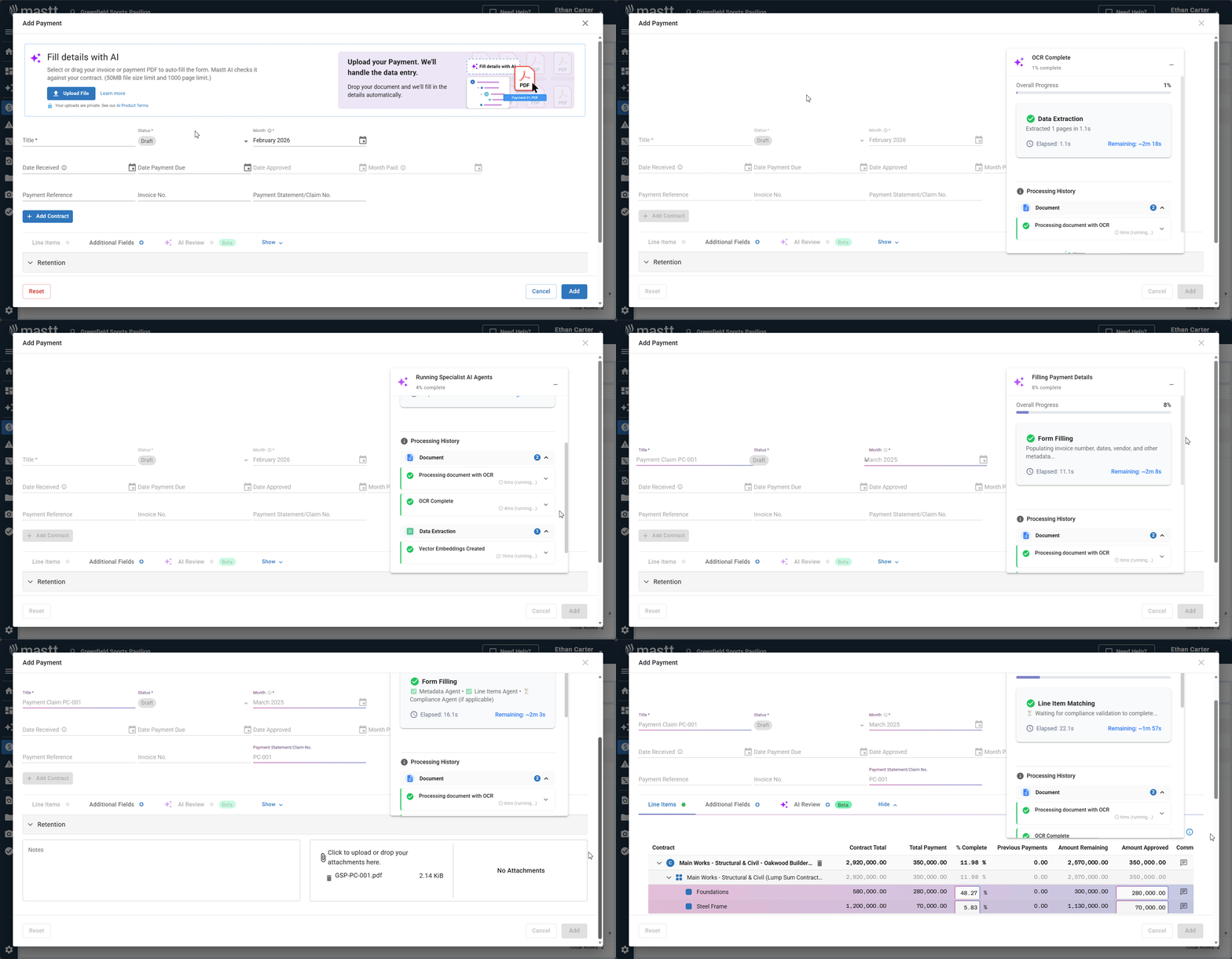
- Add Payment via AI Pre-fill – fastest method if you have an invoice or payment applications PDF. AI extracts payment details including title, dates, amounts, line items, and contract references.
- Add Payment with Manual Entry – use this if your invoice data is in an Excel spreadsheet or you need to enter details manually
Using AI Pre-fill
Upload Your Document
- Locate the Fill details with AI box in the payment form.
- Click Upload File and select your payment application PDF or drag and drop your file directly onto the drop area.
Your uploads are private. See our AI Privacy Policy.

AI Extracts Payment Details
- Wait for Mastt AI to scan and extract payment details including title, line items, amounts, dates, and contract references.
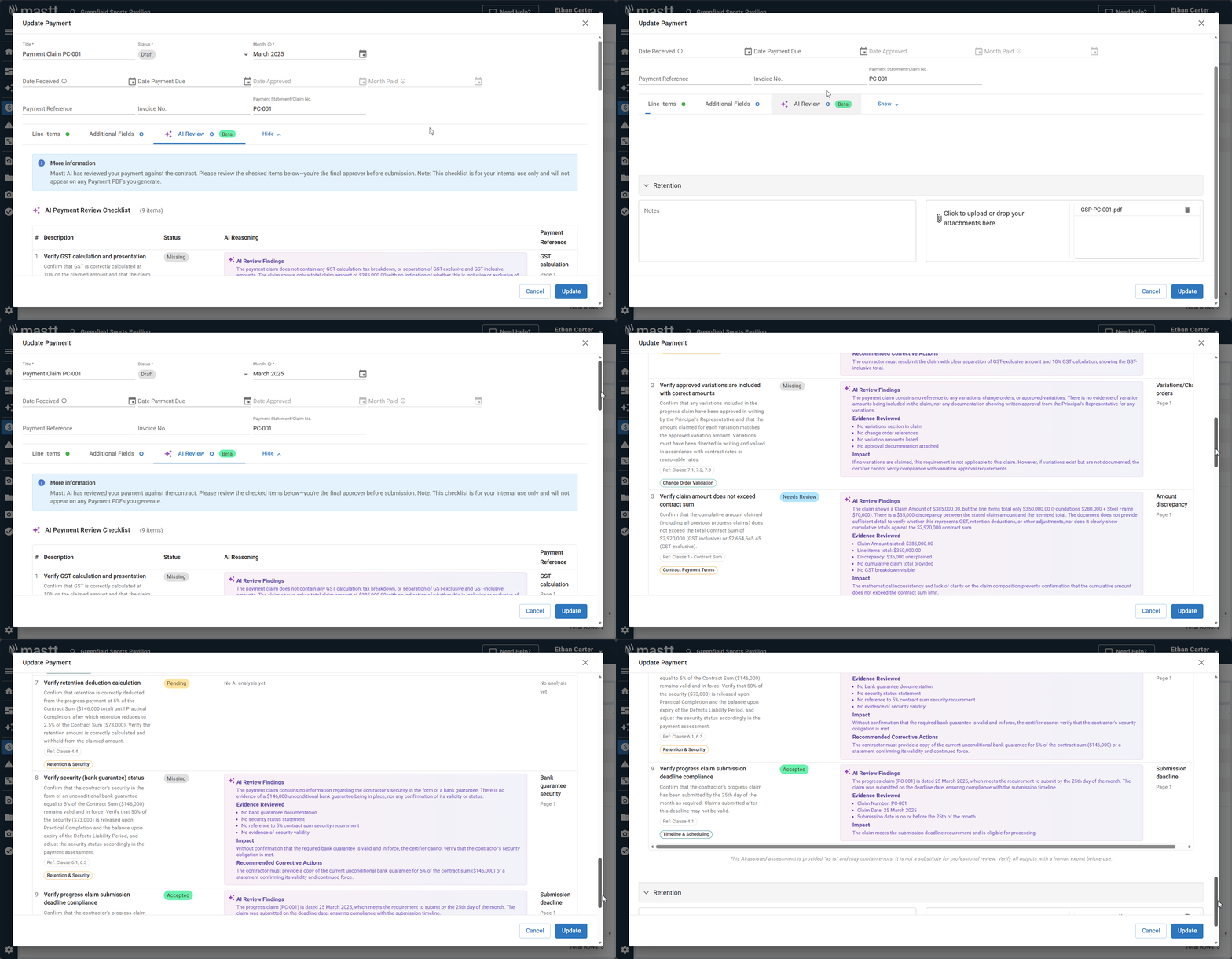
- If AI Review is enabled on the linked contract, compliance items are also identified. See How to Use AI Compliance for Contracts and Payments.
AI extraction typically takes a few seconds. AI Review analysis may take additional time to complete.
Verify and Edit Extracted Details
- Review all fields automatically populated by the AI.
- Click into any field to edit information that needs correction.
- Verify critical information is accurate before proceeding.
- Update the Payment Status from Draft to the appropriate status (Submitted, Approved, or Paid).
Check AI Review (If Available)
If the linked contract has AI Review enabled:
- Open the AI Review Beta tab.
- Review compliance items identified by the AI.
- Update statuses for any compliance requirements as needed.
Using Manual Entry
Enter Basic Payment Information
- Enter a Title for the payment (e.g., "Payment Application 4").
- Enter the Payment Date.
Set Payment Status
- Select the Payment Status from the dropdown: Draft, Submitted, Approved, Paid, or Rejected.
- If you selected Approved, enter the Date Approved.
- If you selected Paid, select the Cash Flow Month.
Link to Contract
- Click + Add Contract to open the contract selector.
- Choose the contract from your list of approved contracts.
- Expand Additional Fields if needed to:
- Add Payment Period From/To dates
- Toggle on Customize your letter's text to add custom commentary to the Payment Certificate
Only approved contracts are available for selection. If you can't find your contract, check its status in the Contract Register.
Enter Line Item Details
- For each line item, enter the Amount Approved or enter the % Complete (Mastt auto-calculates the amount).
- Click + Add Contract again if this payment covers multiple contracts.
Change Order Display
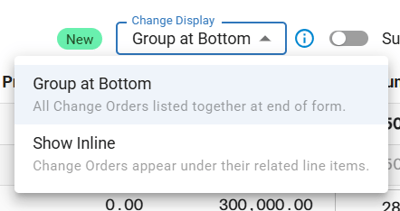
Use the Change Display dropdown to choose how change orders appear:
- Group at Bottom: All change orders listed together at end of form
- Show Inline: Change orders appear under their related line items
Record Variance Between Claimed and Approved Amounts
To document differences between what was claimed and what you're approving:
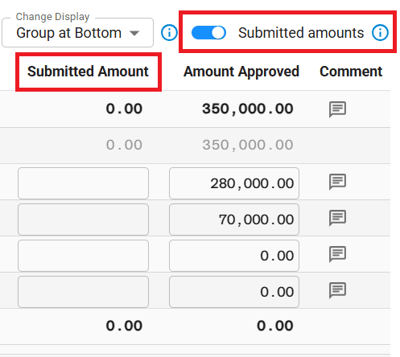
- Toggle on Submitted Amounts in the payment form.
- Enter the claimed amount in the Submitted Amount field.
- Enter the amount you're approving (after deductions) in the Amount Approved field.
- Click the comment button next to each line item to document the deduction and calculation. This creates a clear audit trail of what was claimed versus what you're paying.
Add Additional Line Items (Optional)
- Use Copy+Paste from Excel for bulk entry if you have multiple line items.
Finalizing and Saving the Payment
- Add comments in the Notes field (only visible to users within this project).
- Upload attachments if needed (documents are automatically attached when using AI Pre-fill).
- Click the Add button to save the payment. Your payment is now recorded and linked to the contract.
The Notes field is for internal comments only and does not appear on the payment certificate. To customize text on your payment certificate, go to Additional Fields and toggle on Customize your letter's text.
Editing a Payment After Creation
You can update payment details at any time by navigating to the Payment Register, clicking the Action button (three dots) next to your payment, and selecting Edit Payment. For more details, see How to Edit and Delete Payments.
Troubleshooting & FAQs
Q: Why isn't a change order showing in my payment certificate?
Make sure the change order's status is set to Approved — only approved change orders are available in the Payments module. If the change order was added to the contract after the payment was already created, it won't appear automatically. To include it, open the last payment via Action > Edit Payment, look for the Payment Refresh banner in the Line Items tab, click Refresh, then click Update to save. This pulls in any new variations or line items without needing to delete and recreate the payment. See How to Edit and Delete Payments for full steps.
Q: Why doesn't my Payment Recommendation Letter's change order total match what's actually approved?
The change order total reflects the Amount Approved entered against each change order line item within that specific payment — not the full amount approved on the contract. Open Action → Edit Payment, check the Changes section, and compare Amount Approved against Amount Remaining for each line. If a change order shows $0.00 (or a partial amount) despite having a remaining balance, that's why it's excluded from the letter, regardless of the variation's own status. Update the Amount Approved field to the correct value and regenerate the letter.
Q: Can I import invoices from Excel into Mastt?
You can't bulk import invoices directly from Excel. Instead, use the payment form to add each invoice individually. If you have a PDF invoice, use AI Pre-fill to extract the details automatically. If your data is in Excel, enter the details manually using the payment form. The Actuals module is for importing ERP transaction data for reconciliation — not for invoices.
Q: How do I update the signature at the bottom of payment invoice certificates?
The signature on payment certificates pulls from the Roles section in your contract settings. To update it, go to the Contract → edit → select a Contract Standard → open the Roles tab → use the toggle to choose which role (Superintendent/Authorized Person, Client's Representative, Architect, or Principal) should display as Authorized by on certificates and letters. Update the role's name and title, click Update to save, then regenerate your payment certificate.
Q: How do I handle retention amounts?
Retention is entered once in the Retention field at the bottom of the payment form, not per line item. Enter it as either a dollar amount or percentage, and Mastt will automatically calculate the net payment amount.
Q: What's the difference between Amount Approved and Submitted Amount?
Submitted Amount records what the contractor or consultant requested in their payment applications. Amount Approved is the actual amount you're paying after applying any deductions. Always add a comment documenting the variance and your calculation to maintain a clear audit trail.
Need Help?
Contact Mastt Support additional assistance with payments in Mastt.