
Use payments to record invoices and costs against approved contracts and change orders, so your project finances stay accurate and up to date. You can use AI to extract invoice and payment details from PDFs, or enter details manually from Excel spreadsheets or other sources.
Before you start
- Make sure you have access to the Cost module.
- Have your invoice or payment application PDF ready (for AI Pre-fill), or your payment details from Excel or another source (for manual entry).
- Confirm contracts are approved and change orders are either Approved or In Principle before adding payments.
Tip: New change orders or line items added to your contract after a payment has been created won't automatically appear in that payment. To include them, use Payment Refresh on your last payment. See How to Edit and Delete Payments for steps.
Open the Add Payment form
- Click Cost in the left-hand navigation bar.
- Click Payments in the top navigation to view the Payment Register.
- Click the blue + Add Payment button in the upper left corner.
The Payment Register is the main list view where you can see all your payments, add new ones, and manage existing entries.
Tip: You can also add a payment from the Overall page by clicking the blue + Add button and selecting + Payment. Another option: on the Overall page, click the Action button (three dots) next to the contract and select + Add Payment.
-gif.gif?width=670&height=348&name=Add%20Payment%20Steps%20(Change)-gif.gif)
Choose how to enter the payment
Once you're in the form, choose one of two options.
| Option | When to use it |
|---|---|
| Add Payment via AI Pre-fill | The fastest method if you have an invoice or payment application PDF. AI extracts payment details including title, dates, amounts, line items, and contract references. |
| Add Payment with Manual Entry | Your invoice data is in an Excel spreadsheet, or you need to enter details manually. |
Add a payment with AI Pre-fill
Upload your document
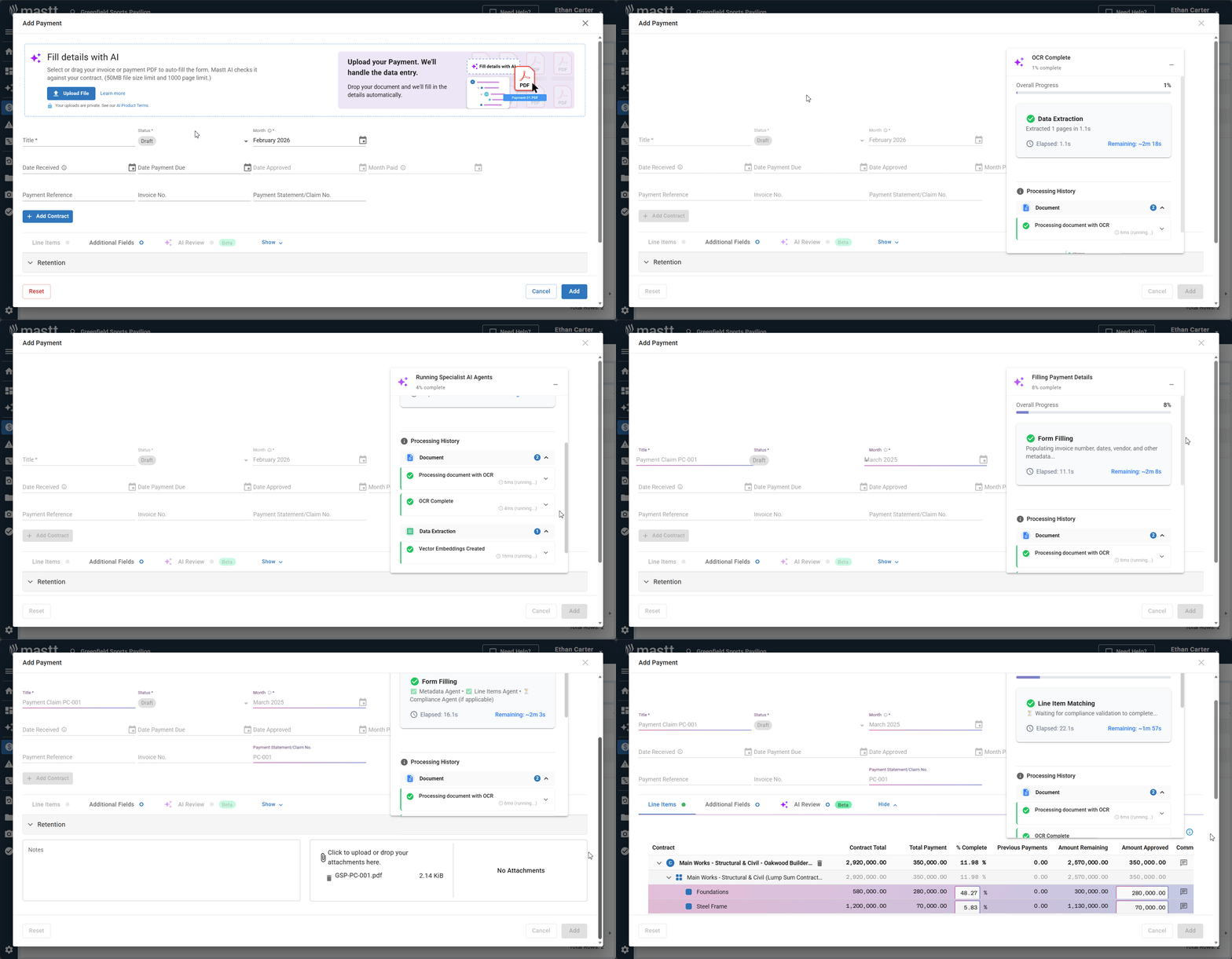
- Locate the Fill details with AI box in the payment form.
- Click Upload File and select your payment application PDF, or drag and drop your file directly onto the drop area.
Note: Your uploads are private. See our AI Product Terms.

Let AI extract the details
- Wait for Mastt AI to scan and extract payment details including title, line items, amounts, dates, and contract references.
- If AI Review is enabled on the linked contract, compliance items are also identified. See How to Use AI Compliance for Contracts and Payments.
Note: AI extraction typically takes a few seconds. AI Review analysis may take additional time to complete.
Verify and edit the extracted details
- Review all fields automatically populated by the AI.
- Click into any field to edit information that needs correction.
- Verify critical information is accurate before proceeding.
- Change the Status from Draft to Submitted, Approved, or Paid.
Check AI Review (if available)
If the linked contract has AI Review enabled:
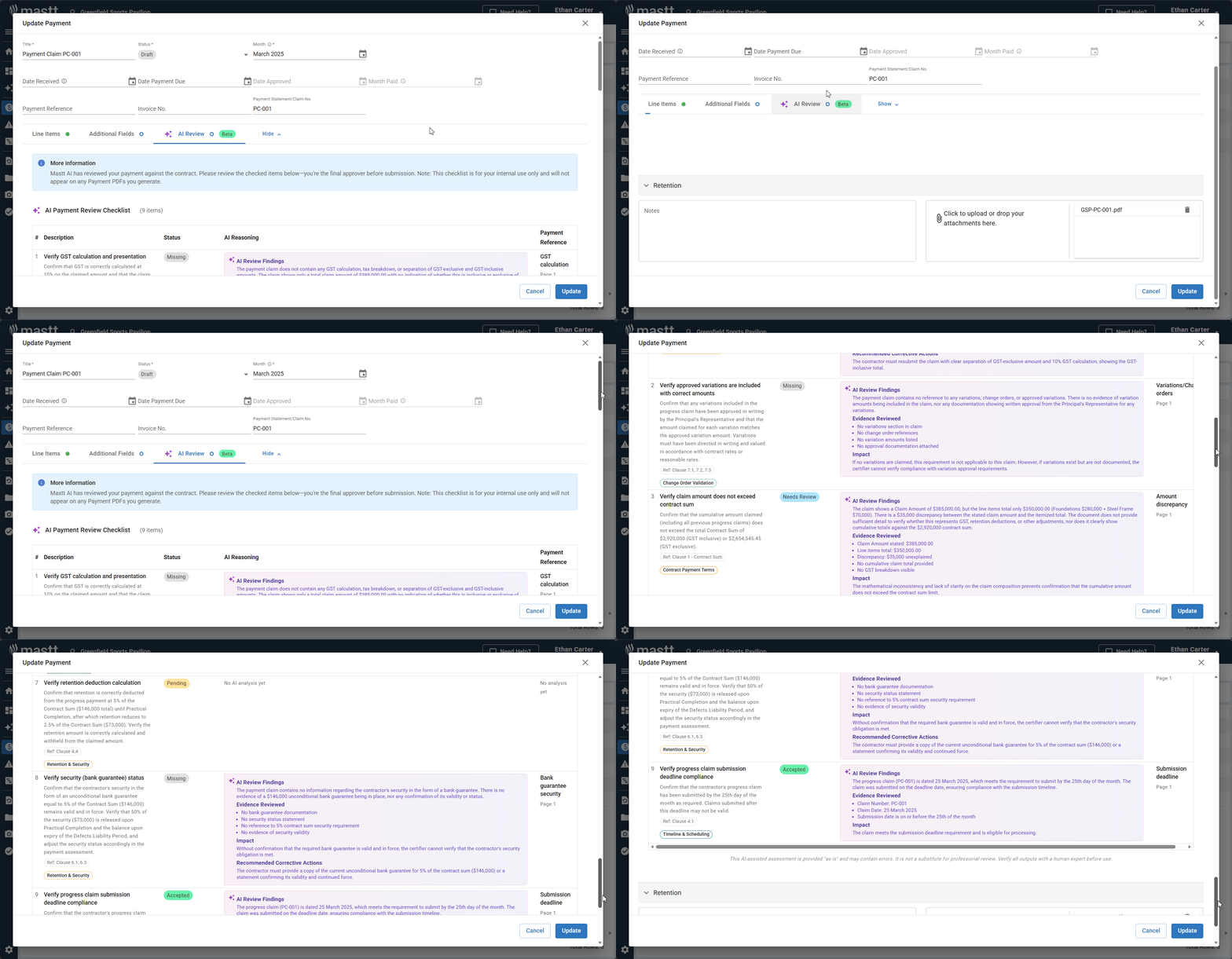
- Open the AI Review Beta tab.
- Review compliance items identified by the AI.
- Update statuses for any compliance requirements as needed.
Add a payment with Manual Entry
Enter basic payment information
- Enter a Title for the payment (e.g., "Payment Application 4").
- Select the Month.
Set the payment status
- Select the Status from the dropdown: Draft, Submitted, Approved, Paid, or Rejected.
- If you select Approved, the Date Approved fills in automatically. Change it if the approval happened on a different date.
- If you select Paid, the Date Approved and Month Paid fill in automatically. Change the Month Paid if the payment was made in a different month. Month Paid is where the payment appears in the Cash Flow module.
Link to a contract
- Click + Add Contract to open the contract selector.
- Choose the contract from your list of approved contracts.
Note: Only approved contracts are available for selection. If you can't find your contract, check its status in the Contract Register.
Enter line item details
- For each line item, enter the Period Amount or enter the % Complete (Mastt auto-calculates the amount).
- If this payment covers more than one contract, click Add More Contracts.
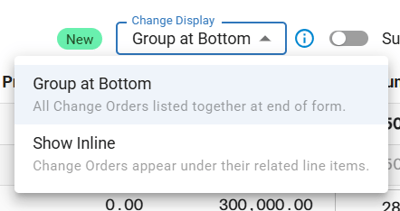
Use the Change Display dropdown to choose how change orders appear:
| Option | What it does |
|---|---|
| Group at Bottom | All change orders are listed together at the end of the form |
| Show Inline | Change orders appear under their related line items |
Record the variance between claimed and approved amounts
To document differences between what was claimed and what you're approving:
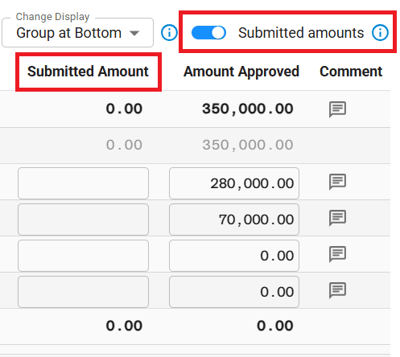
- Toggle on Submitted amounts in the payment form.
- Enter the claimed amount in the Submitted Amount field.
- Enter the amount you're approving (after deductions) in the Period Amount field.
- Click the comment button next to each line item to document the deduction and calculation. This creates a clear audit trail of what was claimed versus what you're paying.
Paste amounts from Excel (optional)
To enter many amounts at once, click Paste from Excel.
Add payment period and letter text (optional)
- Click the Additional Fields tab.
- Enter the Payment Period From and To dates.
- Turn on Customize your letter's text to add your own text to the Payment Certificate.
Finalize and save the payment
- Add comments in the Notes field (only visible to users within this project).
- Upload attachments if needed (documents are automatically attached when using AI Pre-fill).
- Click the Add button to save the payment. Your payment is now recorded and linked to the contract.
Note: The Notes field is for internal comments only and does not appear on the payment certificate. To customize text on your payment certificate, go to Additional Fields and toggle on Customize your letter's text.
Edit a payment after creation
You can update payment details at any time by going to the Payment Register, clicking the Action button (three dots) next to your payment, and selecting Edit Payment. For more details, see How to Edit and Delete Payments.
Troubleshooting and FAQs
Why isn't a change order showing in my payment certificate?
Make sure the change order's status is set to Approved or In Principle. Only change orders with one of these statuses are available in the Payments module.
If the change order was added to the contract after the payment was already created, it won't appear automatically. To include it:
- Open the last payment via Action > Edit Payment.
- Look for the Payment Refresh banner in the Line Items tab and click Refresh.
- Click Update to save.
This pulls in any new change orders or line items without needing to delete and recreate the payment. See How to Edit and Delete Payments for full steps.
Why doesn't my Payment Recommendation Letter's change order total match what's actually approved?
The change order total reflects the Period Amount entered against each change order line item within that specific payment, not the full amount approved on the contract. Open Action > Edit Payment, check the Changes section, and compare Period Amount against Balance to Finish for each line.
If a change order shows $0.00, it's left out of the letter. If it shows a partial amount, only that amount is included, whatever the change order's status. Update the Period Amount field to the correct value and regenerate the letter.
Can I import invoices from Excel into Mastt?
You can't bulk import invoices directly from Excel. Instead, use the payment form to add each invoice individually. If you have a PDF invoice, use AI Pre-fill to extract the details automatically. If your data is in Excel, enter the details manually using the payment form.
The Actuals module is for importing ERP transaction data for reconciliation, not for invoices.
How do I change who appears as Authorized by on payment certificates?
The signature on payment certificates pulls from the Roles section in your contract settings. To update it:
- Go to the Contract, then edit it.
- Select a Contract Standard.
- Open the Roles tab.
- Use the toggle to choose which role (the available roles depend on your contract standard) should display as Authorized by on certificates and letters.
- Update the role's name and title, then click Update to save.
- Regenerate your payment certificate.
How do I handle retention amounts?
Switch on the Retention toggle above the line items table. Then use Bulk retention in the Retention section to apply a percentage or an amount across the lines, or enter a Retainage % on individual lines. Mastt calculates the net payment amount for you. See How to Set Up Tax and Retentions in Mastt.
What's the difference between Period Amount and Submitted Amount?
| Field | What it means |
|---|---|
| Submitted Amount | What the contractor or consultant requested in their payment application |
| Period Amount | The actual amount you're paying after applying any deductions |
Always add a comment documenting the variance and your calculation to maintain a clear audit trail.
Need help?
Contact Mastt Support for additional assistance with payments in Mastt.