
Tasks and Actions help you track responsibilities and follow-ups from meetings, so nothing falls through the cracks. Use them to assign owners, set deadlines, and monitor progress across your project team.
Before you start
Have your meeting details ready, including agenda items and assignees.
Add a task or action
- From your project dashboard, click Tasks in the left navigation bar.
- Click the + Add Tasks and Actions button at the top left.
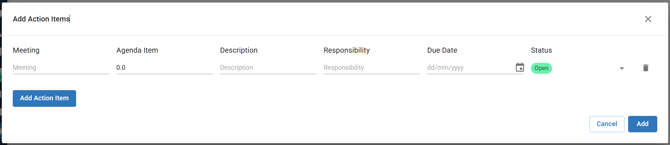
- Fill in the form that opens (see the table below).
- Click Add. The new task appears in the Tasks and Actions table.
| Field | What to enter |
|---|---|
| Meeting | Select or enter the meeting this task relates to |
| Agenda item | Specify which agenda item the task is connected to |
| Description | Provide details about what needs to be done |
| Responsibility | Assign the person responsible for completing the task |
| Due date | Set the deadline using the date picker |
| Status | Choose the current status |
Edit a task or action
- Locate the task in the Tasks and Actions table.
- Click the Action button next to the task and select Edit Task or Action.
- Update any field as needed.
- Click Save. The updated details appear in the table.
Delete a task or action
Warning: Deleting a task is permanent. Once removed, it cannot be recovered.
- Locate the task in the Tasks and Actions table.
- Click the Action button next to the task and select Delete Task or Action.
- Confirm the deletion in the pop-up. The task is removed from the list.
Manage the Tasks and Actions table
The toolbar at the top of the table includes several options to help you work with your data.
| Option | What it does |
|---|---|
| Export | Download the list to share with stakeholders or keep records outside Mastt |
| Filter | Refine the list by criteria such as status, responsibility, or due date |
| Columns | Show or hide specific fields to display only the information you need |
| Reset | Clear any filters or column changes and return the table to the default view |
Export tasks
- Click Export at the top of the table.
- Download the list to share with stakeholders or keep records outside Mastt.
Filter tasks
- Click Filter at the top of the table.
- Refine the list by criteria such as status, responsibility, or due date.
Customize columns
- Click Columns at the top of the table.
- Show or hide specific fields to display only the information you need.
Reset the view
- Click Reset to clear any filters or column changes.
- The table returns to the default view.
Troubleshooting and FAQs
What if I can't find the task I just created?
Check whether you have any active filters applied. Click Reset to clear them and view all tasks. Also confirm you're viewing the correct project.
How do I bulk update multiple tasks at once?
Tasks must currently be edited individually through the Action menu. For larger updates, use Export to download the data, review it offline, then update the relevant tasks in Mastt.
Need help?
Contact Mastt Support for additional assistance with Tasks and Actions.