
The Documents module is your central hub for managing all project files in Mastt, including contracts, invoices, and reports. Use it to upload, preview and organize files, apply filters and run bulk actions.
Before you start
- Deletions are permanent and apply for everyone on the project, so confirm your selection carefully before using bulk delete.
Open the Documents module
- From your Home page, open the project you want to work in.
- In the left navigation bar, click Documents.
- You'll land on the All Files view, the central hub for every project file.
Upload files
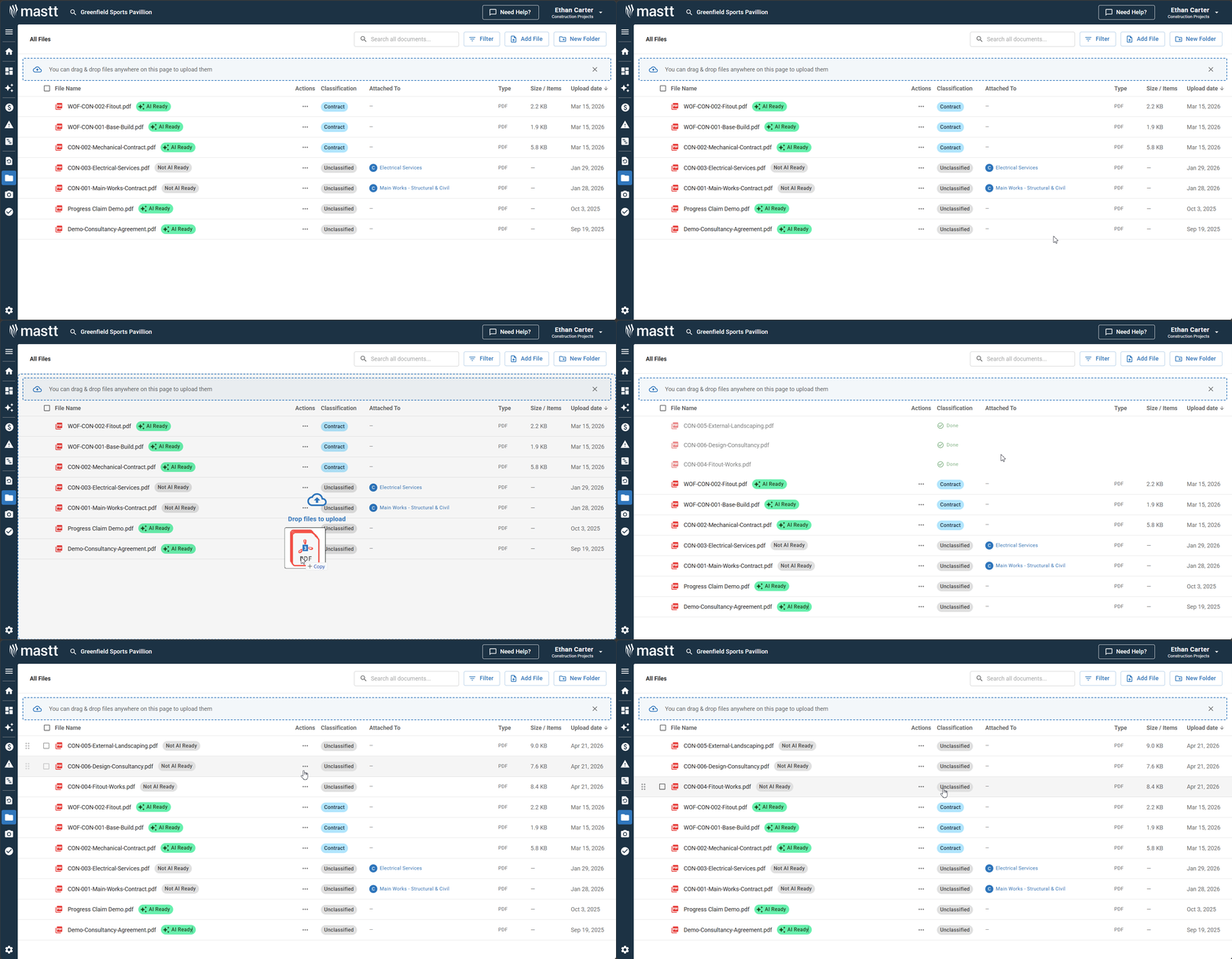
Upload by drag and drop
- Drag files from your computer anywhere onto the All Files page.
- Each file will begin processing individually.
Upload using the Add File button
- Click the Add File button in the top right.
- Select one or more files from your computer.
- Click Open to begin uploading.
Preview files
- Click on any file name.
- A preview panel opens on the right-hand side.
- Use the controls in the table below to review the file.
| Control | What it does |
|---|---|
| Download | Saves a copy of the file to your computer |
| Zoom | Zooms in and out |
| Navigate | Moves through pages on multi-page documents |
| Resize | Drag the edge of the panel to resize it |
| X | Closes the panel (top corner) |
Note: Mastt renders PDFs, Excel files, and Word documents directly in the preview panel, so you can review them without downloading. Document previews are also shown directly in cost forms, so you can view attached files without leaving the page.
Organize files into folders
Create a new folder
- Click New Folder in the top right.
- Enter a name for the folder.
- Click Create. The folder appears in your file list with a count of the items inside.
Move a file into a folder
- Click on the file row, or click the Action button next to the file.
- Select Move to.
- Choose your destination folder and confirm.
Tip: You can also drag and drop a file directly onto a folder. This is usually faster when moving just a couple of files.
Move a file out of a folder
- Open the folder, then click on the file row or click the Action button next to the file.
- Select Move to.
- Choose All Files as the destination and confirm.
Filter and find files
- Click the Filter button in the top right.
- Choose the filters you need, such as what the file is attached to.
- Stack filters together for more specific results.
Download and delete files
- Click on the file row, or click the Action button next to the file.
- Choose Download or Delete.
- Confirm the action if prompted.
Use bulk actions
Select multiple files
- Check the boxes next to each file you want to action.
- To select everything at once, use the checkbox in the header row. Folders can also be included in your selection.
Run a bulk action
Warning: Delete removes everything selected in one go. Always double-check your selection before confirming.
- Once files are selected, the bulk action bar appears.
- Choose one of the available actions.
| Action | What it does |
|---|---|
| Move | Moves multiple files into a folder |
| Download | Downloads the selection as a ZIP file |
| Delete | Deletes the selected files |
Troubleshooting and FAQs
I've accidentally deleted a file. Can it be recovered?
Deletion is final and cannot be reversed.
Need help?
Contact Mastt Support for additional assistance with the Documents module.