
Mastt offers three subscription plans to suit teams of all sizes: Starter (Free), Professional and Enterprise. Use this guide to view your current plan details, upgrade to a higher plan, and adjust your project licenses.
Before you start
- You must have Admin access to your Mastt workspace.
- If you do not have Admin access, contact your workspace administrator to make changes on your behalf.
View your subscription details
- Click your profile name.
- Click Admin.
- Select Plan and Billing from the sidebar.
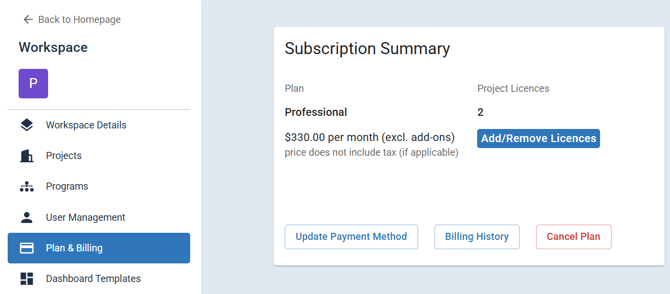
- Check the Subscription Summary to see your current plan, Project Licences, and monthly cost.
Upgrade your plan
| To | Use | Section |
|---|---|---|
| Move from Starter (Free) to Professional | Upgrade on the Professional plan card | Upgrade from Starter (Free) to Professional |
| Add or remove project licenses | Add/Remove Licences | Adjust your project licenses |
| Move to Enterprise | Talk to Sales on the Enterprise plan card | Upgrade to Enterprise |
Upgrade from Starter (Free) to Professional
- Go to Plan and Billing in Admin settings.
- Select the number of projects you need using the + and − buttons. Pricing depends on the number of projects. See mastt.com/pricing for current rates.
- Check the list of included features.
- Click Upgrade on the Professional plan card.
- Click Continue to Checkout.
- Enter your payment details.
- Click Confirm Upgrade. Your workspace upgrades immediately.
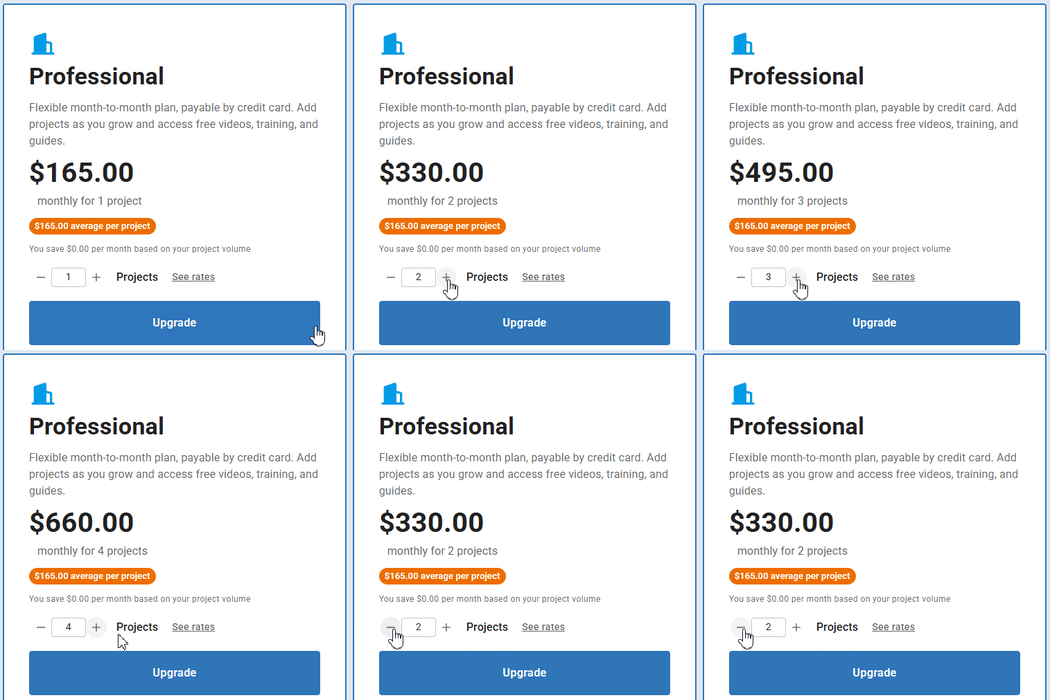
Note: All Mastt plans include unlimited users. You can add team members, stakeholders, contractors, and clients at no additional charge. You pay only for the number of project licenses.
Adjust your project licenses
Warning: You cannot reduce your licenses below the number of enabled billable projects in your workspace.
- Go to Plan and Billing in Admin settings.
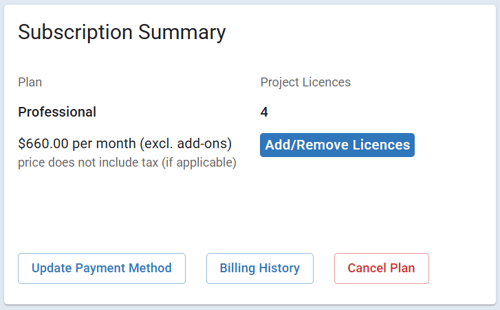
- Click Add/Remove Licences. The Update Number of Licenses dialog opens.
- Select the new number of project licenses using the − and + buttons.
- Check the updated Total monthly cost.
- Click Confirm.
| If you | What happens |
|---|---|
| Increase your project licenses | You are charged immediately for the additional licenses, prorated for the remainder of your billing cycle. |
| Decrease your project licenses | The change takes effect at the end of your current billing cycle. |
Upgrade to Enterprise
- Go to Plan and Billing in Admin settings.
- Click Talk to Sales on the Enterprise plan card.
- Enter your organization details and requirements in the inquiry form.
- Click Submit.
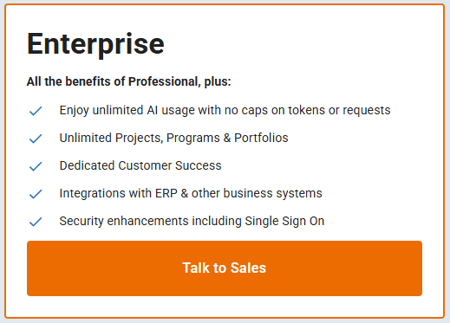
Note: The Mastt Sales Team will contact you to discuss your requirements and provide a custom quote. Enterprise includes custom onboarding, training, and configuration.
The Enterprise plan includes:
| Feature | What it gives you |
|---|---|
| Higher Project Quota | Customizable project limits based on your organization's needs |
| Programs & Portfolios | Manage multiple projects across your organization |
| Dedicated Customer Success | A dedicated success manager for your team |
| ERP Integrations | Connect with systems like SAP |
| Security Enhancements | Advanced security features for enterprise-level compliance |
Tip: If you are interested in the Agent by Mastt add-on for AI-powered workflows, knowledge bases, and system integrations, contact the sales team to discuss pricing and setup.
Troubleshooting and FAQs
I do not have an Upgrade button. How do I change my plan?
Only workspace Admins can manage subscriptions. Contact your workspace administrator to request an upgrade.
What happens to my existing projects when I upgrade?
All existing projects and data remain unchanged. You gain access to additional features immediately after the upgrade is confirmed.
Can I switch from monthly to annual billing?
Contact Mastt Support to discuss annual billing options.
Need help?
Contact Mastt Support for additional assistance with subscription management.