
Variation letters provide formal documentation for changes to your project scope and cost. Use this guide to download Recommendation, Approval, and Order letters, add custom text, attach supporting documents, and control who authorises them.
Before you start
- Select the appropriate Contract Standard on the contract. It's not required, but letters won't include the correct contractual clauses without it. See Setting Up Your Contracts for Comprehensive Payment Letters.
- Ensure variations are created and completed in the Variations register.
Letter types
| Letter | Where its text comes from |
|---|---|
| Recommendation | The Recommendation text, which appears on Recommendation letters only. The letter is blank unless you enter Recommendation text. |
| Approval and Order | The Approval text, plus pre-filled contractual statements from your selected contract standard. |
Download a variation letter
- Go to your Cost module from the side navigation menu.
- Click Variations in the top navigation.
- Find the variation you want to work with.
- Click the Action button next to your variation.
- Select your letter type from the dropdown menu:
- Variation Approval PDF
- Variation Order PDF
- Variation Recommendation PDF
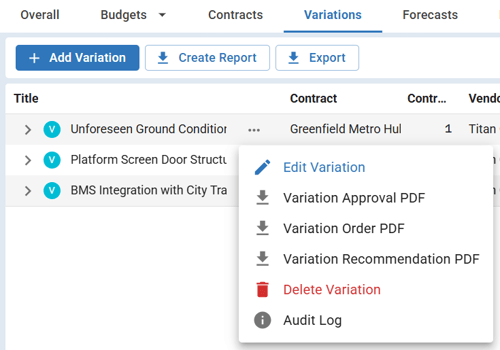
Note: You can download all three letter types at any variation status.
Add or edit text in variation letters
Open the Description tab
- Click the Action button on your variation and select Edit Variation.
- Click the Description tab. You will find the Recommendation and Approval sections.
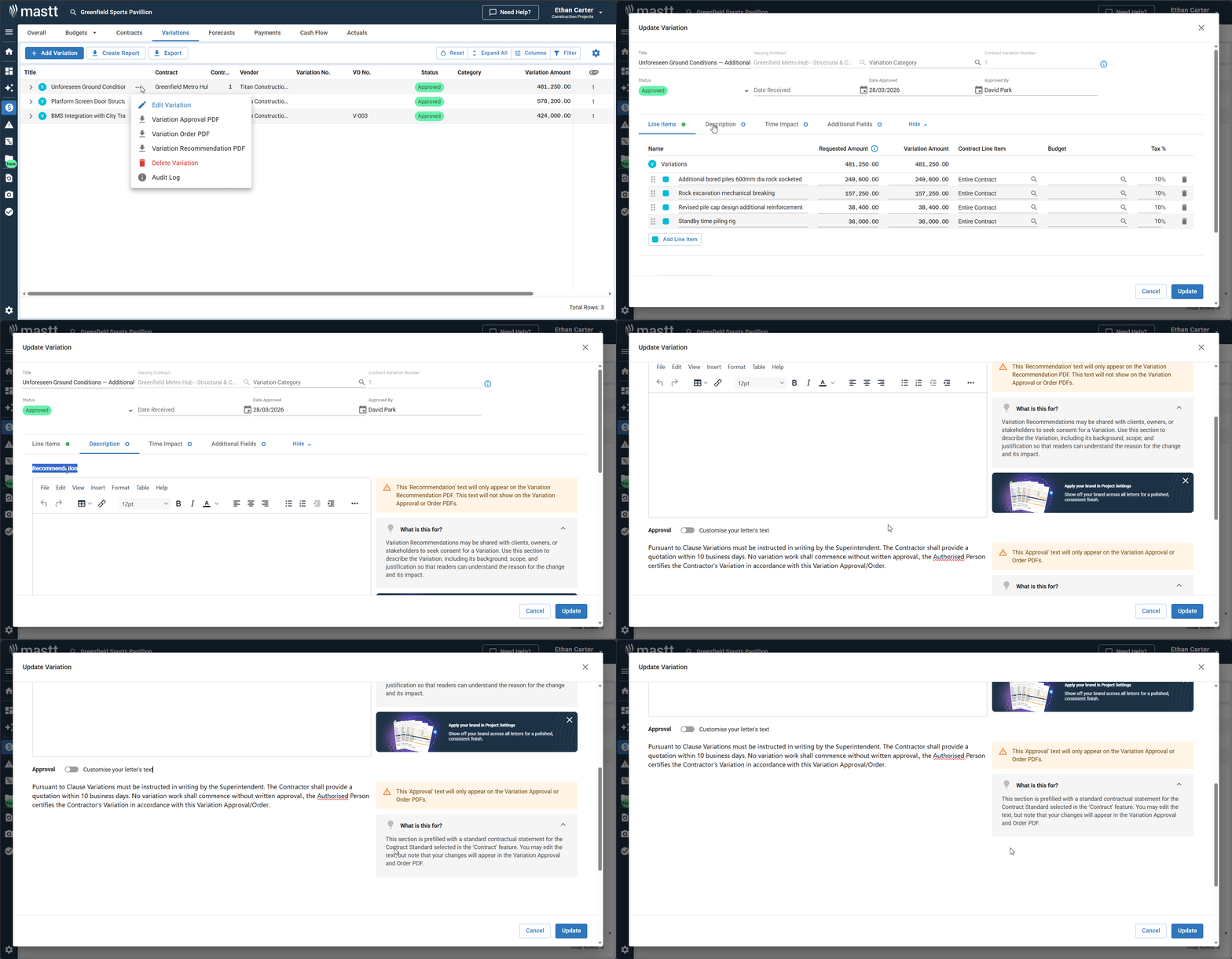
Add Recommendation text
The Recommendation text appears on Recommendation letters only.
- Scroll to the Recommendation section.
- Enter your custom text using the rich text formatting toolbar.
Note: Recommendation letters will be blank unless you enter Recommendation text.
Add custom Approval text
The Approval text appears on both Approval and Order letters. It includes pre-filled contractual statements from your selected contract standard, which you can edit.
- Scroll down to the Approval section.
- Click the toggle labelled Customise your letter's text.
- Edit the pre-filled approval text or add your own text using the rich text formatting toolbar.
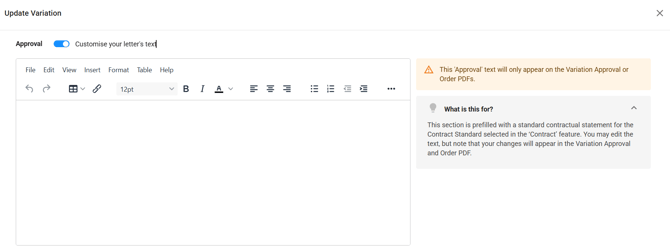
Edit the pre-filled variation clause
- Click Contracts in the top navigation.
- Click the Action button on the contract and select Edit Contract.
- Click the Terms tab, then select Variation Terms.
- Update the standard variation clause as needed.
- Click Update to save your changes.
Attach supporting documents
When you download any variation letter PDF, a pop-up asks if you would like to add attachments. Only PDF attachments are supported.
- Select the files you want to include from the Available Attachments list on the left.
- Selected files appear in the Selected Attachments on the right. You can reorder them as needed.
- Click Continue to generate the letter with the selected attachments, or continue without attaching files.
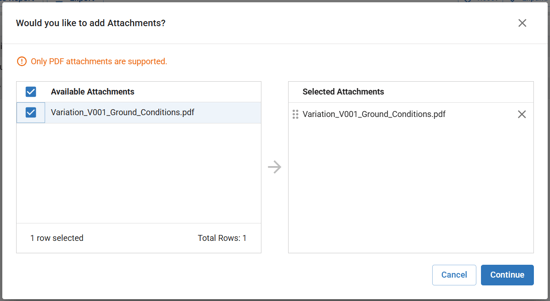
Note: Available attachments are files uploaded to the variation form. To add new files, open the variation form, go to the Attached Files section, and upload your documents before downloading the letter. You can click any uploaded file to open the Documents preview panel and verify it before attaching.
Add internal notes
- In the variation form, scroll to the Notes section.
- Add internal comments explaining the variation or any context for your team.
Note: Notes are internal only and do not appear on any downloaded variation letters.
Save and download your letter
- Click Update and wait for the confirmation message.
- Click the Action button again next to the variation.
- Select the appropriate variation letter PDF to download your completed letter.
Change the "Authorised by" on letters
- Click Contracts in the top navigation.
- Click the Action button on the contract you want to edit and select Edit Contract.
- Ensure a Contract Standard is selected. This enables the Roles tab.
- Click the Roles tab.
- Complete the required role fields with the correct names and details.
- Use the toggle on the role that should display as Authorised by on letters. The available roles and the toggle's name depend on the contract standard selected (for example, the Superintendent toggle on the Principal and Project Manager tabs).
- Click Update to save your changes.
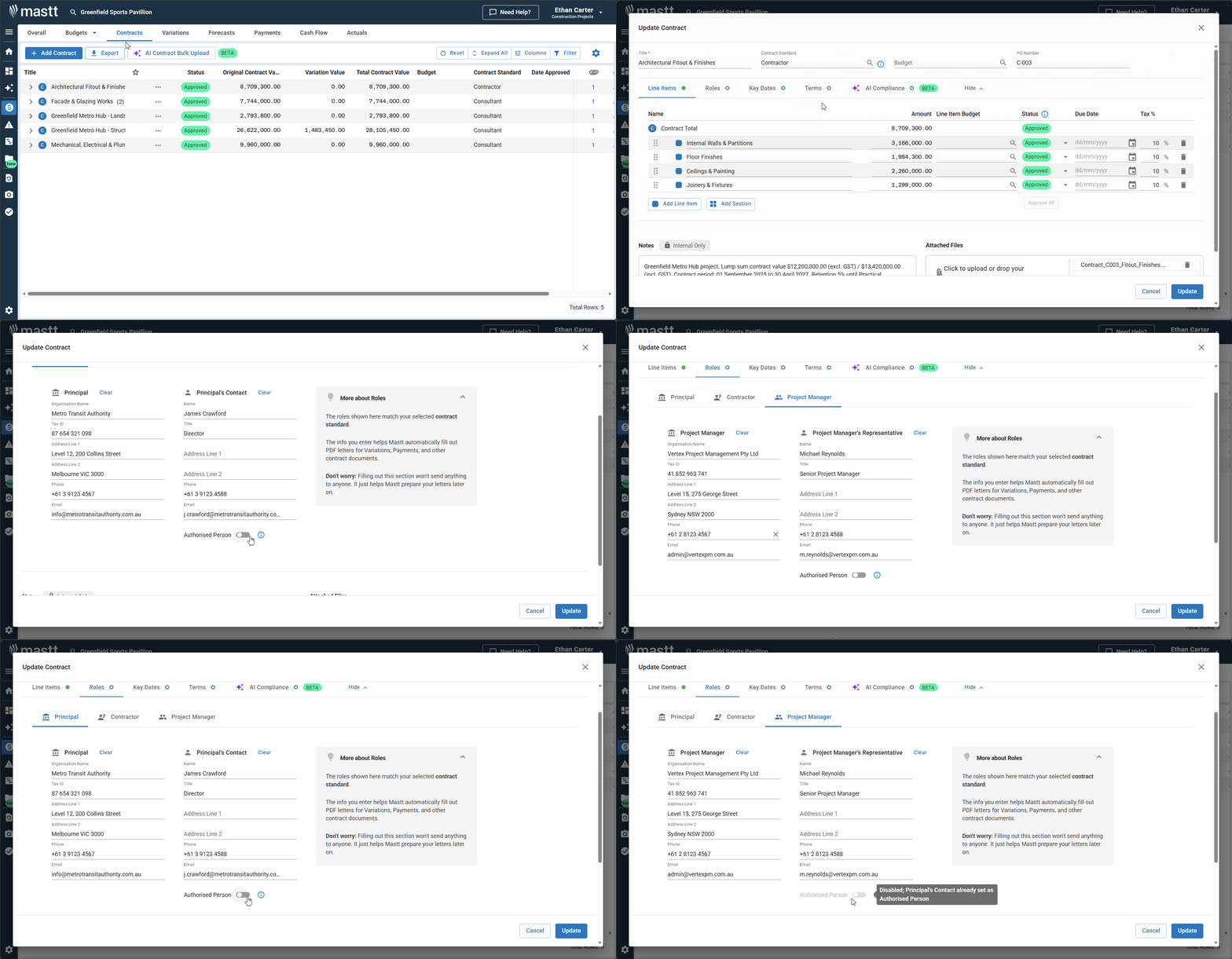
Note: When one role is toggled on, the toggle option for other roles will be greyed out.
Reassign variation lines
You can reassign variation lines to a different contract line item after creation.
- Open the variation form by clicking Action > Edit Variation.
- Find the line item you want to reassign.
- Select a different contract line item from the dropdown.
- Click Update to save your changes.
Note: A warning appears if there are existing payments on that contract, but you can still submit the form.
Troubleshooting and FAQs
Can I edit the pre-filled variation clause for just one variation?
No. Variation clauses are set at the contract level in the Terms tab. Changes apply to all future variation letters for that contract. Use the custom approval text feature to add variation-specific content.
What happens if I have multiple roles filled in but no toggle selected?
Variation letters won't show an "Authorised by" person until you toggle on a specific role. Make sure to select the appropriate role and save your contract.
What if the letters don't reflect my recent changes?
Ensure you clicked Update and saw the confirmation message. Refresh the page if the changes don't appear immediately.
Why doesn't 'Variations Previously Approved' match what I expect?
It only includes other In Principle/Approved variations whose own Date Approved (or In Principle Date) falls on or before this variation's own Date Approved (or In Principle Date). Both dates count as approved. It isn't simply every approved variation, and it isn't based on Variation Number order.
| Date field | Effect |
|---|---|
| Blank on this variation | Includes all other In Principle and Approved variations |
| Blank on another variation | Excludes that variation, regardless of status |
Make sure every contributing variation has its date field filled in accurately.
Need help?
Contact Mastt Support for additional assistance with variation documentation.