
Forecasting cash flow before your project starts helps you plan spending based on estimated costs, even when no actual costs have been incurred. This guide covers creating a forecast with your estimated total, then distributing that amount across your project timeline in the Cash Flow module.
Before you start
Have your estimated project costs ready (this becomes your Forecast Final Cost or FFC).
Create a forecast
A forecast is an uncommitted cost in the Forecasts register, and Open forecasts are included in the Forecast Final Cost (FFC). Create a forecast if you'll distribute cash flow at the object level, or so your estimate is included in the FFC. If you only want to plan cash flow at the budget level, you can skip to Distribute at the budget level.
- Click Cost in the left navigation bar.
- Click Forecast in the top menu to open the Forecast register.
- Click Add Your First Forecast (or + Add Forecast).
- Enter your forecast details. You can select the Budget this forecast relates to, but forecasts don't have to be assigned to a budget. See How to Create Budgets and Sub Budgets if you haven't set one up yet.
- Set Status to Open. Draft forecasts have no impact on the Forecast Final Cost.
- Click Add to save your forecast.
You can also create a forecast from the Overall page by clicking + Add at the top right and selecting + Forecast.
Choose how to distribute cash flow
You can distribute your forecast across your project timeline using two methods.
| Method | Best for |
|---|---|
| At the object level | Specific forecast items |
| At the budget level | Higher-level planning, without creating individual forecast items |
Distribute at the object level
Use this method to distribute cash flow for a specific forecast item.
- Click Cost in the left navigation bar.
- Click Cash Flow in the top menu.
- Locate your forecast in the cash flow table. If it's assigned to a budget, click the expand arrow (chevron) next to that budget to reveal its forecasts.
- Click the Action button (three dots) beside your forecast.
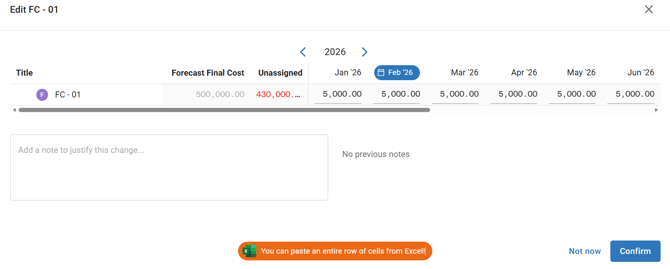
- Select Edit Forecast Cash Flow.
- Enter your forecast amounts in the relevant month fields (see the table below).
- Click Confirm to save your forecast cash flow distribution.
| Entry method | How it works |
|---|---|
| Manual entry | Click each month field and type the amount directly |
| Paste from Excel | Copy a single row of monthly values from Excel, click the first month field in Mastt, and paste. Values automatically populate across subsequent months. |
Distribute at the budget level
Use this method to forecast at a higher level without creating individual forecast items.
Note: Budget-level cash flow automatically overrides object-level cash flow for items within that budget. To switch back to object level, clear the budget cash flows using the budget's Action button (three dots).
- Click Cost in the left navigation bar.
- Click Cash Flow in the top menu.
- Click the Settings icon (cog) in the top right corner.
- Ensure the Budget Cash Flow Entry toggle is switched on.
- Return to the cash flow table.
- Click the Action button (three dots) next to the relevant budget.
- Select Edit Budget Cash Flow.
- Enter your estimated monthly values manually or paste from Excel.
- Click Confirm to save.
Troubleshooting and FAQs
| Question | Answer |
|---|---|
| What if my pasted Excel values don't align with the correct months? | Check that your Excel data starts from the same month as the field you clicked. Values paste left to right in order. |
| Why can't I see the Edit Budget Cash Flow option? | The Budget Cash Flow Entry toggle must be enabled. Click the Settings icon (cog) in the top right of the Cash Flow module and switch it on. |
Need help?
Contact Mastt Support for additional assistance with cash flow forecasting.