
Multi-Factor Authentication (MFA) adds an extra layer of security to your Mastt workspace by requiring a verification code from an authenticator app when users sign in (subject to the grace period). This guide covers how to enable MFA, complete the user setup process, and reset MFA if needed.
Note: MFA applies to users who sign in with an email and password. If your workspace uses Microsoft or Okta SSO, those users are already authenticated through your identity provider and won't be prompted for MFA.
Before you start
- You need Workspace Admin access to enable MFA or reset it for other users.
- Each user needs an authenticator app installed on their mobile device (e.g. Google Authenticator, Microsoft Authenticator, or Authy).
Enable MFA for your workspace
This is a one-time setup performed by a Workspace Admin. Once enabled, all users in the workspace will be required to set up MFA.
Open workspace security settings
- Click your profile icon in the top-right corner and select Admin.
- Click Workspace Details.
- Scroll to the Security section.
Turn on MFA
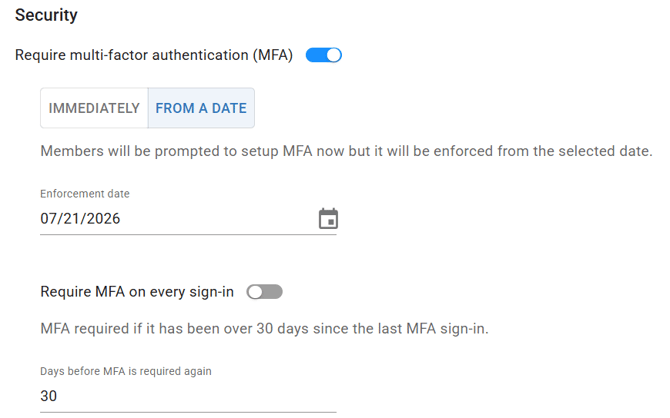
- Find the Require multi-factor authentication (MFA) toggle and turn it on.
- Choose when MFA takes effect (see the table below).
- Set how often users need to re-verify (see the table below).
- Click Save.
| Setting | What it does |
|---|---|
| Immediately | Every user is prompted to complete MFA setup the next time they sign in, and must finish it to continue. |
| From a Date | Choose a date in the Enforcement date field. Members are prompted to set up MFA right away, but it isn't enforced until the selected date. Until then, they can skip the prompt and keep working as normal. |
| Require MFA on every sign-in (off, the default) | Applies a grace period. Once a user signs in with MFA, they won't be asked again until the number of days set in Days before MFA is required again has passed. This defaults to 30 days, but you can manually enter a different number for a shorter or longer grace period. |
| Require MFA on every sign-in (on) | Users enter a code every time they sign in, with no grace period. |
Tip: If you schedule a future enforcement date, let your team know ahead of time. They'll start seeing the setup reminder right away, but won't be locked out until the date you've chosen.
Set up MFA as a user
This process happens automatically the first time you sign in after a Workspace Admin has enabled MFA.
- Sign in to Mastt with your email and password.
- Open your authenticator app and scan the QR code.
- Click Continue. Your MFA setup is now complete.
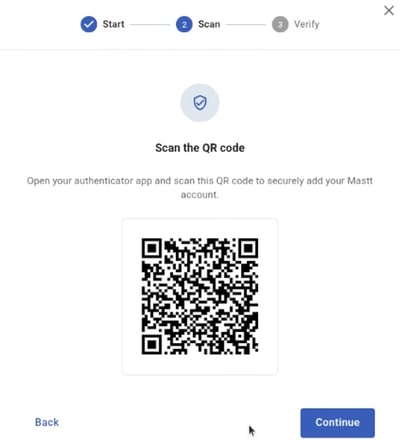
Tip: If you can't scan the QR code, select the option to enter the setup key manually, then enter the 6-digit code from your authenticator app and click Verify & sign in.
Sign in with MFA
After your initial setup, you'll usually be asked for a verification code each time you sign in.
Mastt applies a grace period after a successful MFA sign-in. It's 30 days by default, though your Workspace Admin can change this in Days before MFA is required again (unless they've turned on Require MFA on every sign-in). You won't be asked for a code again until that period has passed.
- Enter your email and password as usual.
- Enter the 6-digit code from your authenticator app.
- If the code is correct, you will be signed in automatically.
Reset MFA for a user
If a user loses access to their authenticator app, a Workspace Admin can reset their MFA so they can set it up again.
- Click your profile icon in the top-right corner and select Admin.
- Click User Management.
- Select the user who needs their MFA reset.
- Click the Action button.
- Click Reset MFA. The user will be prompted to set up MFA again the next time they sign in.
Troubleshooting and FAQs
| Question | Answer |
|---|---|
| What happens if I enter the wrong verification code? | If you enter an incorrect code five times, you'll see an error message asking you to wait. Wait five minutes, then try again using a fresh verification code from your authenticator app. |
| Can I use any authenticator app? | Yes. Any TOTP-compatible authenticator app will work, including Google Authenticator, Microsoft Authenticator, and Authy. |
Need help?
Contact Mastt Support for additional assistance with Multi-Factor Authentication.