
Dashboard sharing lets you give stakeholders visibility into project progress without granting full project access. Use share links to distribute live dashboard data to clients, asset owners, or team members who need to monitor progress but don't need editing permissions.
Before You Start
- Recipients don't need a Mastt account to view shared dashboards
Sharing a Dashboard Link
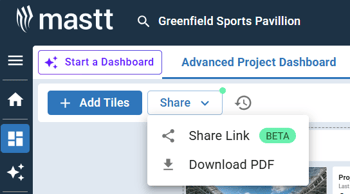
Access the Share Link Feature
- Open your project dashboard
- Click Share in the top toolbar
- Select Share Link from the dropdown menu
The Share Link window opens.
Configure Sharing Options and Invite Recipients
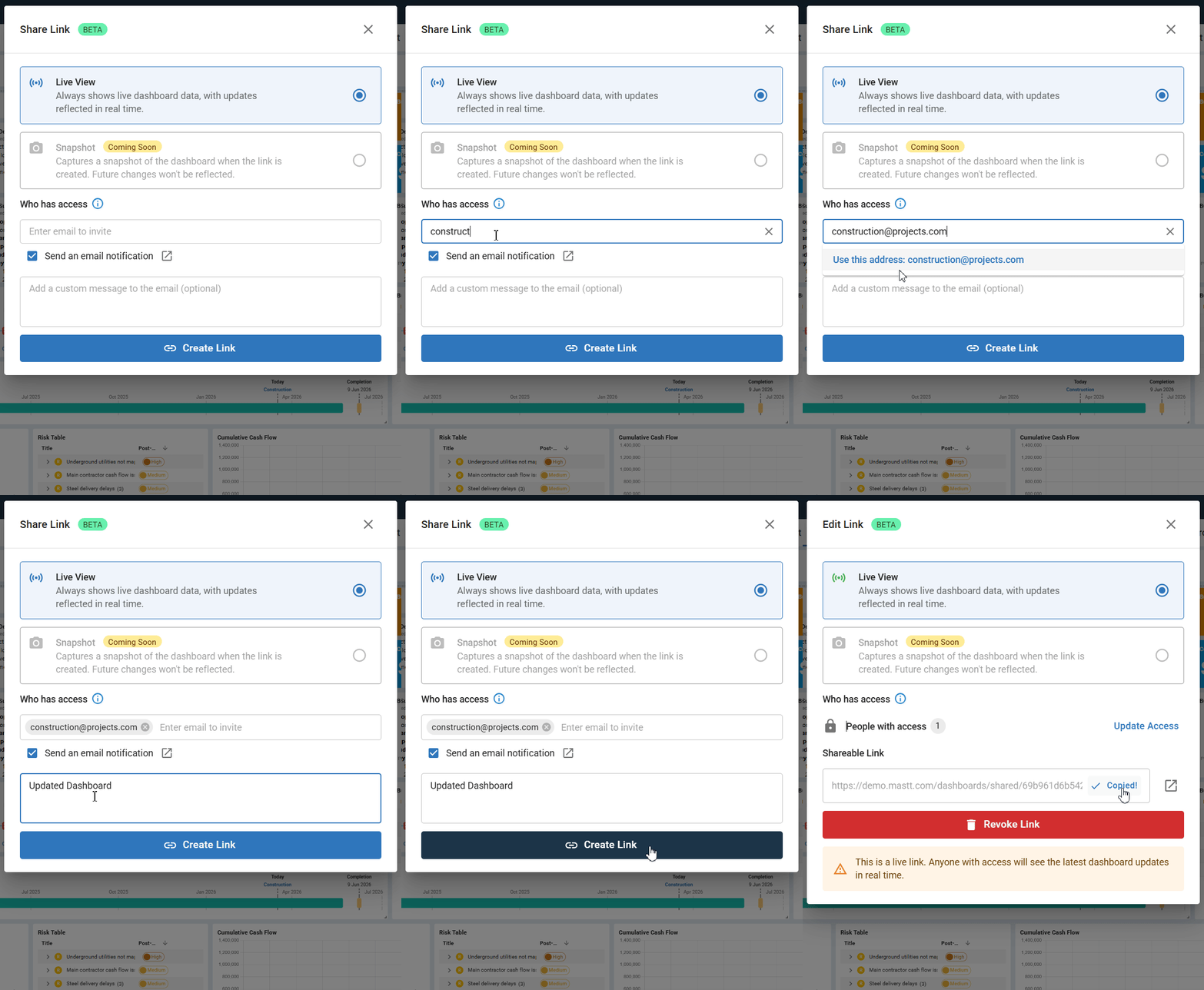
- Select your sharing mode:
- Live View (default) — Recipients see real-time dashboard data that updates automatically
- Snapshot — Recipients see a static version captured at a specific point in time (coming soon)
- Enter the recipient's email address in the Who has access field
- Select the email from the dropdown suggestion, or type the full address and press Enter
- Repeat to add more recipients
- Select the Send an email notification checkbox to notify recipients directly
- Add an optional custom message to provide context
- Click Create Link
The share link is generated. Click Copy to copy the link to your clipboard.
A status indicator appears next to your dashboard title showing Live and the number of people with access (e.g., "Shared with 1 person").
Custom messages help recipients understand why they're receiving the link and what to focus on.
What Recipients See
When recipients open the share link, they see your dashboard in view-only format with:
- Live indicator and Updated [time] timestamp
- View only label
- Download PDF button to export the dashboard
Recipients can view all data and download a PDF but cannot edit the dashboard or access other project areas.

Managing Access
After creating a share link, you can update recipients at any time from the Share Link window.
Add New Recipients
- Open the Share Link window (click Share > Share Link)
- Enter the new recipient's email address in the Who has access field
- Select the Send an email notification checkbox if you want to notify them
- Add an optional custom message
- Click Update Access
View Current Recipients
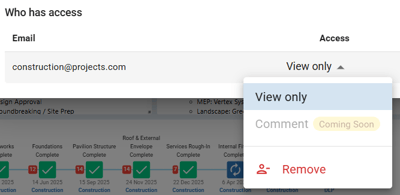
The Who has access section displays everyone who can view your dashboard through the share link.
Remove a Recipient
- Find the recipient's name in the Who has access list
- Click the × beside their email address
The recipient immediately loses access. Other recipients are unaffected.
Revoking a Share Link
To stop all sharing immediately:
- Open the Share Link window
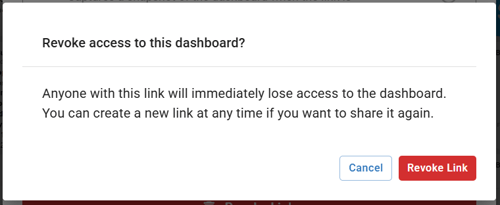
- Click Revoke Link
- Click Revoke Link again in the confirmation popup
All recipients immediately lose access. To share again, create a new share link.
Revoking affects all recipients at once. To remove only one person, use the Remove option in the Who has access section instead.
Troubleshooting & FAQs
Q: Why can't recipients see my latest dashboard changes?
Ask recipients to refresh their browser. With Live View, changes appear automatically after a refresh.
Q: How do I share with a large group?
Add each email address individually in the Who has access field. Only people added to this list can view the dashboard through the share link.
Need Help?
Contact Mastt Support for additional assistance with dashboard sharing.