
Dashboard Version History lets you track changes to your project dashboard, preview previous layouts, and restore earlier versions when needed. It is useful when multiple team members edit the dashboard or when you need to undo recent changes.
Before you start
- Make sure your dashboard has at least one saved version (versions are created automatically when changes are made).
- You must have edit access to the project to restore previous versions.
Open the Version History panel
- Navigate to your project dashboard.
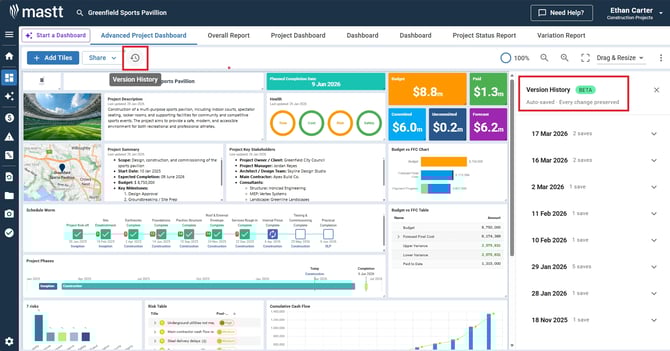
- Click the Version History button next to the Share dropdown in the top toolbar.
The Version History panel opens, displaying all previously saved versions of your dashboard.
Understand version information
Each version entry in the panel shows the details below, which helps you track updates over time and see how your dashboard has evolved.
| Item | What it shows |
|---|---|
| Who made the change | The team member who updated the dashboard |
| When it was updated | The date and time of the change |
| Active version indicator | Which version is currently live |
Preview a previous version
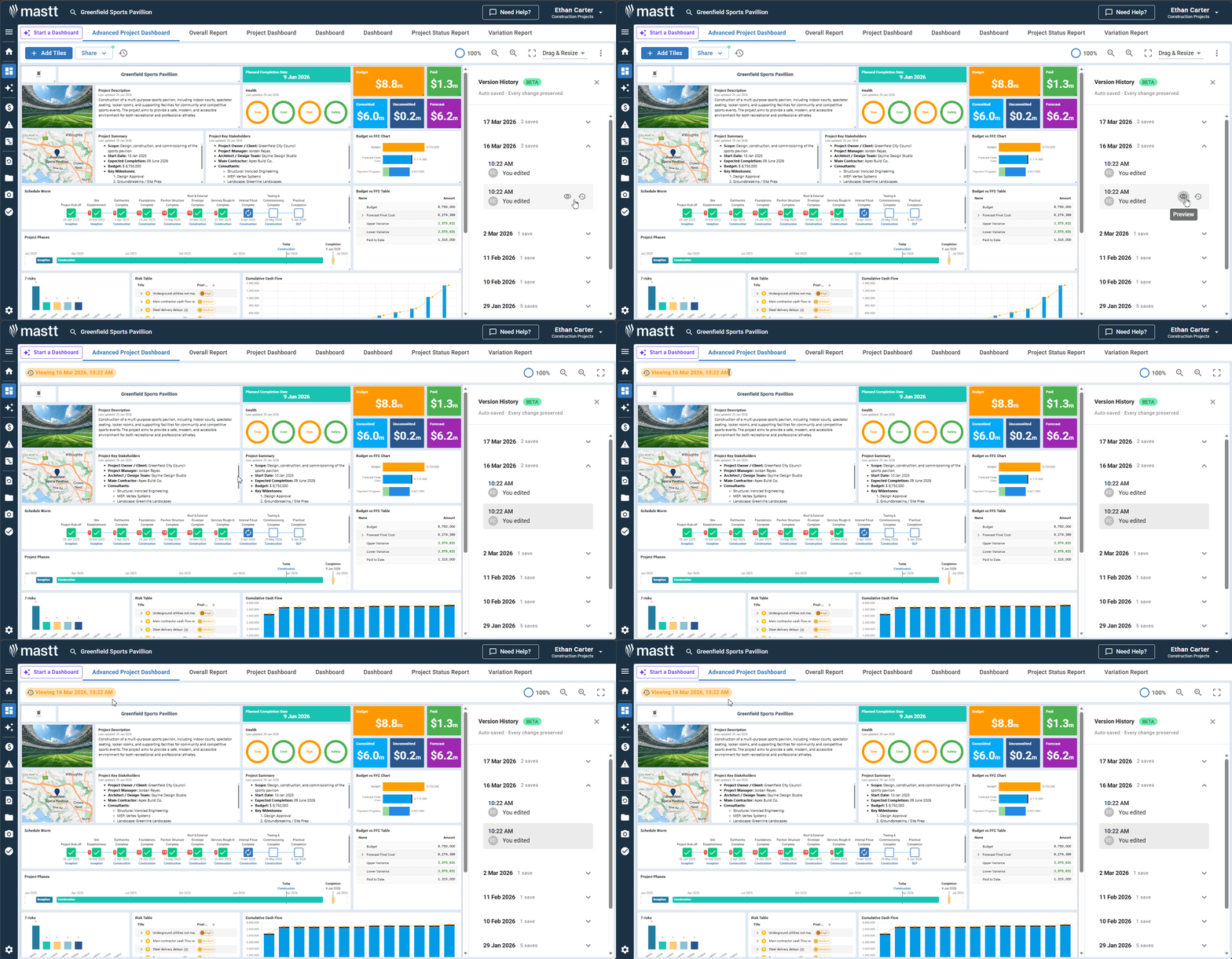
- In the Version History list, locate the version you want to review.
- Click the version to expand its details.
- Click the eye icon to preview the dashboard as it appeared in that version.
The preview shows exactly what the dashboard looked like at that point in time.
Restore a previous version
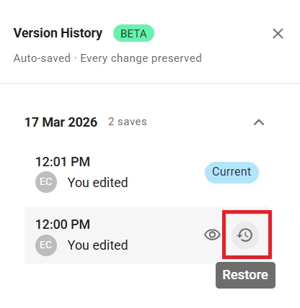
- From the Version History list, select the version you want to restore.
- Click the Restore button.
Your dashboard reverts to the selected version, which becomes the active version that everyone sees.
Note: Restoring a version replaces your current dashboard layout. Your current layout is saved as a version in the history, so you can return to it later if needed.
What's included in Version History
Version History captures changes that belong to the dashboard itself. Not every field on your dashboard is restored when you revert to a previous version.
Warning: Fields in the "not included" list aren't restored by Version History because they either come from the rest of the project or sync across dashboards. Restoring an older dashboard version won't roll these back. They need to be managed directly in their own sections or captured using a Snapshot before making major changes.
| Included in Version History | Not included in Version History |
|---|---|
| Dashboard layout | Health, description, stakeholder & summary text fields |
| Tile filters | Underlying project data |
| Custom Text Tile content |
How autosave works
All changes you make to your dashboard are saved automatically, so you don't need to click a save button. Each save creates a new version entry in the Version History panel.
Troubleshooting and FAQs
What happens to my current dashboard when I restore an older version?
Your current layout is automatically saved as a new version before the restore occurs. You can restore it later if needed.
My dashboard isn't autosaving. How can I force a save?
If your changes aren't being saved, try opening the Version History panel. This triggers the system to save your current dashboard state as a new version.
How far back does Version History go?
Version History retains all saved versions for your dashboard with no time limit.
Need help?
Contact Mastt Support for additional assistance with Dashboard Version History.