
The AI Assistant helps you save time and get work done faster. Use it to ask questions about your project, review documents, draft communications, run scenarios, and analyse structured data with interactive tables.
When to Use the AI Assistant
The AI Assistant can help you with:
- Asking questions about anything related to your work
- Getting help reviewing or editing documents
- Drafting letters, memos, or emails
- Running scenarios or preparing complex advice
- Viewing and exporting structured data like cost breakdowns, payment registers, and defect lists
Getting Started with the AI Assistant
Open the AI Assistant
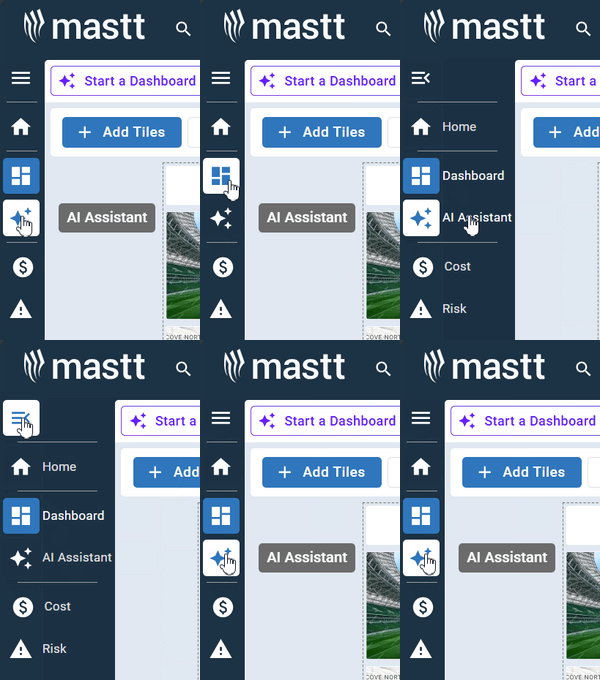
- From any project, navigate to the left sidebar menu.
- Click the AI Assistant icon.
Set Your Role Using "Acting As"
Setting your role ensures the AI Assistant understands your responsibilities and provides relevant, actionable advice.
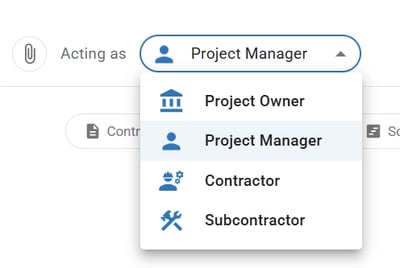
- Locate the Acting as dropdown below the chat input field.
- Click the dropdown to reveal role options.
- Select the role that matches your project perspective—your selection remains active for all conversations until you change it.
Use a Pre-Built Prompt (Optional)
- Locate the category pill buttons below the chat box (e.g., Contracts, Reporting, Schedule, Templates, Document, Other) and click a category to filter prompts
- Click any prompt card to automatically send it to AI Assistant
- Once the AI Assistant responds, you can ask follow-up questions or start a new topic in the chat input field
The Reporting category includes Dashboard Templates—pre-configured report templates you can use immediately.
Chat with the AI Assistant
- Type your question in the Ask me anything field and press Enter or click the blue Arrow Up to send
- To attach documents for review, click the attachment icon (paperclip) and select your file before sending
Once the AI Assistant responds, you can copy the response using the copy icon or download it as a Word document or Excel spreadsheet using the download icon.
Always review and verify AI responses before using them in official documents or making project decisions.
Working with Tables
The Mastt AI Assistant can display interactive tables directly in chat responses when you ask about cost breakdowns, payment registers, contract summaries, defect lists, or budget forecasts.
View and Export Table Data
Tables display column headers, sortable rows, and status indicators (e.g., Under Budget, Over Budget). Click the down arrow below the table to expand additional rows. Check the Sources panel on the right to verify which project documents were referenced.
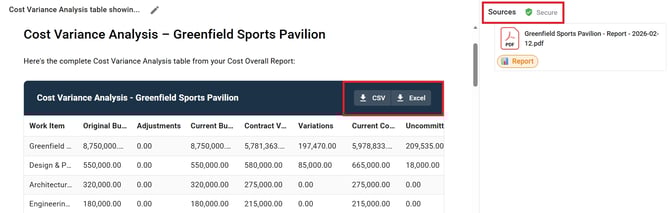
Export any AI-generated table for reporting or further analysis:
- Click CSV to download as a comma-separated file
- Click Excel to download as a formatted spreadsheet
Managing Your Chats
Rename a Chat
To rename a chat, click a chat thread in the Recents panel, then click the pencil icon next to the title, type your new name, and press Enter to save.Delete a Chat
To delete a chat, hover over a chat thread in the Recents panel and click the red trash icon, then confirm by clicking Delete.Deleted chats cannot be recovered.
AI Assistant You Can Trust
Your AI Assistant conversations are secure and private:
- Chat threads are visible only to you—no other project users can access them
- Conversations are stored securely within Mastt's infrastructure
- Your data is not sent to external AI models for training
- You maintain full control to delete chats or export data at any time
For complete details, see our AI Product Terms.
Troubleshooting & FAQs
Q: Why are my AI responses not relevant to my role?
Check your Acting as setting below the chat input field. Select the role that matches your project perspective to receive tailored responses.
Q: Can other users see my AI Assistant conversations?
No. Your chat threads are completely private and visible only to you.
Q: What file types can I upload for AI review?
The AI Assistant currently supports PDF uploads. Use the attachment icon in the chat input field to upload contracts, reports, and other project documents.
Q: Where does the AI Assistant get the data for tables?
The AI Assistant pulls data from your project documents and modules. Check the Sources panel to see which documents were referenced.
Need Help?
Contact Mastt Support for additional assistance with the AI Assistant.