
The Contract Overview page is your centralised hub for managing all aspects of a contract in Mastt. From here, you can view line items, track variations, manage payments, review audit logs, and store documents—all in one place. You can also favourite contracts for quick access from your Home page.
Before you start:
- Contracts must already exist in your project to view Contract Overview
Accessing Contract Overview
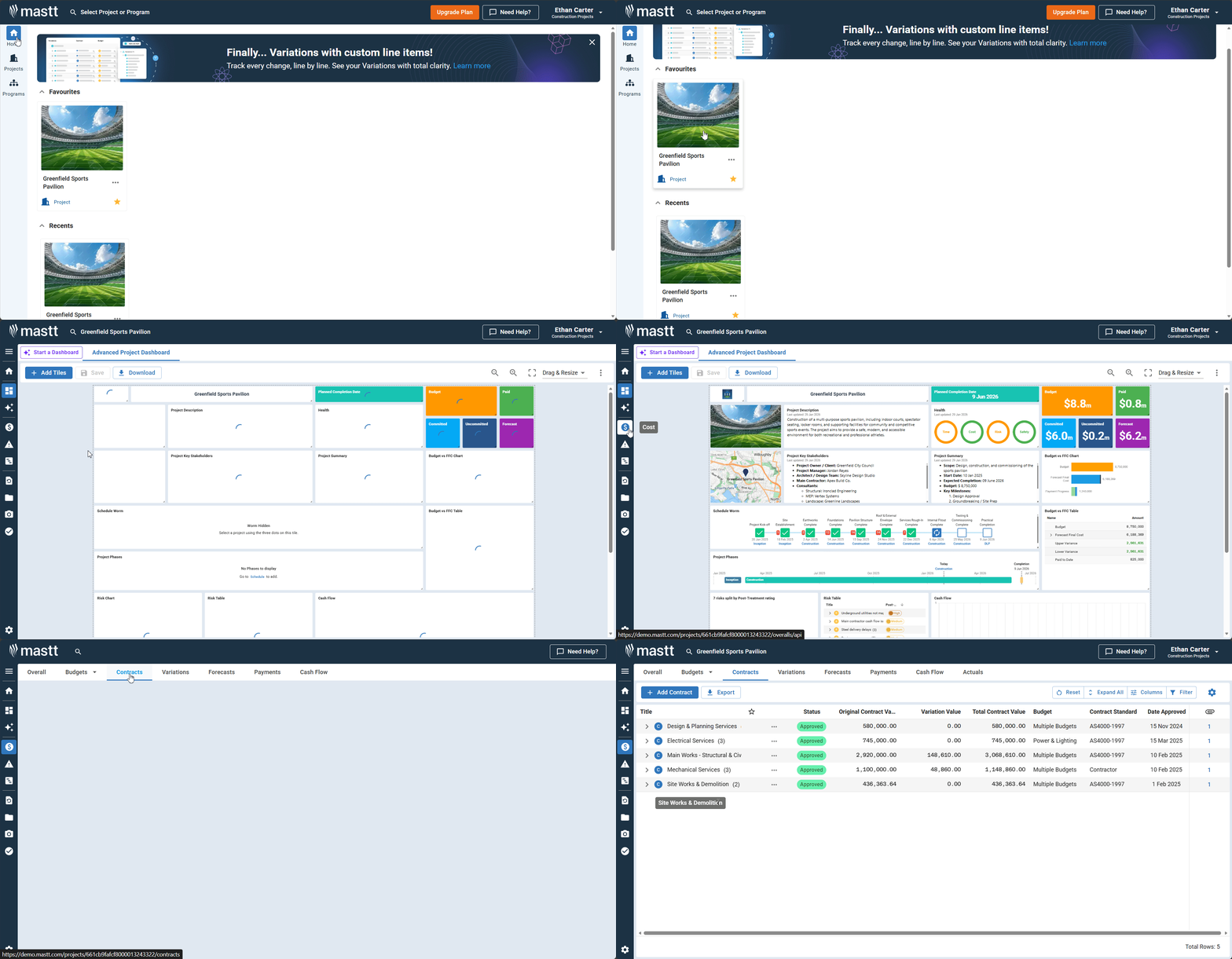
Step 1: Open Your Project
- From the Mastt Home page, click on a project tile to open your project
Step 2: Navigate to the Cost Module
- Click Cost in the left navigation menu
- This opens the Cost module
Step 3: Open the Contract List
- Click Contracts in the top navigation bar
- Your contract list displays
Step 4: Open Contract Overview
- Click the contract name text to open the Contract Overview page
Understanding Contract Overview Tabs
Contract Overview has five tabs, each focusing on a specific aspect of contract management.
Line Items Tab
The Line Items tab is the default view when you open Contract Overview. It displays your contract breakdown with columns for status, original contract value, variation value, and total contract value.
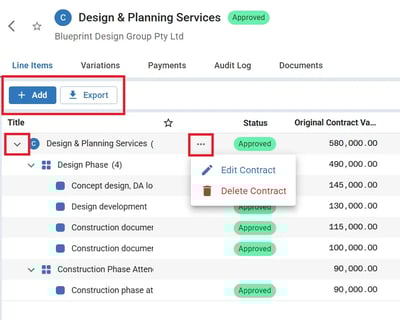
- Click + Add to add a new variation or payment directly from this tab
- Click Export to export line item data
- If you have parent items with child items, click the expander arrow next to the parent item to view the breakdown
- Click the action button to edit or delete the contract
Variations Tab
The Variations tab tracks all contract variations with their status, amounts, and time impacts.
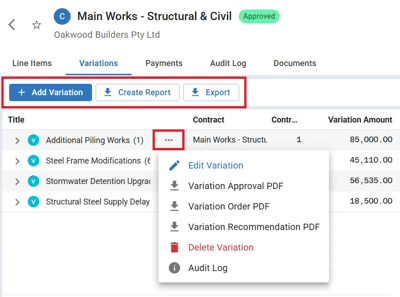
- Click + Add Variation to create a new variation
- Click Create Report to generate variation reports
- Click Export to export variation data for external reporting
- Click the action button beside a variation to edit, delete, generate variation PDFs (Variation Approval, Variation Order, or Variation Recommendation), or view the audit log
If no variations exist yet, you'll see an Add Your First Variation prompt to get started.
Payments Tab
The Payments tab is where you manage payment claims and certificates for your contract. You can see columns for month, status, payment amount, submitted amount, and approved contract value.
Use the Group by dropdown to organise payments by contract, month paid, status, or reimbursable claim.
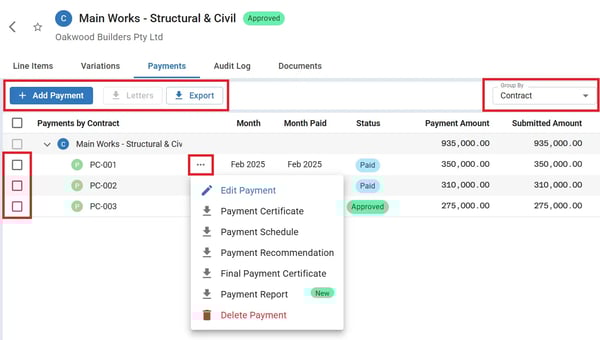
- Click + Add Payment to create a new payment
- Select payments using the checkboxes, then click Letters to download letters
- Click Export to export payment data
- Click the action button on any payment row to edit, delete, generate payment certificates, payment schedules, recommendations, final payment certificates, or payment reports
If no payments exist yet, you'll see an Add Your First Payment prompt to get started.
If you have a payment claim PDF, use the Fill details with AI option to automatically extract payment details using Mastt AI.
Audit Log Tab
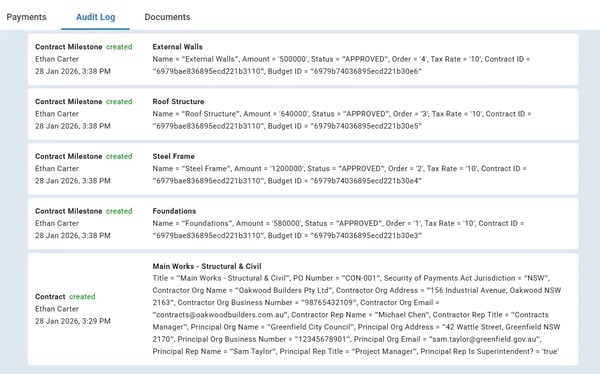
The Audit Log tab provides a complete read-only history of all changes made to the contract, including who made changes, when, and what was modified. This is useful for compliance, dispute resolution, or internal auditing.
Documents Tab
The Documents tab stores all files attached to the contract.

- Click + Add Document to upload a new document
- Click Export to export document data
- Click the delete icon beside a document to remove it
- Click the document name to automatically download the file
Working with Tables
Each tab displays data in a table format with customisable viewing options.
- Click the action button on any column header to sort, pin, filter, or hide columns
- Use the toolbar to reset views, customise columns, apply filters, or export data
- Click the settings icon (cog) to adjust decimal places and denomination options—this option is only available when the tab contains values
Editing and Deleting Contracts
From the Contract Overview page:
- Click Back to return to your contract list
- Click Edit Contract (upper right) to update contract details
- Click Delete to remove the contract
You cannot delete a contract that has associated payments, variations, or forecasts. Remove these items first before deleting the contract.
Favouriting Contracts for Quick Access
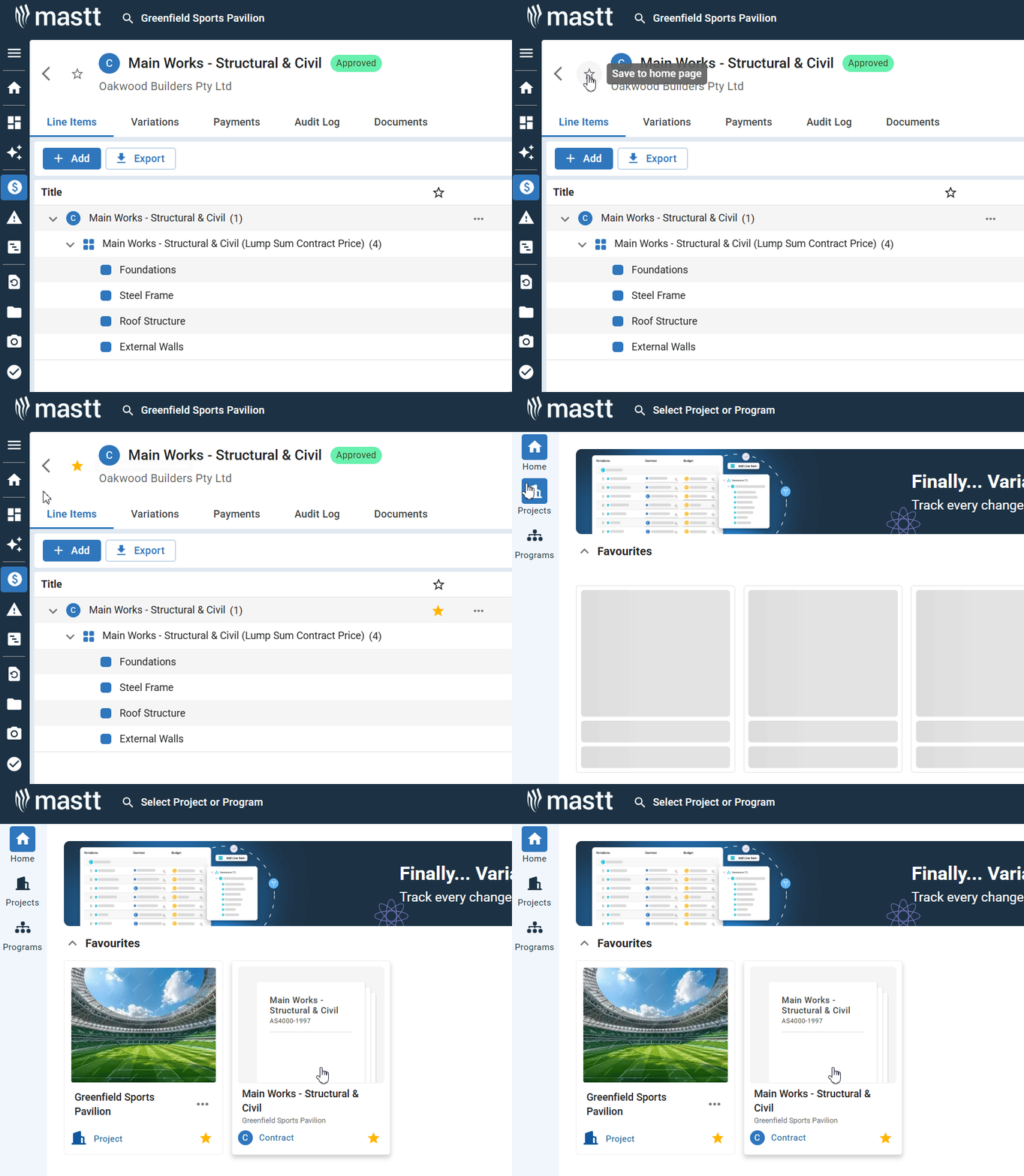
Favourite contracts appear on your Mastt Home page for one-click access.
Method 1: From Contract Overview
- Open the Contract Overview page
- Click the star icon next to the contract name in the header
- The contract is now favourited and will appear on your Home page
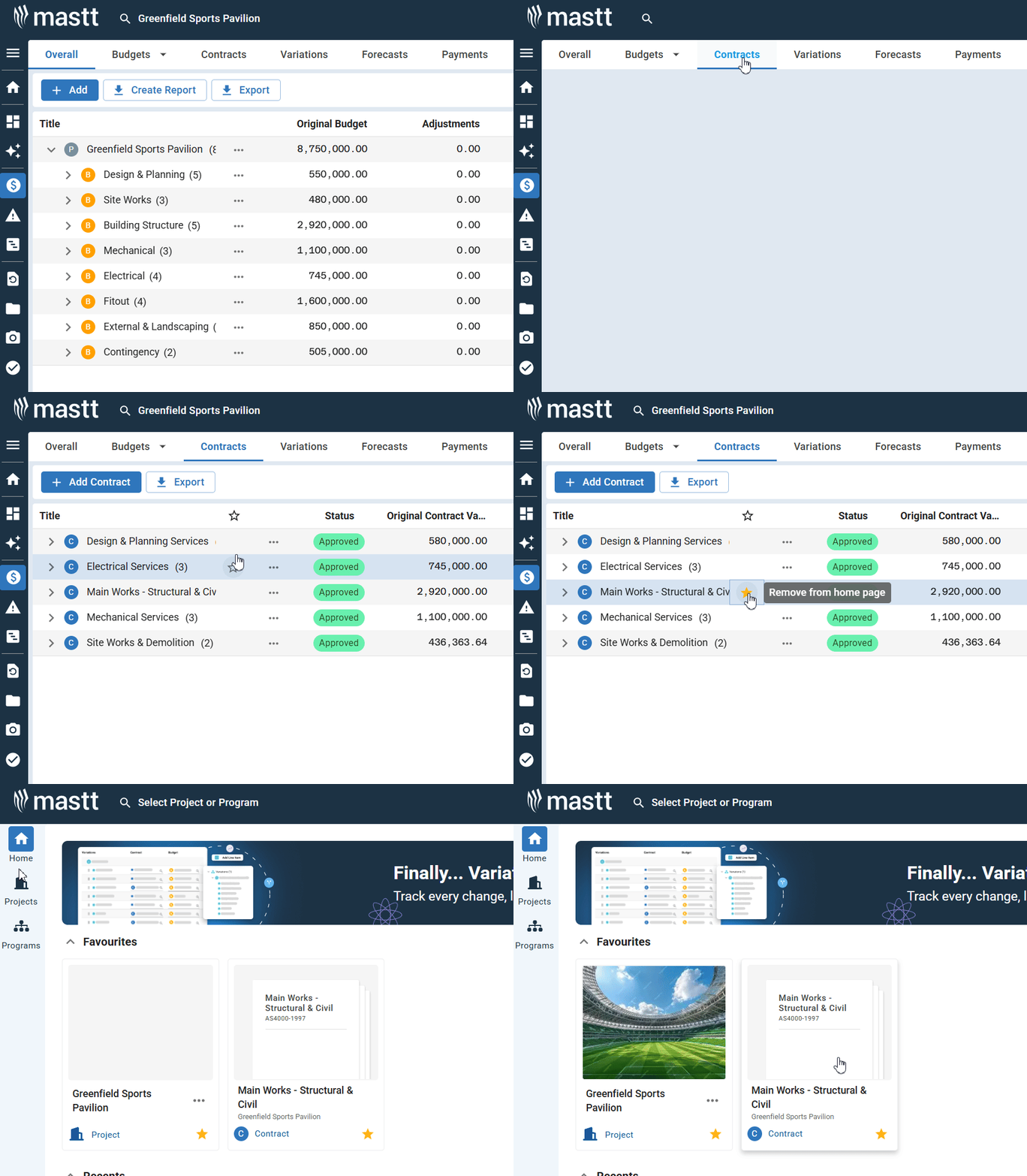
Method 2: From the Contract List
- Navigate to your contract list in the Cost module
- Click the star icon next to any contract in the list
- No need to open Contract Overview
To Unfavourite a Contract:
- Click the star icon again to remove it from your Home page
Troubleshooting & FAQs
Q: Why can't I delete a contract?
Contracts with associated payments, variations, or forecasts cannot be deleted. Remove these items first, then delete the contract.
Q: Where do favourited contracts appear?
Favourited contracts display on your Mastt Home page for quick one-click access.
Q: Who can see the Audit Log?
All users with access to the contract can view the Audit Log. It's read-only and cannot be edited.
Need help? Contact Mastt Support for additional assistance with Contract Overview.