
Dashboard report formatting ensures your project data displays clearly when printed or shared as PDFs. Use this process when you need to create professional reports for stakeholders, site meetings, or project documentation.
Before you start
- Ensure your dashboard contains the data you want to include in the report.
- Check that all dashboard tiles display the correct information.
Switch the report to portrait
Open Dashboard Settings
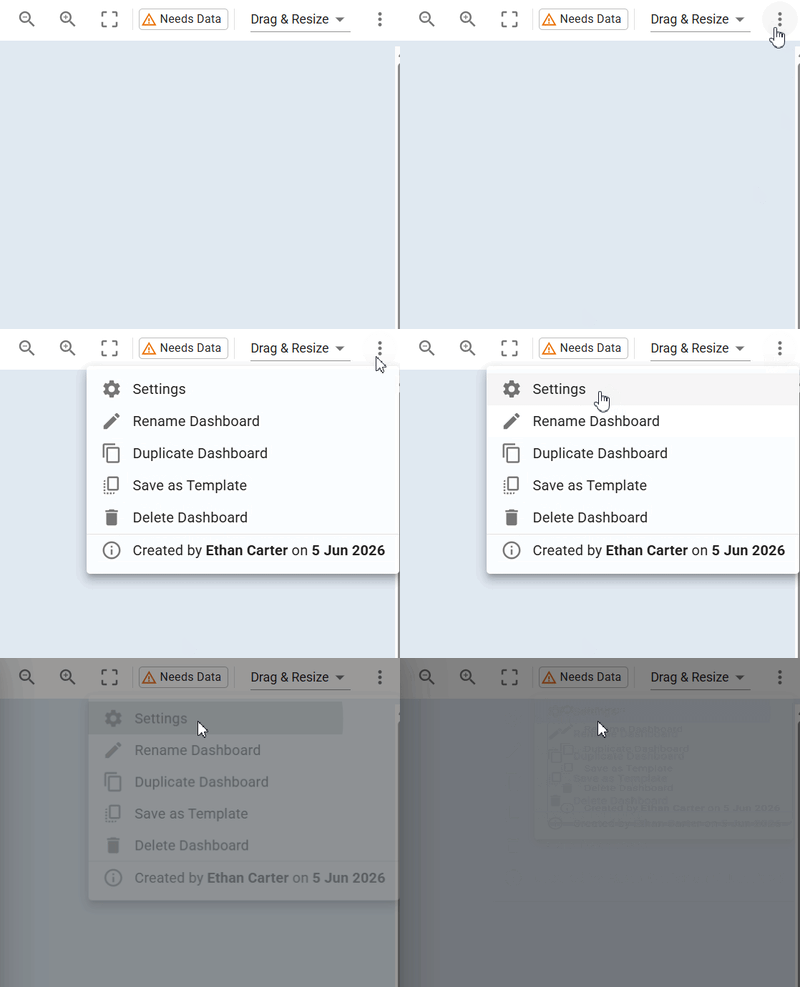
- Open your dashboard and locate the Action button in the top-right corner.
- Click Settings from the dropdown menu.
Set the print orientation
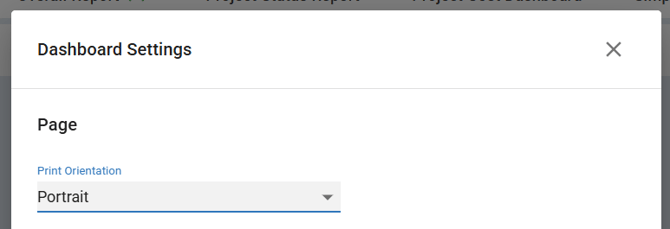
- Select Portrait from the Print Orientation dropdown to switch the report layout from landscape.
- Close the Dashboard Settings modal (click Done or the X button; either way, the change is saved automatically).
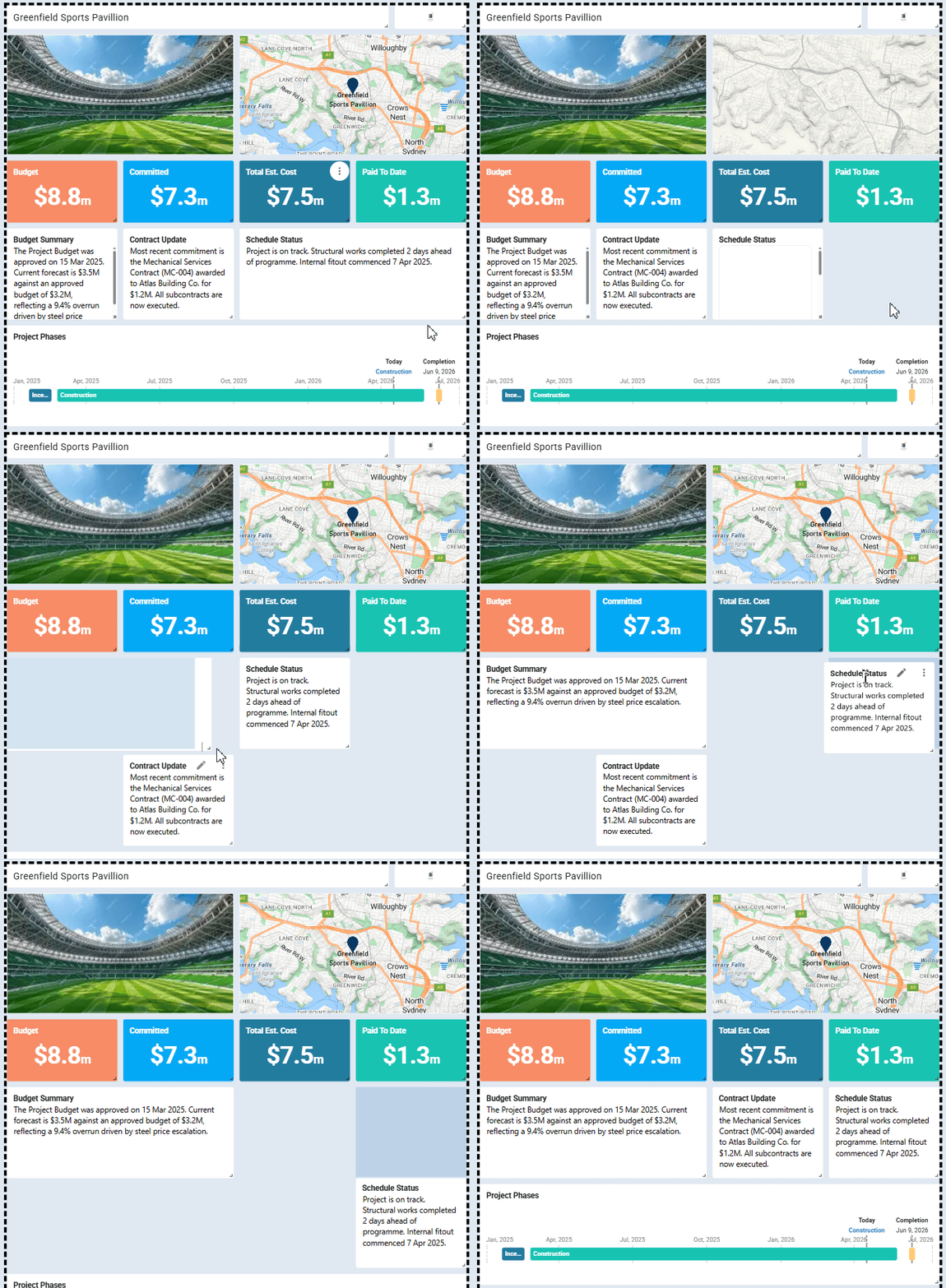
- Wait for the dashboard elements to rearrange automatically.
Your dashboard adjusts to portrait format, with tiles repositioned for optimal vertical layout.
Note: All dashboard changes are saved automatically. You don't need to manually save after changing the orientation. Each autosave creates a version entry in Version History.
Preview your report
- Click Print Preview to review the formatted layout.
- Check that all tiles fit properly within the portrait boundaries.
- Use the Resize & Drag feature to adjust any tiles that appear cramped or misaligned.
- Verify that critical data remains visible and readable.
Share your dashboard
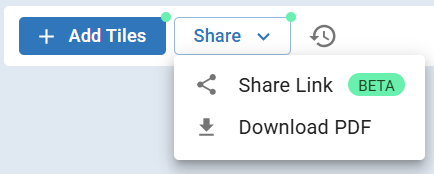
- Click the Share button in the top-right corner.
- Select one of the options below.
| Option | What it does |
|---|---|
| Share Link | Generates a shareable link (see How to Share a Dashboard Link for details) |
| Download PDF | Exports your dashboard as a PDF file |
Your dashboard report downloads as a professional PDF in portrait format, ready for printing or sharing with project stakeholders.
Tip: Structure your dashboard content before changing orientation. Portrait format works best with vertically stacked charts and data tables rather than wide horizontal layouts. Download a sample report first to check print quality before creating final reports for important meetings.
Troubleshooting and FAQs
| Question | Answer |
|---|---|
| Can I revert to the previous layout if I don't like the portrait arrangement? | Yes. Use the Version History button (beside the Share button) to preview and restore an earlier version of your dashboard. |
| Does changing to portrait affect how the dashboard looks on screen? | Yes. The orientation change applies to both the on-screen layout and the exported PDF. Tiles rearrange to fit the vertical format. |
| Can I set portrait as the default orientation for all dashboards? | No. Print orientation is set per dashboard. You need to change it individually for each dashboard you want in portrait format. |
Need help?
Contact Mastt Support for additional assistance with dashboard report formatting.