
Schedule Metric tiles give you instant visibility into critical schedule information directly on your Dashboard. Use them to display your current project phase, planned completion date, baseline completion date, or how many days your project is delayed. These tiles complement your cost data by showing schedule health at a glance.
Before you start
- You need access to the project or program.
- For completion date metrics, set up a completion milestone in the Schedule module with both baseline and planned dates (see How to Create a Project Schedule for details).
Add a Schedule Metric tile
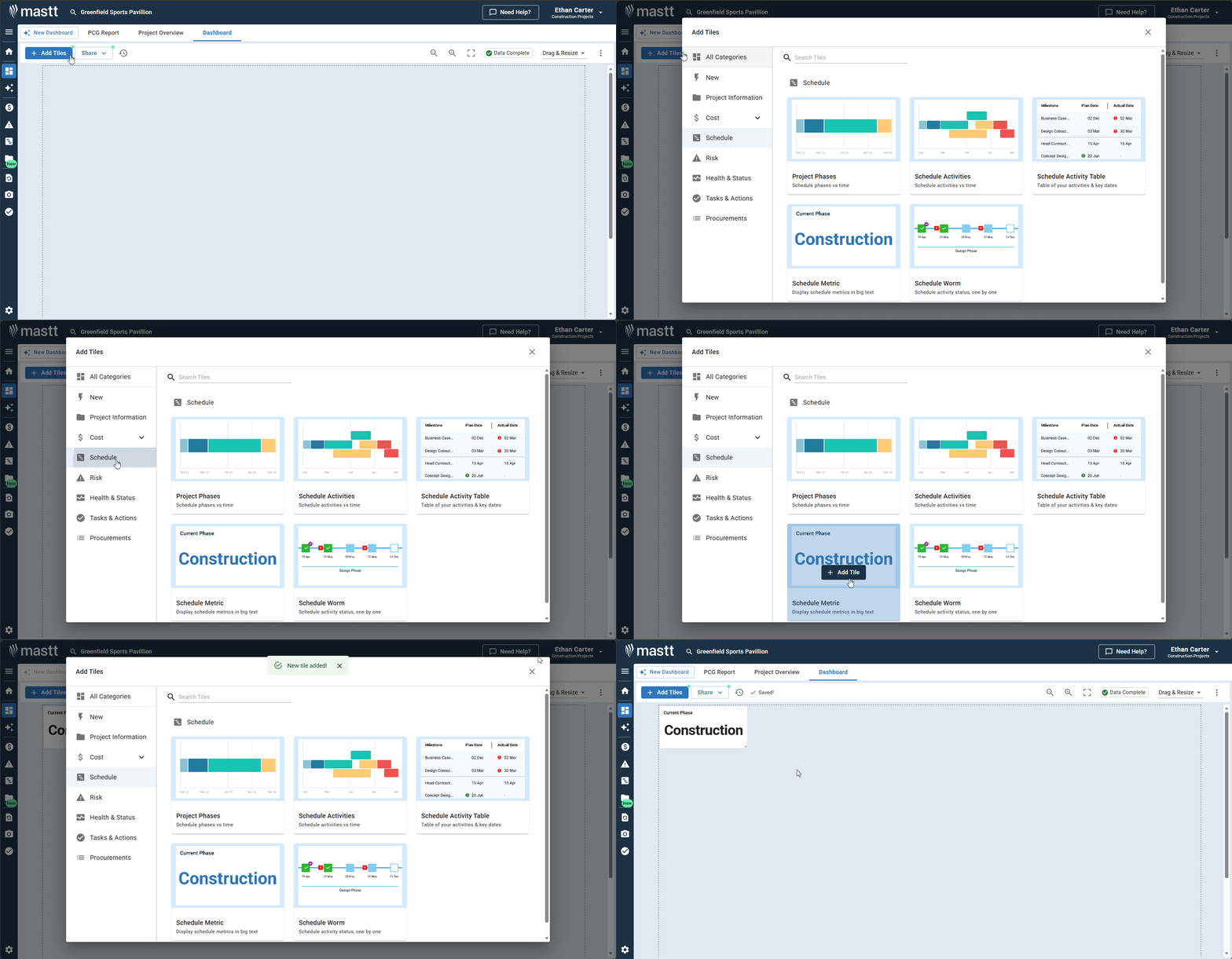
- Click Dashboard in the left-hand navigation bar.
- Click + Add Tiles in the top left area.
- Locate the Schedule Metric tile and click + Add Tile.
- Click X to close the Tile Library.
Configure a Schedule Metric tile
- Click the Action button on the tile and select Settings.
- Choose your metric (see Metric options below).
- (Optional) Toggle Custom title? to ON and enter a preferred title.
- Choose a background color from the preset palette, or use the custom color picker.
- Your settings are saved automatically.
Metric options
| Metric | What it shows |
|---|---|
| Current Phase | The project phase (e.g., Design, Construction, Commissioning, Handover). Mastt sets this automatically from the phase the project is currently in. If the project is not in a phase, it uses the most recently completed milestone. |
| Baseline Completion Date | The original target completion date from your project baseline. Pulled from the activity marked as your completion milestone. |
| Planned Completion Date | Your current target completion date, reflecting any schedule changes since the baseline. |
| Delay from Baseline | The difference between Baseline and Planned Completion Dates in days. A positive number means delayed, zero means on schedule, and a negative number means ahead of schedule. |
Note: Baseline Completion Date, Planned Completion Date, and Delay from Baseline require a completion milestone. In the Schedule module, toggle Completion to ON on the relevant activity and ensure both baseline and planned dates are entered.

Manage Schedule Metric tiles
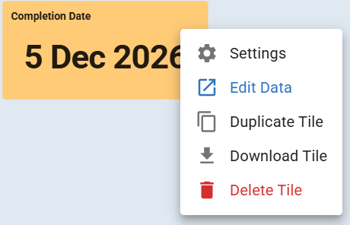
Click the Action button on any tile to access these options.
| Option | What it does |
|---|---|
| Settings | Change the metric, title, or color |
| Edit Data | Open the Schedule module to update activities and dates |
| Duplicate Tile | Create a copy, then change the metric to quickly build a set of related tiles |
| Download Tile | Save as an image for reports or presentations |
| Delete Tile | Remove the tile (schedule data remains intact) |
Troubleshooting and FAQs
Why is my tile showing no data?
Go to the Schedule module and make sure you've marked an activity as your completion milestone (toggle Completion to ON). That activity needs both a baseline date and a planned date configured.
How do I change the phase in my program report / Why is the tile showing the wrong phase?
The Current Phase metric in the program report is set automatically from the phase the project is currently in, or the most recently completed milestone if the project is not in a phase. Review your project schedule to ensure milestones are assigned to the correct phases and that milestone dates are accurate.
How do I show multiple schedule metrics on one dashboard?
Add one Schedule Metric tile, configure it, then use Duplicate Tile and change the metric on each copy.
Need help?
Contact Mastt Support for additional assistance with Schedule Metric tiles.