
AI Compliance helps you extract payment requirements from contract PDFs and verify that payment applications and invoices meet contract obligations. Use it to check that all payment submissions include the required documentation, such as insurance certificates, before you process them.
Before you start
- The contract must be in PDF format.
- The maximum file size is 50MB and 1,000 pages.
- Remove unrelated pages before upload to improve processing accuracy.
- The contract must have AI Compliance configured before you can use AI Review for payment applications.
Set up AI Compliance for a contract
Upload the contract PDF
Note: Processing may take several minutes for large contracts.
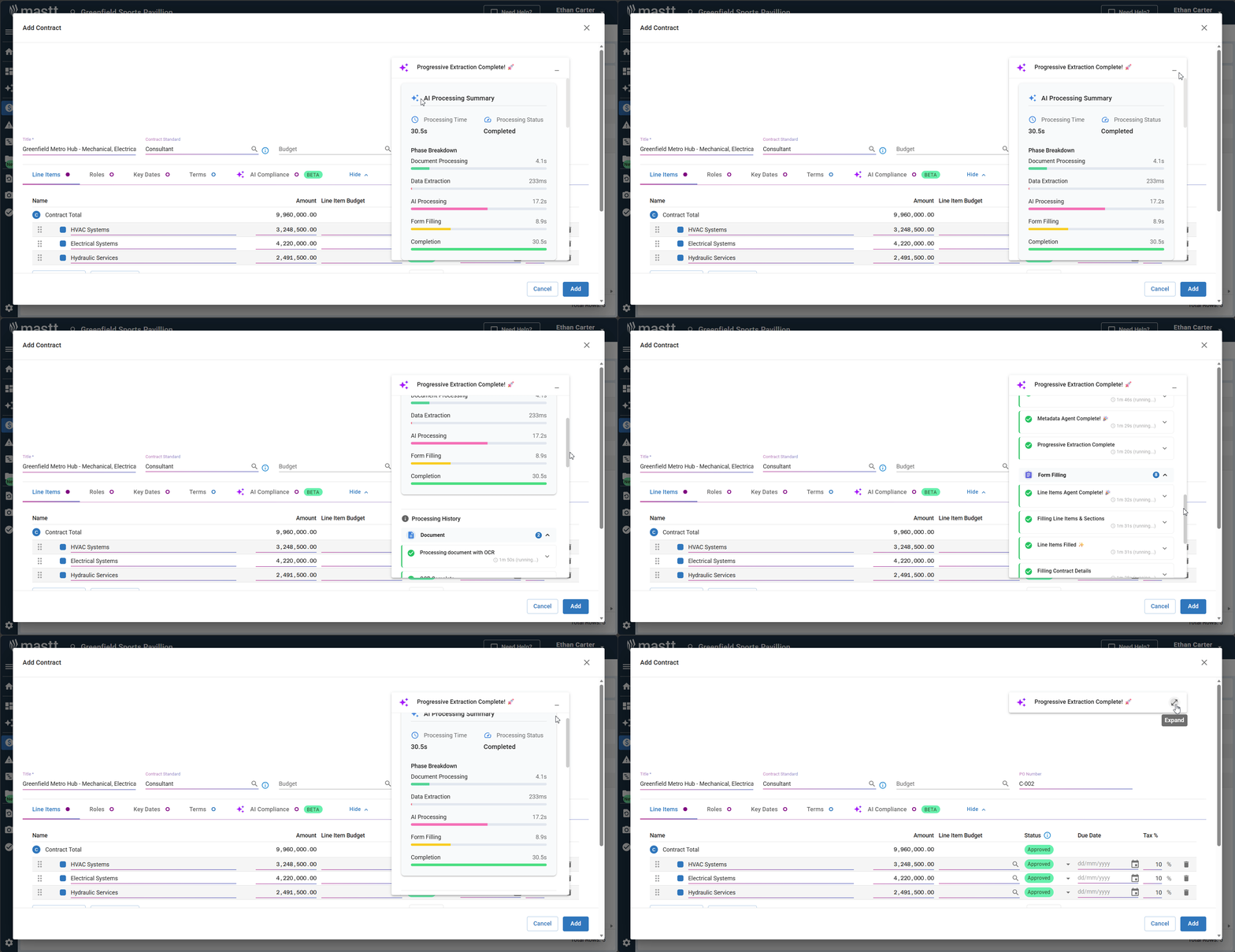
- Click + Add Contract on the Contracts register (or click + Add, then + Add Contract on the Overall page) to open the Add Contract form.
- Drag and drop your contract PDF onto the Fill details with AI upload area.
- Check that the file upload is complete.
Review extracted compliance items
Warning: Always check extracted compliance requirements before you accept them. AI may miss context or interpret requirements differently than intended.
- Click the AI Compliance tab (beta), which sits after the Terms tab.
- Check all extracted payment review checklist items and their source references.
- Make sure all extracted information is correct.
- Click Add to save the contract with its compliance checklist.
Edit compliance checklist items
You can add your own checklist items, and edit or remove existing ones, on a contract that has already been created.
- Click the Action button next to the contract and select Edit Contract, or click Edit Contract at the top right of the Contract Overview.
- Click the AI Compliance tab.
- Click the Edit button under Actions for the checklist item you want to change.
- Enter the updated details or select Remove to delete the item.
- Click Update to apply the changes.
Tip: Use clear, specific names for checklist items to make it easy to identify requirements during payment review.
Use AI Review for payment applications
Upload the payment application
Note: Processing takes 1 to 3 minutes. The time depends on the document complexity and the number of checklist items.
- On the Overall page, click the Action (three-dot) button next to the contract and select Add Payment to open the Add Payment form.
- Drag and drop your payment application or invoice PDF onto the Fill details with AI upload area.
- Check that the upload is complete.
Review compliance status
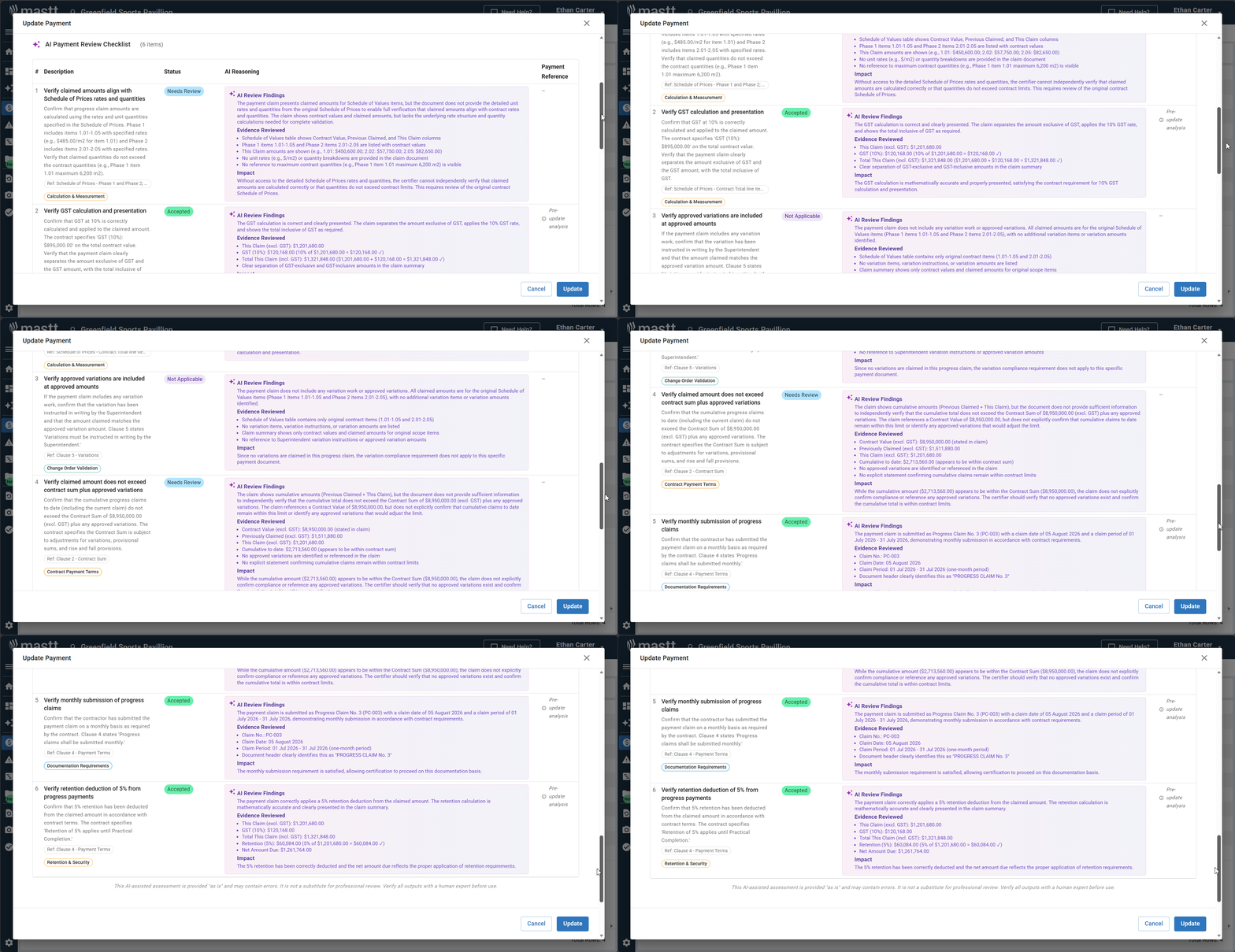
- Click the AI Review tab when processing is complete.
- Check each compliance item and its status.
- Click the purple reasoning text beside an item to see the AI's explanation.
- Change the status to the appropriate level if you disagree with the AI recommendation.
AI Compliance status levels
Each compliance item shows one of the following statuses.
| Status | What it means |
|---|---|
| Pending | AI analysis is not complete and a status is not assigned. |
| Accepted | The documentation is present, complete, and meets all specified requirements. |
| Needs Review | The documentation is present, but the assessment is inconclusive. This may be due to ambiguity, poor quality, or complex factors that need human review. |
| Not Applicable | The check does not apply to this specific payment based on contextual rules. |
| Missing | The required documentation is not included in the submission. |
| Rejected | The documentation is present but does not meet one or more requirements. |
| Expired | The documentation is present but has passed its valid date. |
Troubleshooting and FAQs
What if the AI missed important compliance requirements during contract setup?
You can add, edit or remove checklist items after the initial extraction, including on an existing contract. Open the contract with Edit Contract, go to the AI Compliance tab and make the required changes. See Edit compliance checklist items above.
What if required insurance documents were not uploaded with the payment application?
Check whether you have the general liability, professional liability, or other required insurance documentation stored separately. You can set these items to Accepted if the documentation exists elsewhere in your system.
Why does a compliance item show Needs Review instead of Accepted?
The AI could not make a definitive assessment. Check the source document and the extracted requirement, then set the status manually based on your review.
Need help?
Contact Mastt Support for additional assistance with AI Compliance.