
Workspace Analytics lets administrators see how their team uses Mastt. You can track workspace activity, review feature adoption, monitor AI pre-fill usage and identify the most active users across all projects. This helps you make informed decisions about training, onboarding and resourcing for your projects or programs of work.
Warning: Workspace Analytics is available on the Enterprise plan. Only workspace administrators can access this feature.
Open Workspace Analytics
- Click your name in the top-right corner.
- Select Admin .
- In the left menu, select Workspace Analytics .
- Select a time range from the top-right corner.
- Go to the Analytics tab for workspace activity.
- Select User Activity to review activity by user.
- Select a user to view their individual activity.
Tip: If your workspace has an Enterprise subscription, workspace admins can also open Workspace Analytics from the profile menu. Click your name in the top-right corner and select Analytics .
Analytics tab
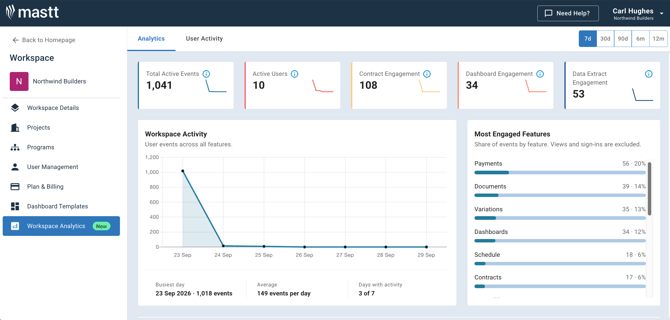
The Analytics tab gives an overview of workspace activity by users over a specified time period. Use the filter in the top-right corner of the page to isolate data from the last 7 days, 30 days, 90 days, 6 months, or 12 months.
Key metrics
| Metric | What it means |
|---|---|
| Total Active Events | The total number of actions performed across the workspace |
| Active Users | The number of unique users who have logged in and performed actions |
| Contract Engagement | Activity within the Contracts, Change Orders, and Payments modules, including adding, editing, and downloading PDFs |
| Dashboard Engagement | Interactions with project dashboards |
| Data Extract Engagement | Usage of export features and data extract in any module |
Other sections
| Section | What it shows |
|---|---|
| Most Engaged Features | Each feature's share of events, including exports (views and sign-ins are excluded) |
| Top Features | What your team produced with Mastt in the period, such as items created, edited or uploaded, ranked by events |
| Use of AI | Form submissions and AI pre-fill attempts for Payments , Contracts , and Change Orders . Administrators can use this to measure how effectively the team is adopting AI-assisted workflows. |
| Top AI Users | Which unique users are making the most of the AI pre-fill feature in Mastt for these form types |
| Most Active Projects and Most Active Users | Where the most engagement occurs for the selected time period |
User Activity tab
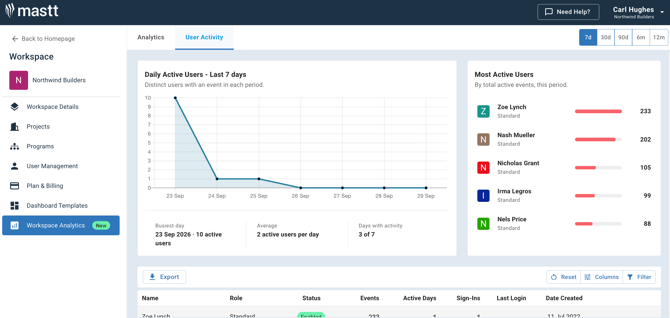
The User Activity tab focuses on individual user engagement across the workspace.
| Item | What it shows |
|---|---|
| Weekly Active Users chart | Unique active users over time, with summary metrics at the bottom of the chart for the busiest week, average active users per week, and total weeks with activity |
| Most Active Users table | Users ranked by total active events in the selected time period |
Use the table filters to sort and search by Name , Role , Status , Events , Active Days , Sign-Ins , Last Login , and Date Created . Use the Export , Reset , Columns , and Filter controls in the toolbar to further manage the table view.
Tip: Use the Export option to download user activity data for reporting or audits, such as sharing engagement metrics with leadership or reviewing access for compliance purposes. The export downloads as a CSV file.
View an individual user
Select any user in the table to view a detailed breakdown of their individual activity, including:
- Total Active Events and Dashboard Views .
- Engagement over time and Most Engaged Features .
- AI pre-fill attempts and form submissions by form type (Payments , Contracts , Change Orders ).
- Projects they work on, including events, files downloaded, and last activity.
When to use Workspace Analytics
Use Workspace Analytics when you need to:
- Check whether a new team or project is logging in and using the features they were trained on after a Mastt rollout.
- Pull user activity into a monthly or quarterly update report for leadership, using the Export option.
- Review AI pre-fill adoption after introducing the feature and identify users who may need a refresher.
- Confirm the right people are active and engaged on a project that is kicking off or ramping up.
- Find users with low activity or who have not logged in recently when planning training or support.
- Review what a user has been working on and which projects they are active in during offboarding or reassignment.
- Identify dormant accounts that could be deactivated during an access or security review.
Need help?
Contact Mastt Support for additional assistance with Workspace Analytics.