
Workspace Analytics lets administrators see how their team uses Mastt. You can track workspace activity, review feature adoption, monitor AI pre-fill usage and identify the most active users across all projects. This helps you make informed decisions about training, onboarding and the resourcing your projects or program of works need.
Warning: Workspace Analytics is available on the Enterprise plan. Only workspace administrators can access this feature.
Open Workspace Analytics
- Click your name in the top-right corner.
- Select Admin .
- In the left menu, select Workspace Analytics .
- Select a time range from the top-right corner.
- Go to the Analytics tab for workspace activity.
- Select User Activity to review activity by user.
- Select a user to view their individual activity.
Tip: If your workspace has an Enterprise subscription, workspace admins can also open Workspace Analytics from the profile menu. Click your name in the top-right corner and select Analytics .
Analytics tab
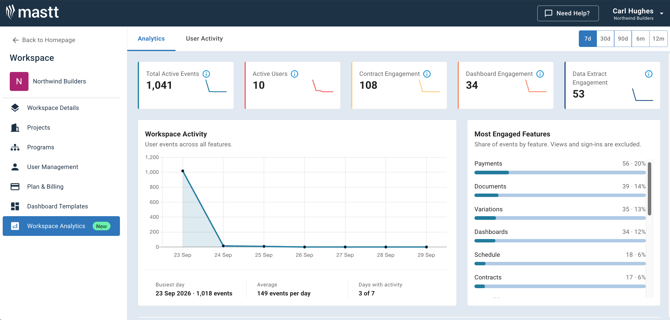
The Analytics tab gives an overview of workspace activity by users over a specified time period. Use the filter in the top-right corner of the page to isolate data from the last 7 days, 30 days, 90 days, 6 months, or 12 months.
Key metrics
| Metric | What it means |
|---|---|
| Total Active Events | The total number of actions performed across the workspace |
| Active Users | The number of unique users who have logged in and performed actions |
| Contract Engagement | Activity within the Contracts, Variations, and Payments modules, including adding, editing, and downloading PDFs |
| Dashboard Engagement | Interactions with project dashboards |
| Data Extract Engagement | Usage of export features and data extract in any module |
Other sections
| Section | What it shows |
|---|---|
| Most Engaged Features | Each feature's share of events, including exports (views and sign-ins are excluded) |
| Top Features | What your team produced with Mastt in the period, such as items created, edited or uploaded, ranked by events |
| Use of AI | Form submissions and AI pre-fill attempts for Payments , Contracts , and Variations . Administrators can use this to measure how effectively the team is adopting AI-assisted workflows. |
| Top AI Users | Which unique users are making the most of the AI pre-fill feature in Mastt for these form types |
| Most Active Projects and Most Active Users | Where the most engagement occurs for the selected time period |
User Activity tab
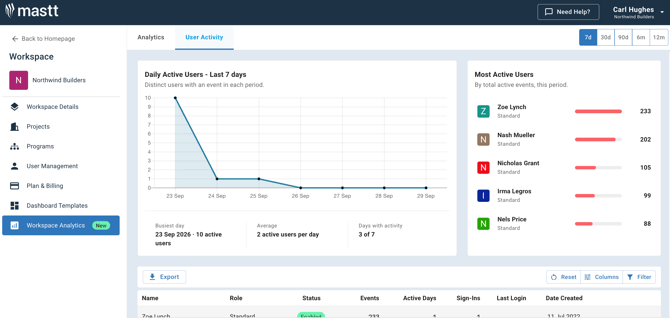
The User Activity tab focuses on individual user engagement across the workspace.
| Item | What it shows |
|---|---|
| Weekly Active Users chart | Unique active users over time, with summary metrics at the bottom of the chart for the busiest week, average active users per week, and total weeks with activity |
| Most Active Users table | Users ranked by total active events in the selected time period |
Use the table filters to sort and search by Name , Role , Status , Events , Active Days , Sign-Ins , Last Login , and Date Created . Use the Export , Reset , Columns , and Filter controls in the toolbar to further manage the table view.
Tip: Use the Export option to download user activity data for reporting or audits, such as sharing engagement metrics with leadership or reviewing access for compliance purposes. The export downloads as a CSV file.
View an individual user
Select any user in the table to view a detailed breakdown of their individual activity, including:
- Total Active Events and Dashboard Views .
- Engagement over time and Most Engaged Features .
- AI pre-fill attempts and form submissions by form type (Payments , Contracts , Variations ).
- Projects they work on, including events, files downloaded, and last activity.
When to use Workspace Analytics
Use Workspace Analytics when you need to:
- Check whether a new team or project is logging in and using the features they were trained on after a Mastt rollout.
- Pull user activity into a monthly or quarterly update report for leadership, using the Export option.
- Review AI pre-fill adoption after introducing the feature and identify users who may need a refresher.
- Confirm the right people are active and engaged on a project that is kicking off or ramping up.
- Find users with low activity or who have not logged in recently when planning training or support.
- Review what a user has been working on and which projects they are active in during offboarding or reassignment.
- Identify dormant accounts that could be deactivated during an access or security review.
Need help?
Contact Mastt Support for additional assistance with Workspace Analytics.