
Use AI Contract Upload to add multiple contracts to your project at once. Instead of entering each contract manually, upload your PDF files and let Mastt AI extract the key details—contract name, parties, values, and dates—and add them directly to your Contract Register.
Before You Start
- Ensure all contract files are in PDF format
Uploading Your Files
Access AI Contract Upload
- Click Cost in the left navigation sidebar
- Click Contracts in the top navigation bar to open the Contract Register
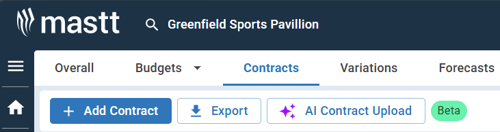
- Click AI Contract Upload (located next to the Add Contract button in the top left)
The upload panel opens.
Use AI Contract Upload when you have multiple contracts to add. For a single contract, you can use either this method or the regular Add Contract button.
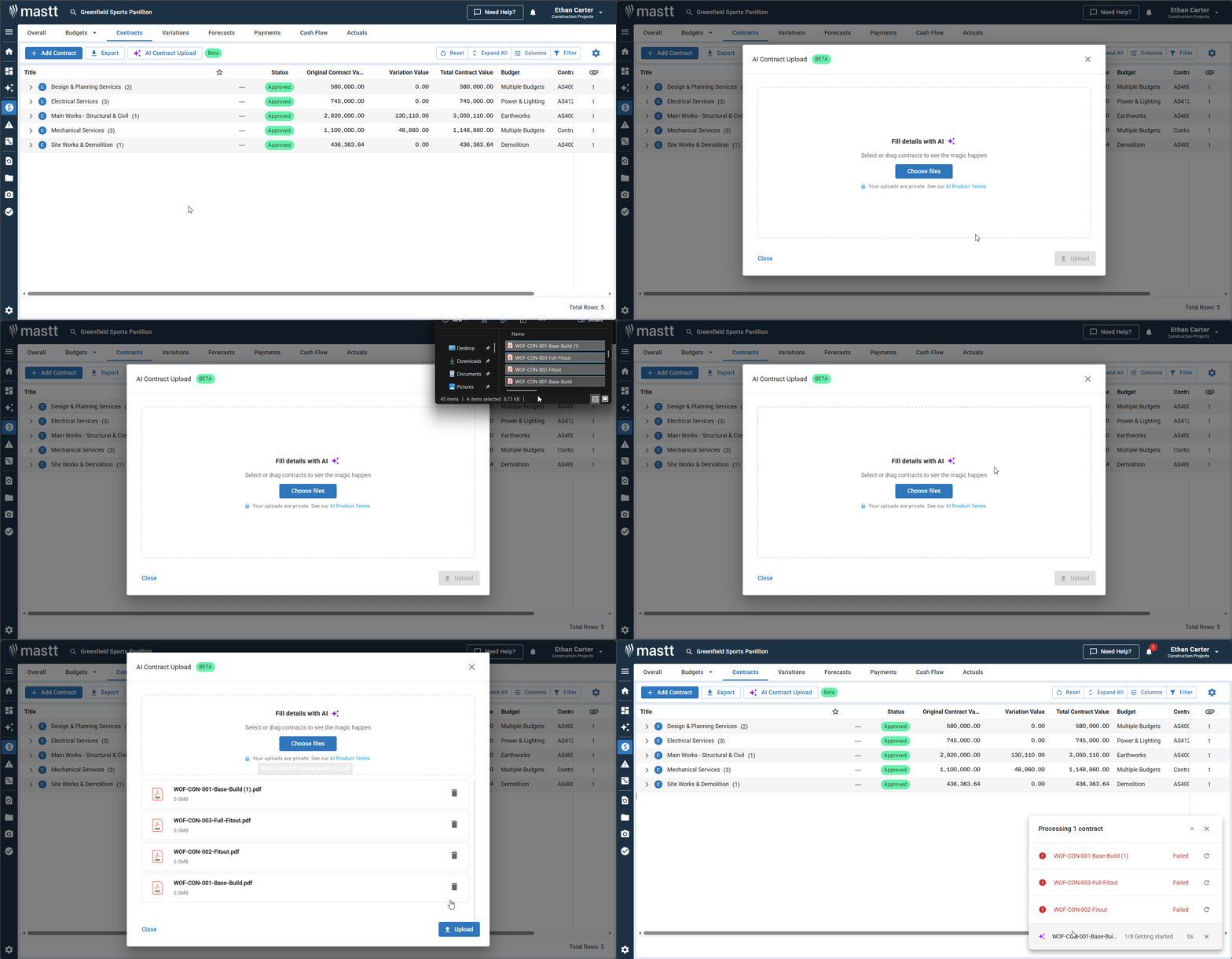
Upload Your Contract Files
- Add your contract files using one of these options:
- Drag and drop your files directly into the upload area
- Click the upload area to browse and select files from your computer
- Select all the contracts you want to upload (you can upload multiple PDFs at once)
- Click Upload to start processing
Your files begin uploading and Mastt AI starts processing them automatically.
All files must be in PDF format. The AI works specifically with PDF contract documents.
Manage Uploads in Progress (Optional)
While files are uploading, they appear in the Uploads list. You can:
- Cancel an upload: Click the X button (labelled Cancel job) next to any file still processing
- Retry a failed upload: If a file shows a Failed status, click the retry icon next to it to attempt the upload again
Uploads can fail due to file size, format issues, or connectivity problems. Retrying usually resolves temporary issues.
Verifying Your Contracts
Review Processed Contracts
Once processing completes, Mastt AI automatically:
- Extracts key details from each contract (name, parties, values, dates)
- Renames the file based on the contract name for easier searching
- Adds the contract to your Contract Register
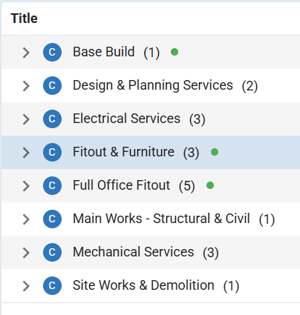
Newly added contracts display a green dot indicator in the Contract Register. This helps you identify which contracts need review. The dot disappears once you open or edit the contract.
While AI extraction is highly accurate, review each contract after processing to ensure all details are correct.
View Contract Details
- In the Uploads list, hover over an uploaded file
- Click the eye icon to locate the contract in your register
- Click the contract name to open the Contract Overview page
- Review the extracted information, key details, and contract settings
For more information about navigating the Contract Overview page, see How to View and Manage Contracts in Contract Overview.

Edit or Delete Contracts
After processing, you have full control over your contracts. You can update details, add information the AI may have missed, or remove contracts uploaded by mistake.
For detailed instructions, see: How to Edit and Delete Contracts.
Troubleshooting & FAQs
Q: Why is the AI extracting incorrect contract details?
The AI relies on clear, readable text in the PDF. Scanned documents or low-quality images may produce inaccurate results. Manually correct any errors in the Contract Overview page.
Q: Can I upload the same contract file again?
Yes, but this creates a duplicate entry in your Contract Register. Delete the duplicate if uploaded by mistake.
Need Help?
Contact Mastt Support for additional assistance with bulk uploading contracts.