
Update contract information, modify line items, manage sections, and remove contracts when needed.
Before You Start
- You need appropriate project permissions to edit or delete contracts
- Contracts linked to payments, variations, or forecasts cannot be deleted until those dependencies are removed
Editing a Contract
Open the Contract Form
- Click Cost in the left-hand navigation bar
- Open the contract form using one of these methods:
- From the Overall page: Locate the contract, click the Action button, and select Edit Contract
- From the Contracts tab: Click Contracts in the top navigation, find the contract in the register, click the Action button, and select Edit Contract
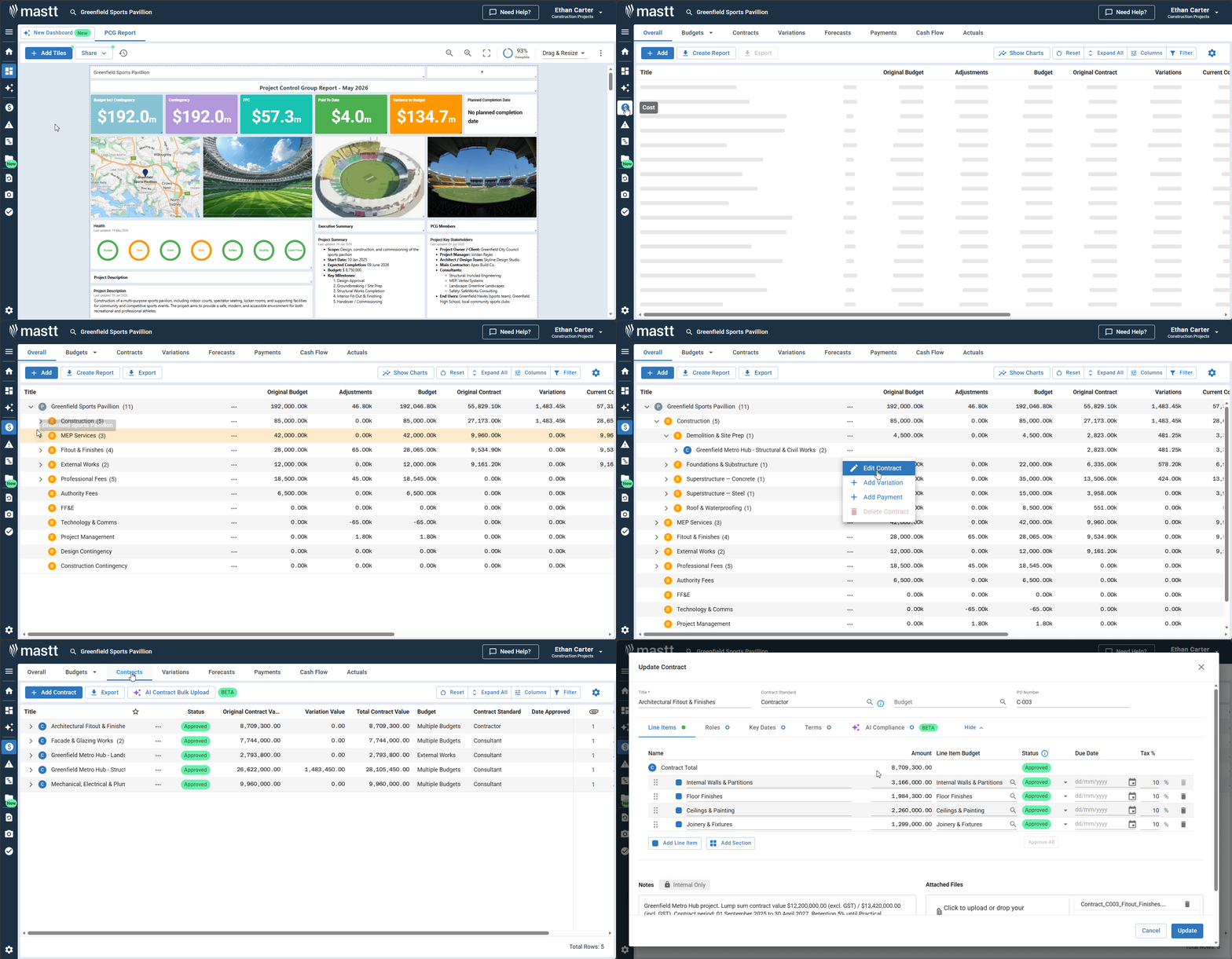
Update Contract Details
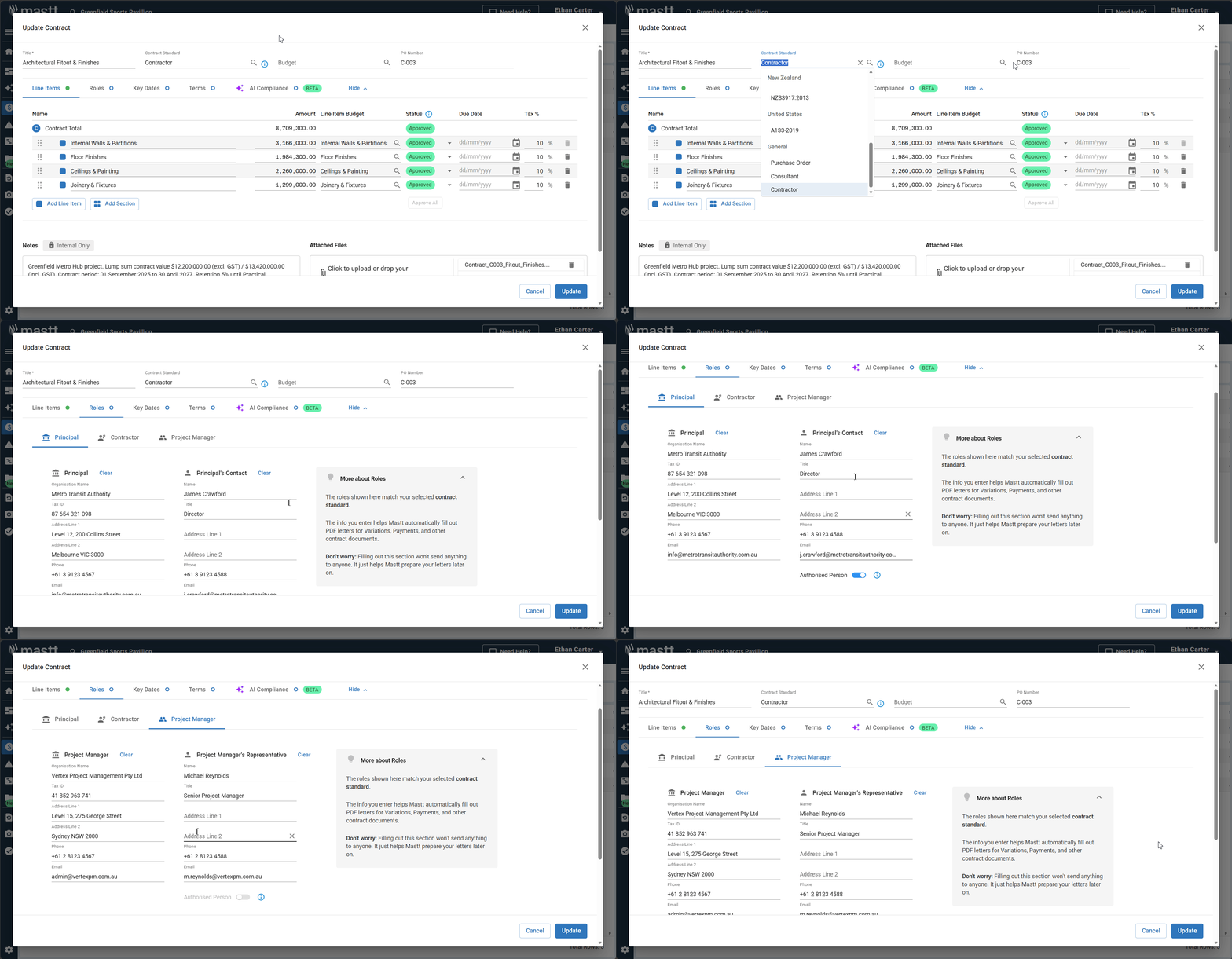
- Click into the Title field to update the contract name
- Modify the contract status, dates, and other fields as needed
- Select the correct Contract Standard from the dropdown menu
- Click the Roles tab to update the "Authorised by" field
Manage Line Items
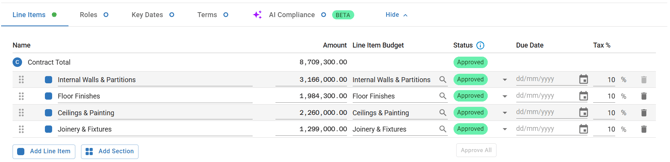
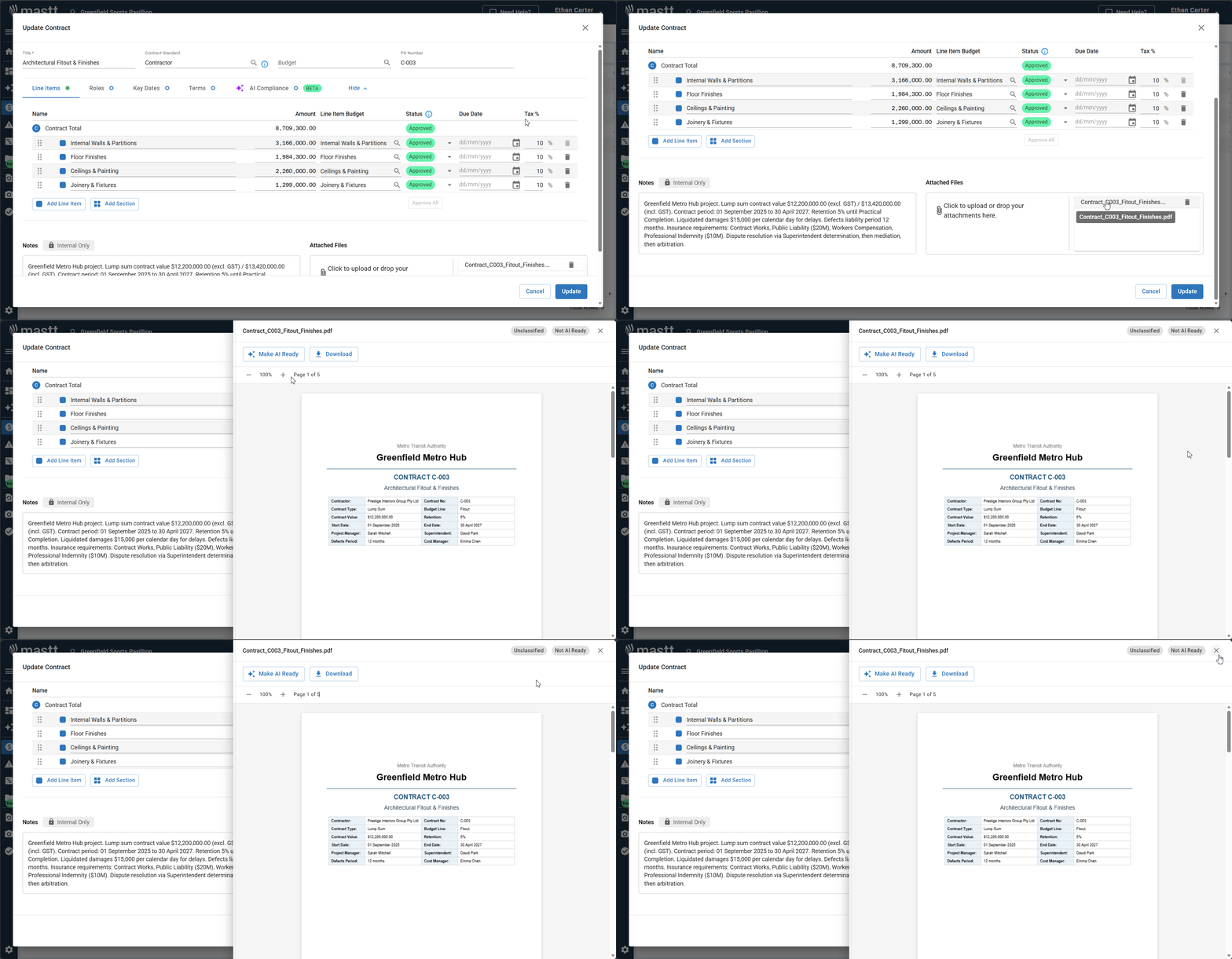
The Line Items tab displays all contract line items with their name, value, budget assignment, status, due date, and tax rate.
Edit existing line items:
- Click into any field (name, value, date, Tax %) to edit it directly in the table
- Click the Budget dropdown to reassign a line item to a different budget
Add new line items:
- Click Add Line Item at the bottom of the form
- Fill in the line item details including amount, tax rate, and budget
Remove line items:
To remove a line item, click the Trash icon on the right side of the row. You cannot delete line items linked to variations or progress claims — if the trash icon is greyed out, delete the associated variations or payments first.
Manage Contract Sections
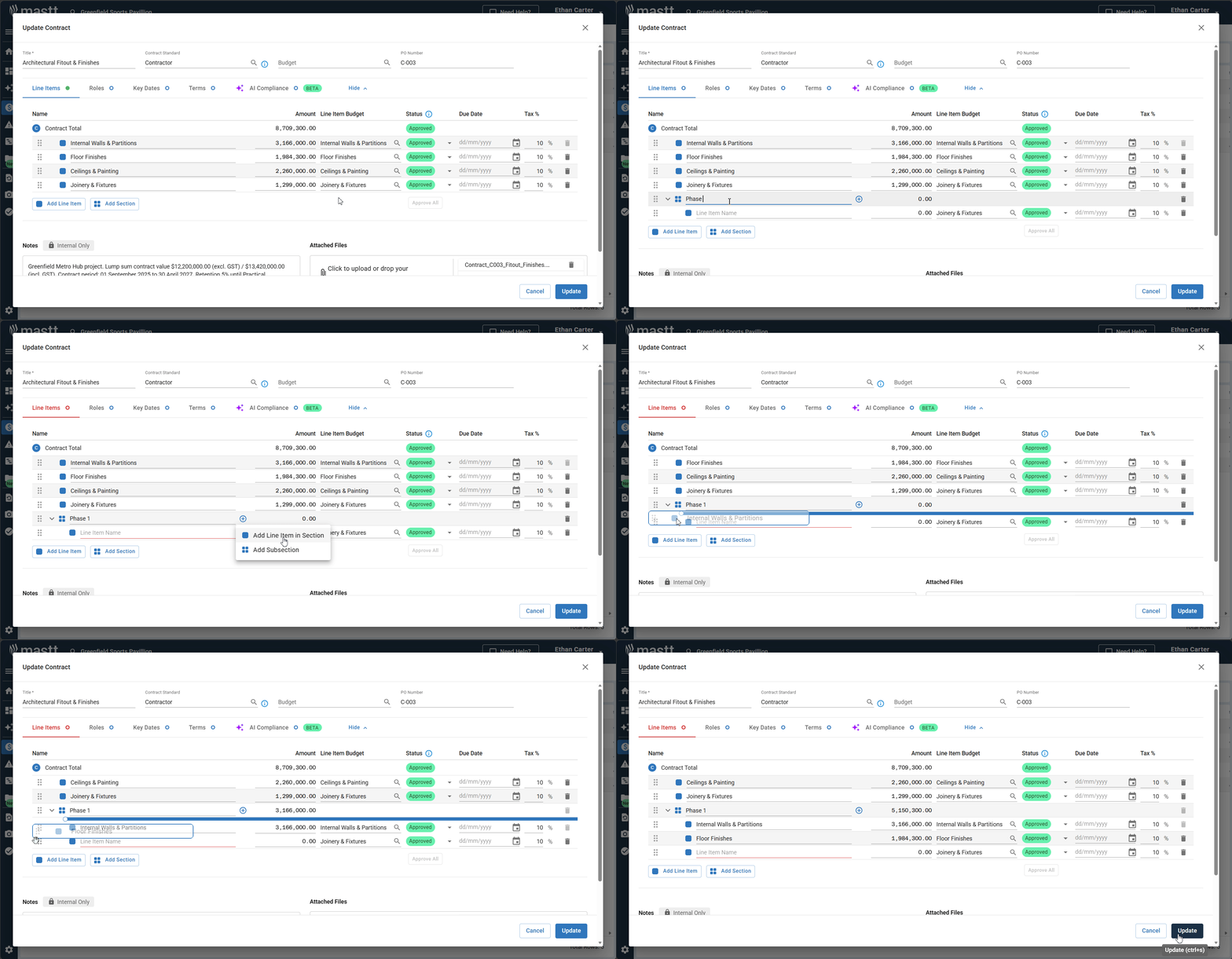
For contracts with sections or separable portions:
- Click Add Section below the contract line item details
- Name each section based on your contract portion
- Add line items to sections by clicking the + icon next to the section name, or drag existing line items into sections using the grab handle icon (six dots) on the left side
Add Notes and Supporting Documents
- In the Notes section, add internal comments explaining your changes — these are not shared externally and create an audit trail
- In the Attached Files section, click inside the box or drag and drop files to attach supporting documents
- Click on any uploaded file to open the Documents preview panel — a side panel opens to the right of the form displaying the full document
- Click Ask AI to query the document, Make AI Ready to process it for AI use, or Download to save a copy
- Use the zoom controls (-/+) and page navigation to browse through multi-page documents
- The preview panel shows the document's classification and its AI Ready status
Save Your Changes
- Click the blue Update button in the bottom right corner — a confirmation message will appear once your contract has been saved
- All changes are visible immediately in your project
Deleting a Contract
- Click Contracts in the top navigation to open the Contracts register
- Find the contract you want to delete
- Click the Action button next to the contract
- Select Delete Contract from the dropdown menu
- Confirm by clicking the red Delete button in the confirmation pop-up
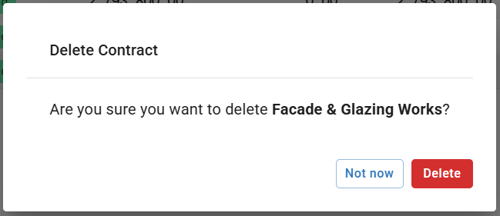
Deletion is permanent and cannot be undone. You cannot delete contracts linked to payments or variations — remove all associated records first.
Troubleshooting & FAQs
Q: Why can't I delete a line item or contract?
The item is linked to existing variations, progress claims, or payments. Remove the associated records first, then retry the deletion.
Q: Can I undo a contract deletion?
No. Deletion is permanent. If you accidentally delete a contract, you will need to recreate it manually.
Need Help?
Contact Mastt Support for additional assistance with contract management.