
The AI Dashboard Creator lets you build dashboards by describing what you need in plain language. Type a prompt, select the number of pages, and the AI generates the tiles, layout, and configurations automatically.
Before you start
- Have your dashboard requirements ready. Know what metrics, reports, or data you want to track so you can write a clear prompt.
- The AI Dashboard Creator works best when your project has data in the relevant modules (Cost, Risk, Schedule, etc.) so the generated tiles can display meaningful information.
Create your dashboard
Open the AI Dashboard Creator
- Navigate to your project. If this is your first dashboard, the AI Dashboard Creator opens automatically.
- If you already have dashboards, click New Dashboard in the top-left corner, then choose Create with AI.
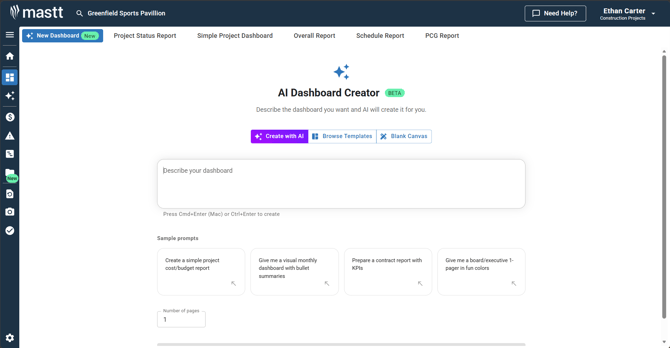
The other options are Browse Templates and Blank Canvas.
Describe and generate your dashboard
- In the prompt field, type a description of the dashboard you want. Be as specific or general as you like.
- If you're not sure what to type, select from the sample prompts provided. These give you pre-written descriptions you can use or modify.
- Select the number of dashboard pages below the prompt field.
- Click Create Dashboard.
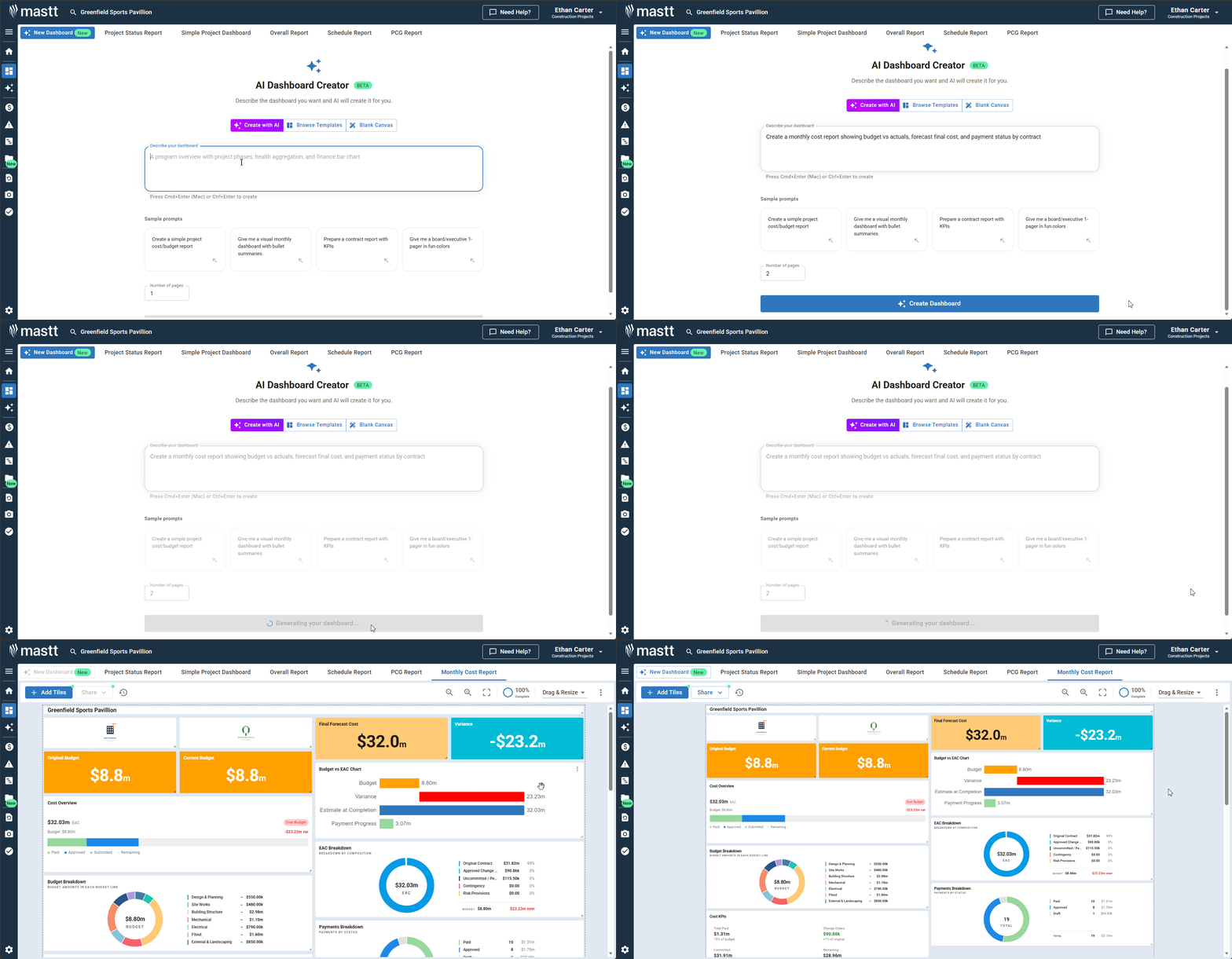
The AI builds your dashboard and auto-saves it. This usually takes a few moments.
Review and customise your dashboard
Rearrange and resize tiles
- Drag tiles to reposition them on the dashboard.
- Drag tile edges to resize them.
Use the tile action menu
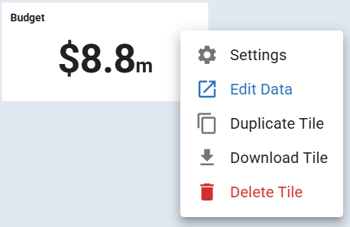
Click the Action button on any tile to access options such as:
- Settings
- Edit Data
- Duplicate Tile
- Download
- Delete
Add more tiles
- Click + Add Tiles to open the Tile Library.
- Browse and add additional tiles to your dashboard.
All changes are saved automatically.
Use the dashboard action menu
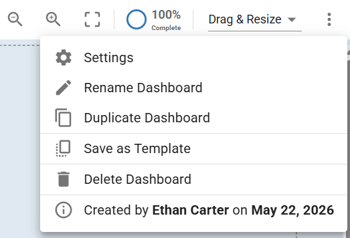
The dashboard itself has an Action menu with options for managing the entire dashboard. Click the Action button in the top-right corner of the Dashboard to open it.
| Option | What it does |
|---|---|
| Rename | Gives the dashboard a more descriptive name |
| Duplicate | Creates a copy of the dashboard |
| Save as Template | Saves the layout for reuse across other projects |
| Delete Dashboard | Removes the dashboard if no longer needed |
Tips for better results
Be specific about your needs
Mention the report type, audience, or key metrics you want to track. For example, "monthly cost report for the executive team" gives the AI more to work with than just "cost dashboard."
Use Mastt terminology
The AI understands Mastt's modules and features. Terms like "budget breakdown," "variation status," "payment progress," "risk matrix," or "cash flow forecast" help generate more accurate results.
Start broad, then refine
If the generated dashboard isn't quite right, manually adjust individual tiles rather than starting over. Change tile settings, swap out tiles, or rearrange the layout to suit your needs.
Troubleshooting and FAQs
The AI created a dashboard but some tiles show no data. What should I do?
Tiles display data from your project's modules. If a tile is empty, that module likely doesn't have data entered yet. Add data to the relevant module (e.g., Cost, Risk, Schedule) and the tile will populate automatically.
Can I use the AI Dashboard Creator to modify an existing dashboard?
No. The AI Dashboard Creator is for creating new dashboards only. To modify an existing dashboard, use the standard editing tools: rearrange tiles, adjust settings, or add new tiles from the Tile Library.
How is this different from using a template?
Templates give you a pre-built layout to customise. The AI Dashboard Creator builds a custom dashboard from scratch based on your specific description, choosing and configuring tiles to match your needs.
Need help?
Contact Mastt Support for additional assistance with the AI Dashboard Creator.