
The Contract Overview page is your centralised hub for managing all aspects of a contract in Mastt. From here, you can view contract details and roles, track variations, manage payments, review audit logs, and store documents, all in one place. You can also favourite contracts for quick access from your Home page.
Before you start
Contracts must already exist in your project to view Contract Overview.
Open Contract Overview
- From the Mastt Home page, click a project tile to open your project.
- Click Cost in the left navigation bar.
- Click Contracts in the top navigation bar.
- Click the contract name to open Contract Overview.
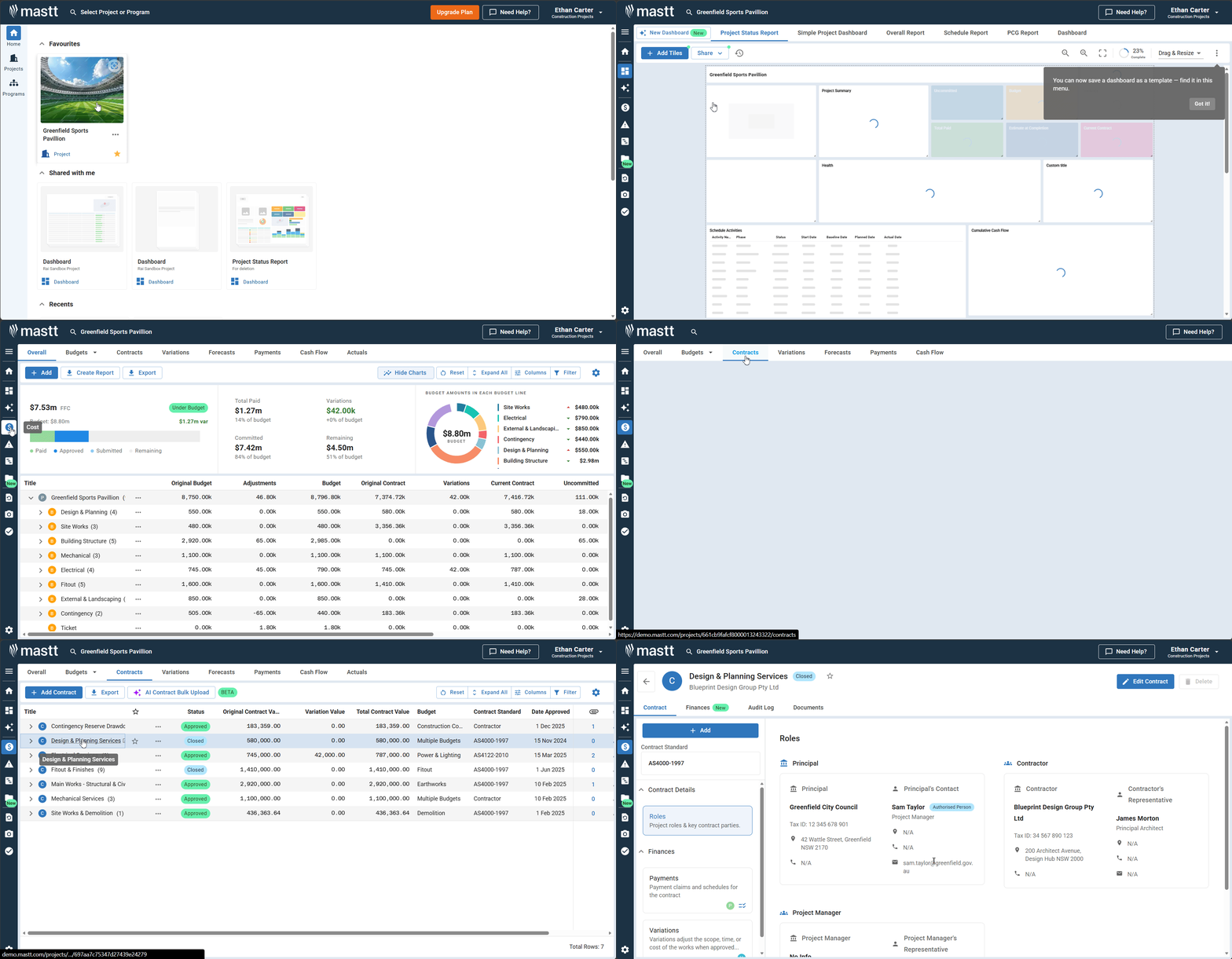
Contract Overview tabs
Contract Overview has seven tabs, each focusing on a specific aspect of contract management.
| Tab | What it shows |
|---|---|
| Overview | The contract standard and the roles of the contract parties (the default view) |
| Finances | Your contract financial breakdown |
| Variations | The contract's variations, with an add button |
| Payments | The contract's payments, with Add Payment and Letters |
| Compliance | The AI Payment Review Checklist for the contract |
| Documents | All files related to the contract |
| Audit Log | A read-only history of changes to the contract |
Overview tab
The Overview tab is the default view when you open Contract Overview. It shows the contract's Roles: the Contract Standard and a card for each contract party.
Click the + Add button to quickly add a Variation or Payment to the contract.
| Section | What it shows |
|---|---|
| Contract Standard | The contract type used for this agreement. It is set during contract creation and determines the available fields and document templates. |
| Roles | A card for each contract party (for example Client, Consultant and Project Manager) showing the party and its Representative, Tax ID, address, phone and email. Role information is populated during contract setup. To update roles, click Edit Contract in the upper right corner and go to the Roles tab. A Contract Standard must be set for this option to be available. |
To work with the contract's payments, variations and AI Compliance checklist, use the Payments, Variations and Compliance tabs. See How to Add Payments and How to Add Variations for details.
Finances tab
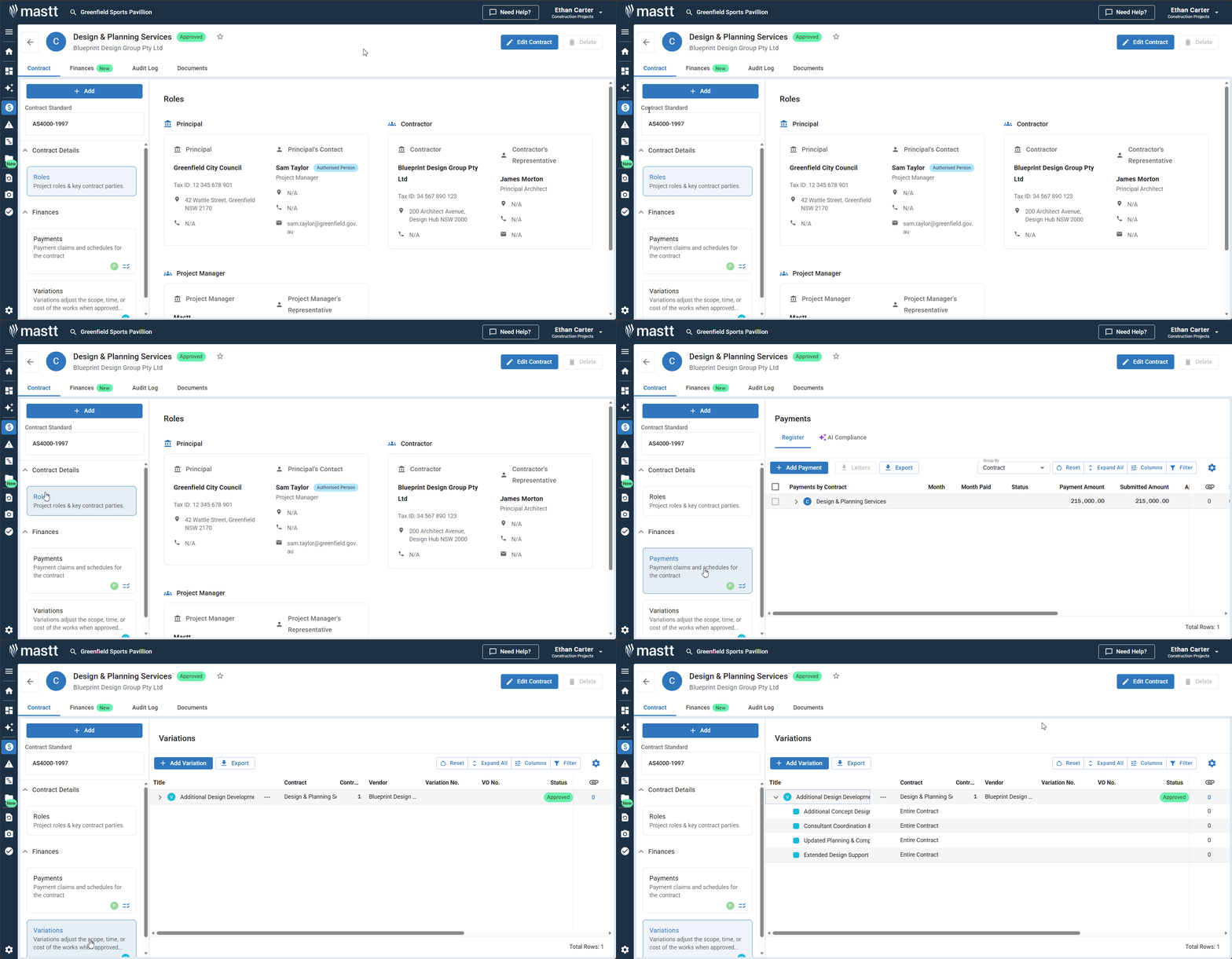
The Finances tab displays your contract financial breakdown. Click + Add to add a new variation or payment, or click Export to export the data. Click the expander arrow next to any parent item to view its child items.
Toggle between two views using the toolbar:
| View | What it shows |
|---|---|
| Default View | Your contract line items with cost and variation details |
| Payment View | A payment-focused breakdown with individual payment columns and status badges |
Use the Variation Display dropdown to control how variations appear:
| Option | What it does |
|---|---|
| Group at Bottom | Lists all variations together at the end of the table |
| Show Inline | Shows variations under their related line items |
| Hide Variations | Shows only the original contract values |
The toolbar also includes Reset, Expand All, Columns, and Filter options to customise the table layout.
Variations tab
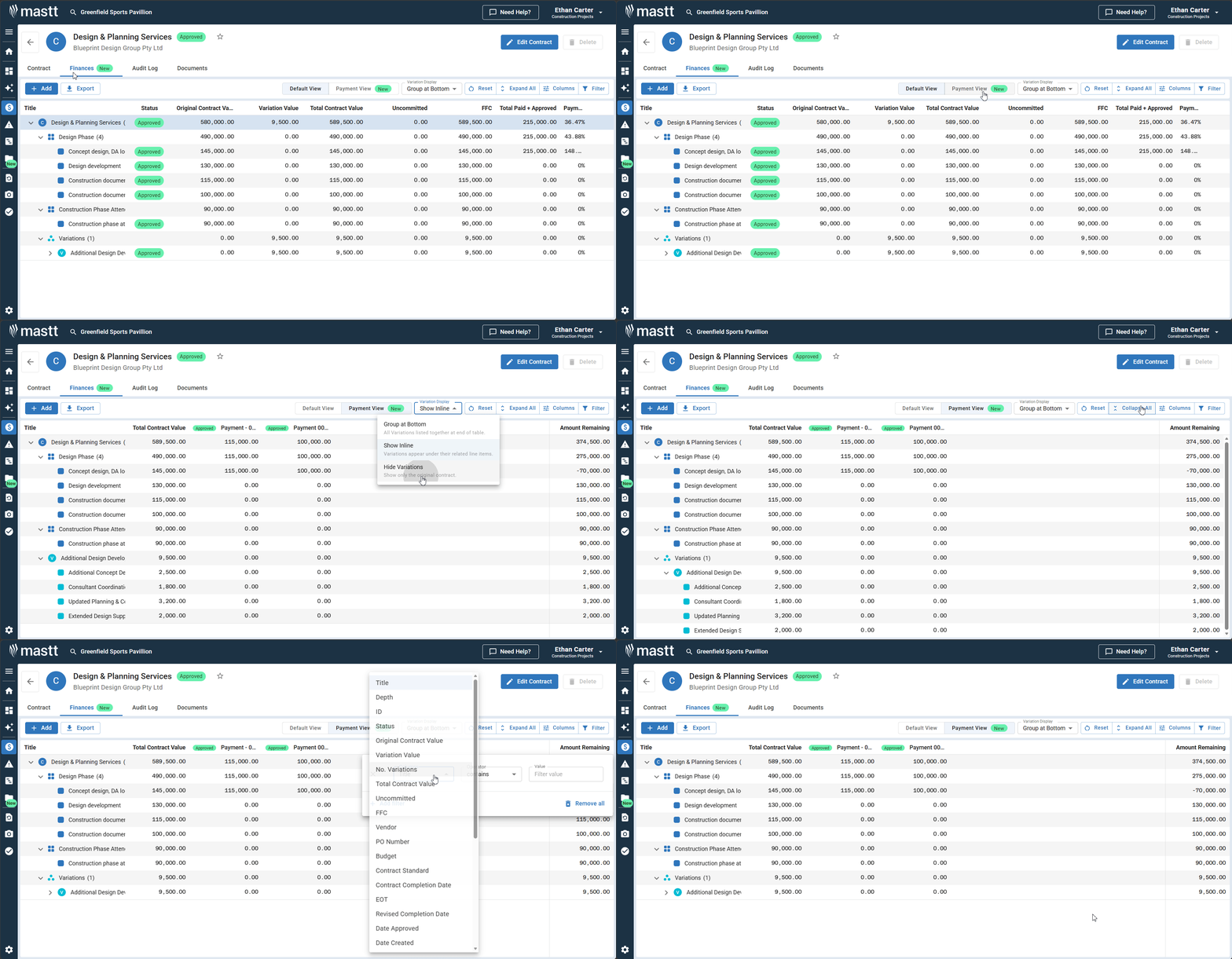
The Variations tab is the Variations register, focused on this contract. Click + Add Variation to add one, or Export to export the table. Click the expander arrow beside a variation to see more, and use the three dots beside it for more actions.
The table shows these columns:
| Column |
|---|
| Title |
| Contract and Contract Variation No. |
| Vendor |
| Variation No. and VO No. |
| Status and Category |
| Variation Amount |
| Budget |
The toolbar includes Reset, Expand All, Columns, Filter and a settings cog.
Payments tab
The Payments tab is the Payments register, focused on this contract. Click + Add Payment to add one, or Export to export the table.
To create letters, tick one or more payments and click Letters. The button is greyed out until you select a payment. Use the Group By dropdown to change how payments are grouped.
The table shows Month, Month Paid, Status, Payment Amount, Submitted Amount, Approved Contract, Value Completed, % Complete and Previous Payments, along with the payment due date and the number of attached files. The toolbar includes Reset, Expand All, Columns, Filter and a settings cog.
Compliance tab
The Compliance tab shows the AI Payment Review Checklist for the contract, with the number of items. For each check it shows:
| Column | What it shows |
|---|---|
| # | The item number |
| AI Check | The check and a short description of what it confirms |
| Category | The type of check, for example Contract Payment Terms, Progress Verification or Tax Compliance |
| Reference | The part of the contract the check comes from |
The page notes that the AI-assisted assessment is provided "as is", may contain errors, and is not a substitute for professional review. Verify all outputs with a human expert before use. For how the checklist is built and used, see How to Use AI Compliance for Contracts and Payments.
Documents tab
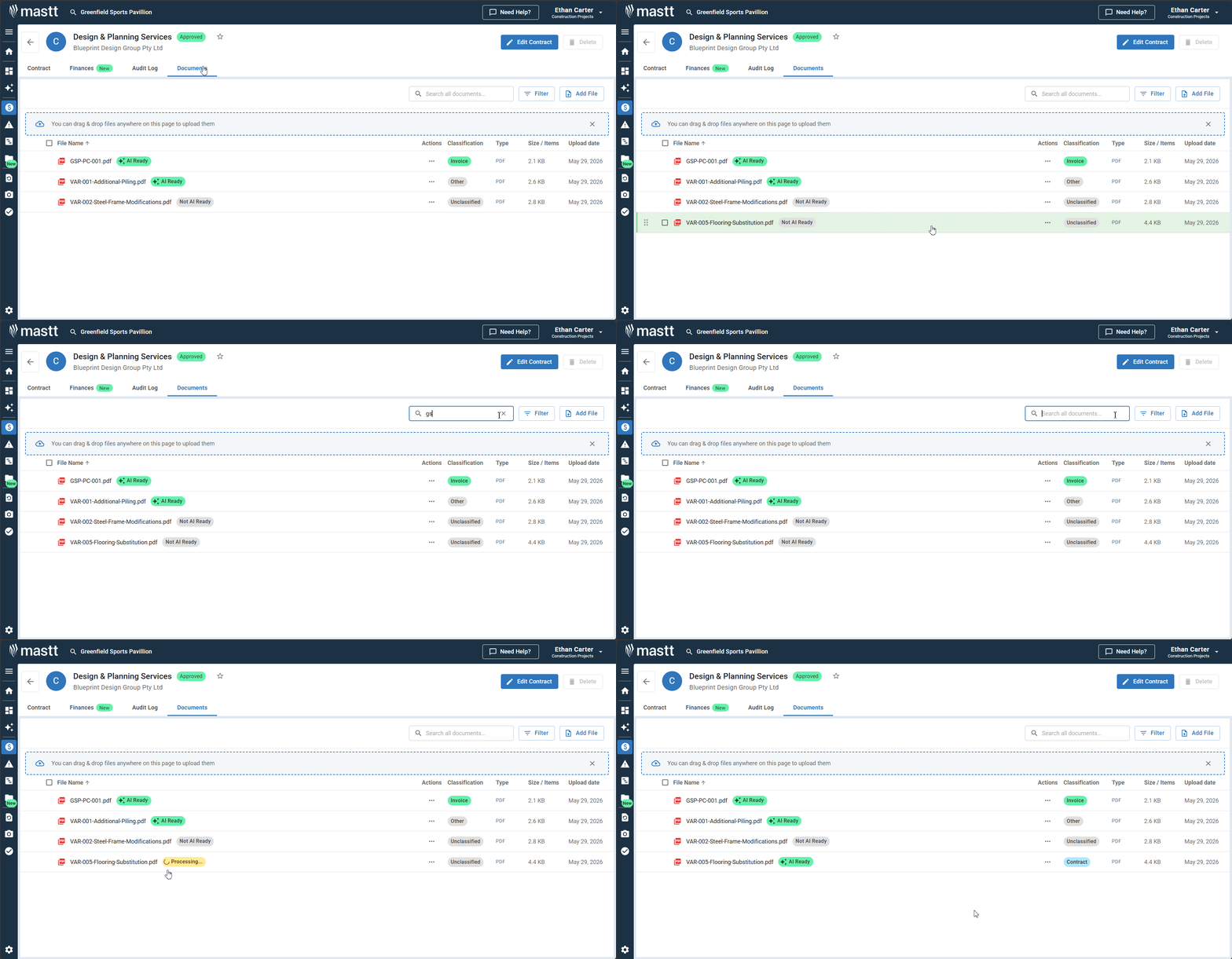
The Documents tab lets you store, organise, and manage all files related to the contract.
- Click + Add File or drag and drop files anywhere on the page to upload documents.
- Use the Search all documents... bar to find specific files, or click Filter to narrow results.
- Click the Action button on any document to Download or Delete it.
For more details on managing documents, see How to Use the Documents Module.
Audit Log tab
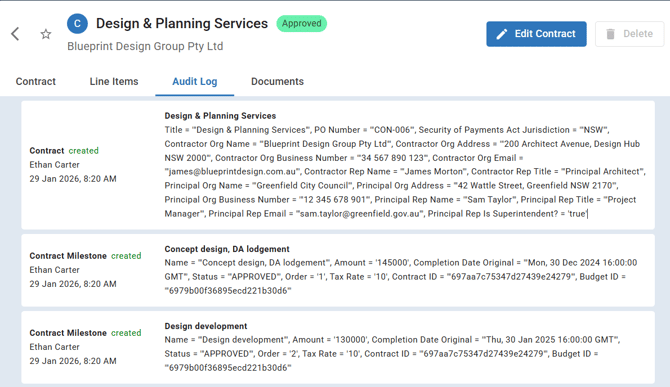
The Audit Log tab provides a complete read-only history of all changes made to the contract, including who made changes, when, and what was modified. This is useful for compliance, dispute resolution, or internal auditing.
Work with tables
Each tab displays data in a table format with customisable viewing options.
- Click the action button on any column header to sort, pin, filter, or hide columns.
- Use the toolbar to reset views, customise columns, apply filters, or export data.
- Click the settings icon (cog) to adjust decimal places and denomination options. This option is only available when the tab contains values.
Edit or delete a contract
From the Contract Overview page:
- Click Edit Contract (upper right) to update contract details, including roles.
- Click Delete (upper right) to remove the contract.
To return to your contract list, click the back arrow.
Note: You cannot delete a contract that has associated payments or variations. Remove these items first before deleting the contract.
Favourite contracts for quick access
Favourite contracts appear on your Mastt Home page for one-click access.
Favourite from Contract Overview
Open the Contract Overview page and click the star icon next to the contract name in the header. The contract is now favourited and will appear on your Home page.
Favourite from the contract list
Go to your contract list in the Cost module and click the star icon next to any contract. There is no need to open Contract Overview.
Unfavourite a contract
Click the star icon again to remove it from your Home page.
Troubleshooting and FAQs
Why can't I delete a contract?
Contracts with associated payments or variations cannot be deleted. Remove these items first, then delete the contract.
Who can see the Audit Log?
All users with access to the contract can view the Audit Log. It's read-only and cannot be edited.
Need help?
Contact Mastt Support for additional assistance with Contract Overview.