
Mastt's navigation system helps you quickly access your projects, programs, and key features. Understanding the core navigation structure ensures you can find what you need efficiently and make the most of your construction project management platform.
Start from the Home page
When you first log in to Mastt, you land on your Home page showing all assigned Projects, Favourites, and any dashboards shared with you in the Shared with me section. The main navigation provides access to your assigned projects, programs, and account settings.
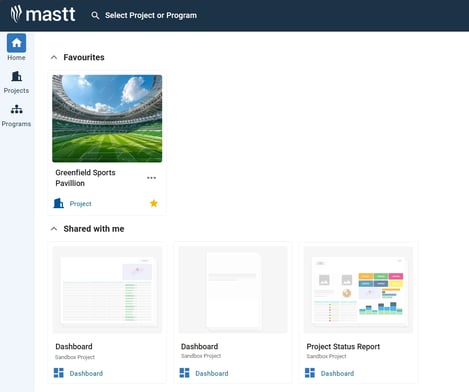
Key navigation areas
| Area | What it does |
|---|---|
| Projects | Your central hub for accessing all assigned construction projects. Click Projects in the left side navigation to view all your project tiles in an organised format. |
| Programs | Click Programs in the left side navigation to see your program-level view. It shows all your assigned programs in a similar tile format to projects, allowing you to manage multiple related projects together. |
| My Profile | Manage your account settings and personal preferences. |
Projects
From the Projects page you can:
- Click any project tile to access that project.
- Use the Quick Links (...) next to each project for quick shortcuts and additional options.
- Click the star icon below the quick links button on a frequently accessed project to add it to your Favourites.
Tip: If you can't see projects you expect to have access to, ask your Workspace Admin to add you. See How to Manage User Access and Permissions for details.
Open My Profile
- Click your name in the top right corner of the screen.
- Select My Profile from the dropdown menu.
- Navigate to your account information and preferences.
Project-level navigation
Once inside a specific project, the left side navigation bar becomes your gateway to all major modules.
| Module | What it does |
|---|---|
| Dashboard | View customisable dashboards and key project metrics |
| Cost | Track financial information, budgets, and expenses |
| Risk | Log and monitor project risks and mitigation strategies |
| Schedule | Manage project timelines and track milestones |
| Docs | Store and manage project documentation and files |
| Audit Log | Review all project changes and modifications |
| Snapshots | Access historical project data and previous versions |
| Tasks | Create, assign, and track project tasks and deliverables |
| Settings | Configure project preferences and setup options |
Getting started tips
Familiarise yourself with project tiles
Each project tile shows key information and status indicators to help you quickly identify the right project.
Use the quick links efficiently
The three-dot (⋮ or ⋯) action menu provides shortcuts to common tasks without navigating into the full project.
Check your permissions
If navigation options are missing, verify your access permissions with your workspace administrator. See Understanding User Permissions in Mastt for more information.
Customise your dashboard
Once in a project, set up your Dashboard module to show the metrics most important to your role.
Need help?
Contact Mastt Support for additional assistance with navigation and getting started.