
This guide covers the essential workflow for creating contracts, managing payments, and issuing payment certificates in Mastt. Use this process to maintain financial control, ensure compliance with contract terms, and track payment milestones throughout your construction projects.
Before you start
- Have your contract documents and payment details ready.
- You need access to the Cost module in your project.
Set up your contract
- Navigate to your project and click Cost in the side navigation bar.
- Click the + Add button and select Add Contract.
- Complete all required fields in the contract form manually, or click Upload File (or drag and drop your file) to have Mastt AI extract the key details automatically.
- Add relevant documents or comments in the sections at the bottom.
- Click Add to create the contract.
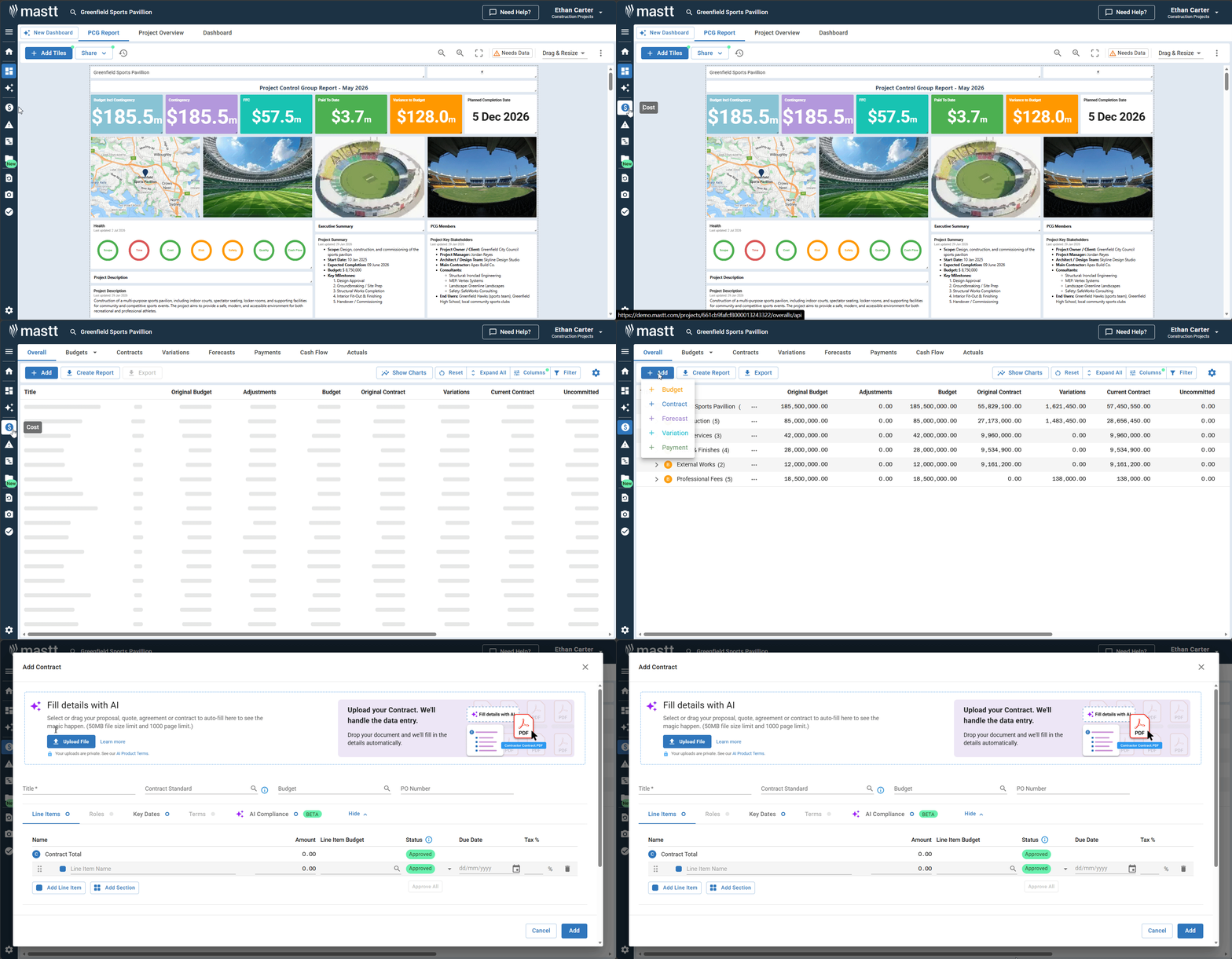
Tip: You can also add a contract directly from a budget item by clicking the Action button next to the budget item and selecting Add Contract. For a detailed guide on AI-assisted data entry, see How to Use AI Pre-Fill for Contracts and Payments.
Add a payment
- On the Overall page, expand your budget to find the contract, then click the Action button next to it.
- Select + Add Payment.
- Complete the payment details manually, or click Upload File (or drag and drop your file) to have Mastt AI extract the key details automatically.
- If you entered details manually, complete the fields in the table below.
- If you uploaded a file, review the pre-filled data and verify the details are correct before proceeding.
- Add notes and attachments using the available options.
- Click Add to submit your payment record.
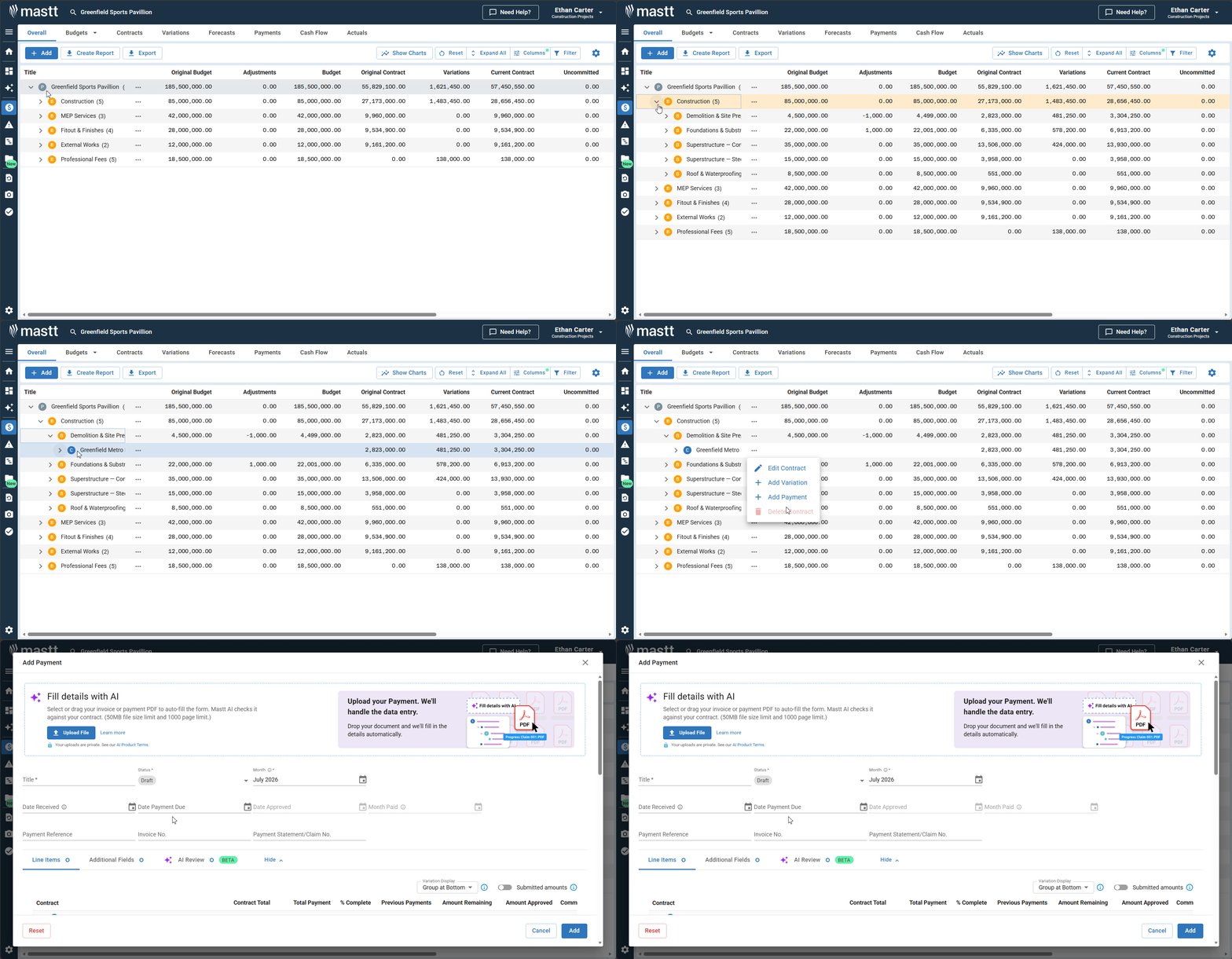
| Field | What to do |
|---|---|
| Date Received and Date Payment Due | Enter both dates. |
| Date Approved and Month Paid | These fill in automatically when you change the status to Approved or Paid. |
| % Complete or Period Amount | Use either field to record payment amounts. |
| Additional Field section | Fill in any additional required fields. |
Tip: You can also add a payment from the Payments section by clicking + Add Payment. If you use this method, click + Add Contract in the form to link the payment to the relevant contract.
Generate payment certificates
- Navigate to the Payments register.
- Click the Action button beside the relevant payment.
- Select one of the available PDF options (see the table below).
- If prompted, select any available attachments to include, or click Continue without attaching files.
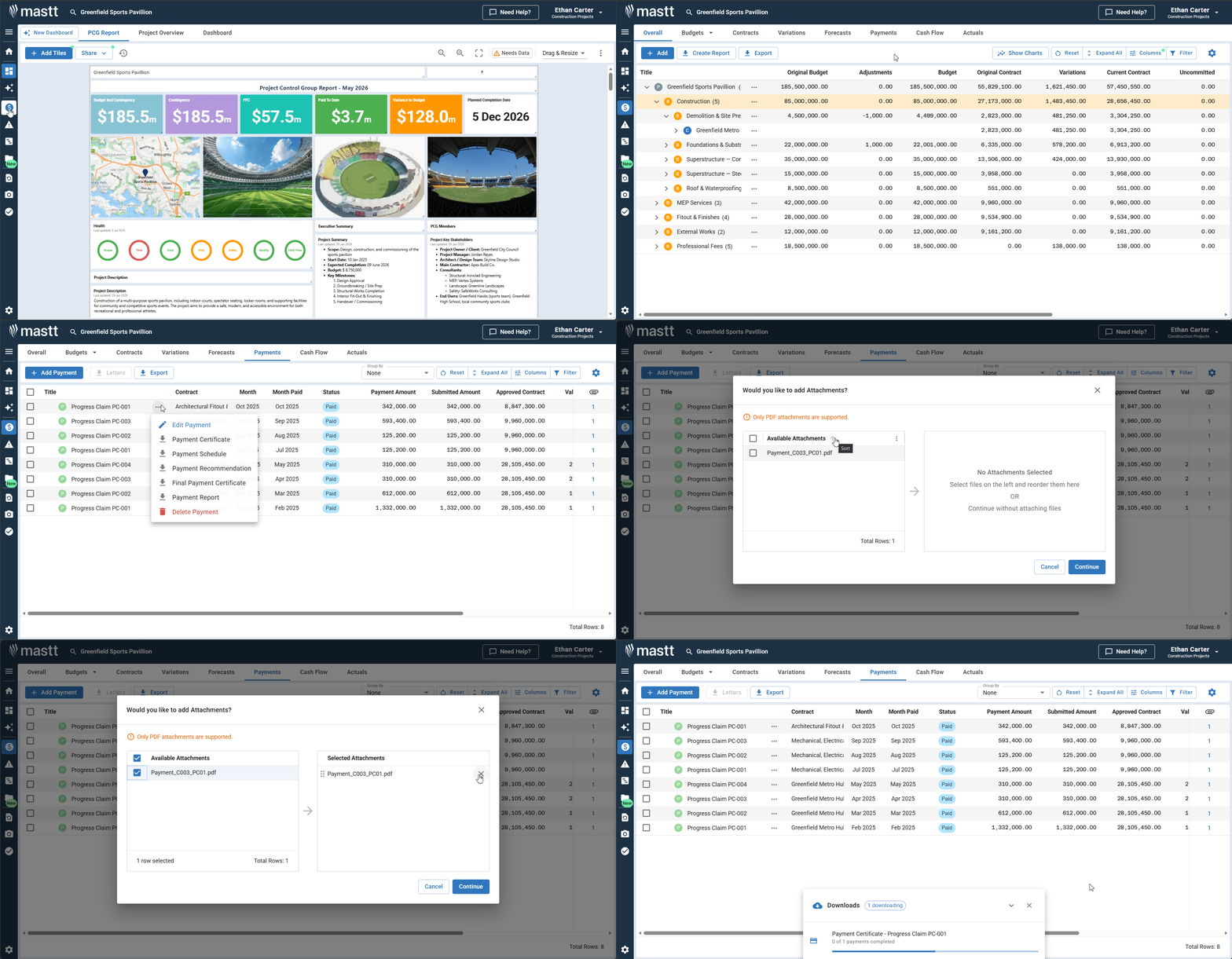
| PDF option |
|---|
| Payment Certificate |
| Payment Schedule |
| Payment Recommendation |
| Final Payment Certificate |
| Payment Report |
Troubleshooting and FAQs
Why is the AI pre-fill not extracting all the details from my PDF?
Ensure your PDF is clear and not scanned at a low resolution. Mastt AI works best with text-based PDFs. Review the extracted data and manually update any missing fields.
How do I link a payment to a contract if I created it from the Payments section?
In the payment form, click + Add Contract and select the relevant contract from the list.
Need help?
Contact Mastt Support for additional assistance with contracts and payment certificates.