
Use dashboard branding to create professional, client-ready reports that reflect your company's visual identity. These options help when you prepare dashboards for client presentations or internal reporting that needs brand consistency.
Before you start
- Have your company's RGB colour codes ready.
- Have your logo file ready to upload (PNG or JPG format recommended).
Note: Dashboard tile layout changes (moving, resizing, adding, and removing tiles) are autosaved. However, edits made inside tiles, such as rich text content, fonts, and colours, must be saved manually by clicking Save.
Customise tile colours
Change the colour of a KPI tile
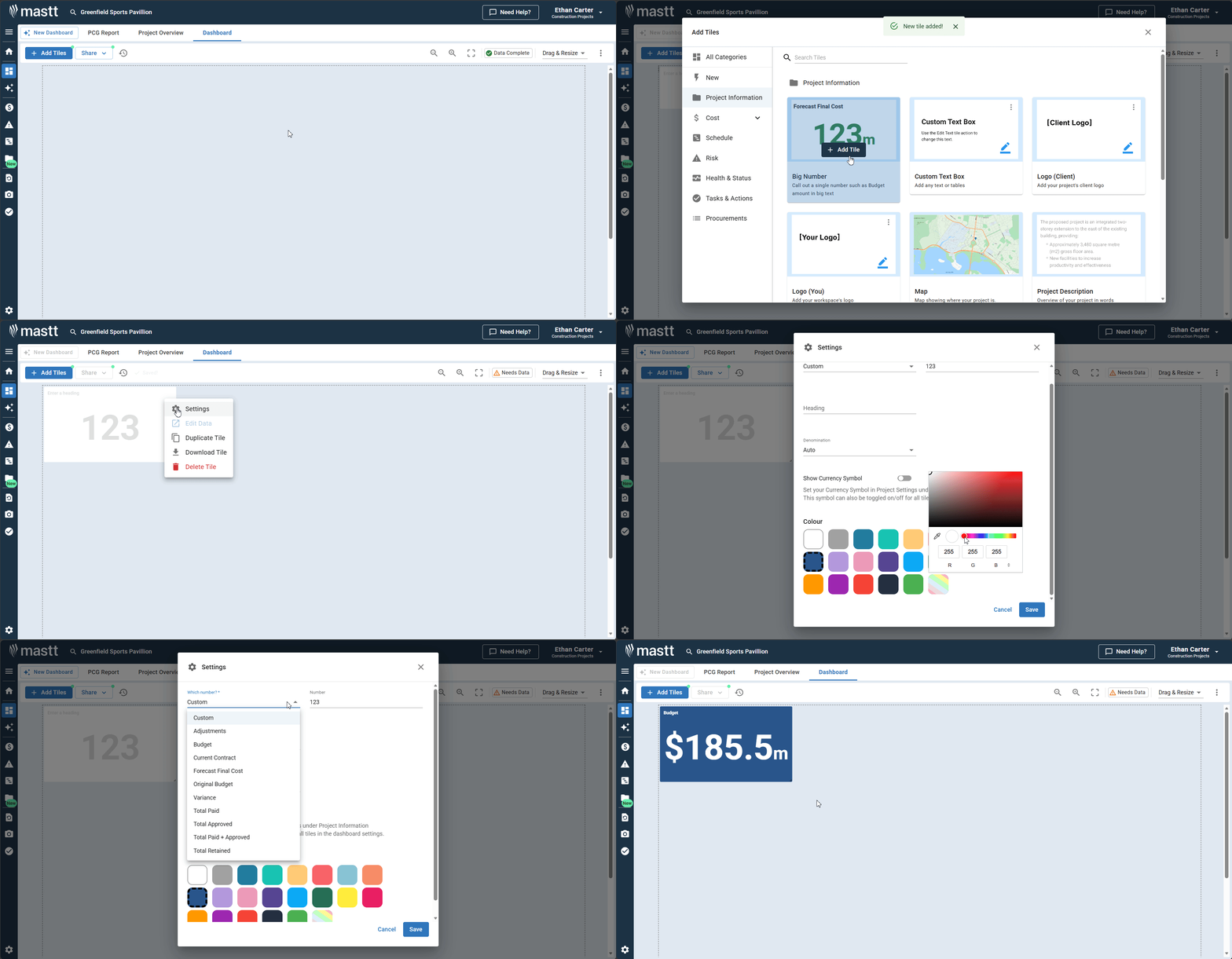
- Click + Add Tiles in the upper left and select a KPI tile.
- Click the Action button on the tile (upper right corner).
- Select Settings and choose Colour.
- Enter your brand's RGB values using the custom colour selector, or select from the preset colours.
- Click Save to apply.
Create a colour block using rich text
- Click + Add Tiles in the upper left and select a Custom Text Box tile.
- Click the Action button on the tile.
- Select the background colour option.
- Enter your RGB code using the custom colour selector.
- Leave the text field empty to display a solid colour block, or add content to show text within the block.
- Click Save to apply.
Set up brand assets
Upload your company logo
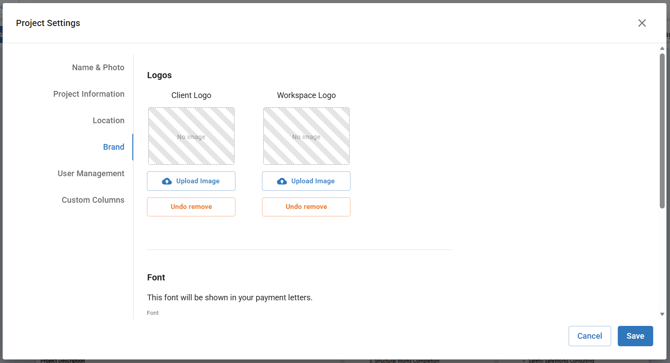
- Click Settings in the side navigation bar to open Project Settings.
- Select Brand from the left-hand menu.
- Under Logos, click Upload Image beneath the logo you want to add (see the table below).
- Choose your logo file and confirm the upload.
- Click Save to apply.
| Logo | Use it for |
|---|---|
| Client Logo | Your client's branding |
| Workspace Logo | Your own company branding |
Change the letter font
- In the Brand settings, scroll down to the Font section.
- Select your preferred font from the dropdown. This font is used in your payment letters and variation letters. It does not change the font on dashboards.
- To change the numbers in your letters, select a Number font and set the number size.
- Click Save to apply.
Create a custom cover page
- Add a new Rich Text tile to your dashboard.
- Resize the tile to span the full-page width.
- Click the Action button on the tile and select Edit text.
- Click the table icon to add a table with your desired number of columns and rows.
- In each table cell, add your content: company name, project details, images, logos, or contact information.
- Customise fonts and formatting within each cell.
- Click Save when your cover page is complete.
Finalise your branded dashboard
- Review your cover page layout. Any tile arrangement changes are autosaved.
- Build your dashboard content from page 2 onwards.
Set report orientation (optional)
- Click the Action button in the top-right corner of your dashboard.
- Select Settings and choose Portrait from Print Orientation to switch from landscape layout.
- Allow dashboard elements to rearrange automatically.
Tip: For detailed report formatting options, see How to Set Dashboard Reports to Portrait.
Troubleshooting and FAQs
| Question | Answer |
|---|---|
| Why don't my colours match exactly? | Double-check your RGB values and use the custom colour selector rather than preset options. |
| Why does my logo appear pixelated? | Upload a higher-resolution image file (minimum 300px width recommended). |
Need help?
Contact Mastt Support for additional assistance with dashboard branding.